|
Welcome back to the A+ Investor Getting Started series. Recently, I took a step back to see the topics we’ve covered so far, and I was surprised to see that I hadn’t really covered mutual funds or exchange-traded funds (ETFs). With this installment, I aim to correct that.
For fund investors—mutual funds and ETFs—a primary challenge they face is selecting and pruning their holdings.
Investors are naturally drawn into seeking out funds with strong performance without necessarily comparing how their holdings performed against other funds and ETFs.
However, you have to be careful not to just chase strong absolute performance. “Strong” performance by a fund could only be “average” performance relative to other funds in its category.
It’s more revealing to see how a fund has performed within its category to help separate strong performers from weak performers.
You also can’t just focus solely on return, as fund managers can take on extra risk hoping to boost their returns to bring in more investors.
As an A+ Investor, you have access to the mutual fund and ETF screeners, which have been designed to help you identify funds by factors such as their investment objective and style, relative return performance within their category, their absolute and relative costs, absolute and relative volatility, manager tenure, fund family and purchase constraints.
The results of the screen, or filter, are displayed in a table and you can further research the passing funds, compare them against other funds and add them to a new or existing portfolio. These screens can be saved for use at a later time, and you can even take one of our predefined fund screens, modify it and save it as your own.
In this email, I will introduce you to our fund screeners by walking through creating and saving a basic mutual fund screen. I have $20,000 to invest and am looking for a large-cap growth fund to fill a hole in my asset allocation plan.
First, let’s begin by going to the Funds+ Screener (www.aaii.com/funds/screener). You can find the dedicated ETF screener by visiting www.aaii.com/etfs/screener.
You can select and modify the screener criteria for both screeners at the Filter Menu at the left side of each screener’s page (the image below is for the Funds+ Screener):
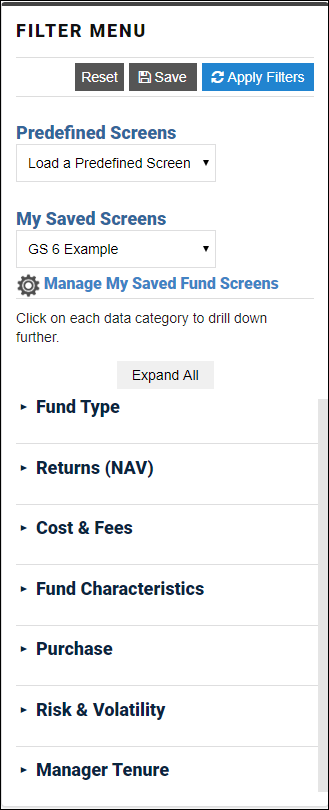
You can access the 16 predefined mutual fund screens (8 predefined ETF screens) from the Predefined Screens drop-down menu. If you have created and saved your own screens, you can load them from the My Saved Screens drop-down menu.
However, here I am going to walk you through the available data categories for creating your own mutual fund screen. Please note that clicking on any of the categories reveals the expanded criteria available within each category.
Fund Type
When deciding what kind of funds to look for, you have three levels to choose from. Global Asset Class, Fund Group and Category. For the sake of this screen, which will look for funds invested in large-cap U.S. growth stocks, I make the following selections:
- Global Asset Class: Equity
- Fund Group: U.S. Equity
- Category: Large Growth
Since I am indifferent when it comes to whether the fund is socially responsible or an index fund, I keep the respective slider bars in their middle positions.
Returns (NAV)
The NAV return of a fund is calculated based on the daily net asset value (NAV) of the fund reported after the stock market’s close each trading day. The NAV represents the total assets minus total liabilities divided by outstanding shares. The value changes daily with the fluctuation of assets based on market value. Mutual fund NAVs are calculated daily after the market close. ETFs report NAV, but they also trade intraday and their trading price may deviate from the NAV value. In this example, I am looking at a traditional open-end mutual fund.
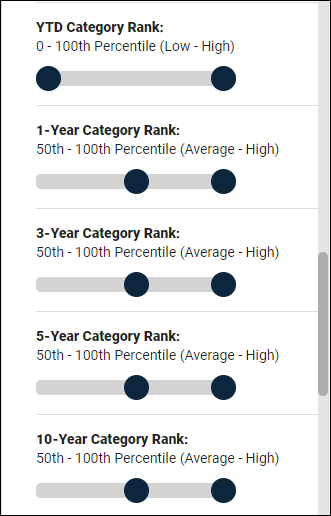
Here I focused on trailing one-, three-, five- and 10-year performance, seeking performance in the upper half within the fund’s category for each period (50th to 100th percentile for 1-Year, 3-Year, 5-Year and 10-Year Category Rank).
Cost & Fees
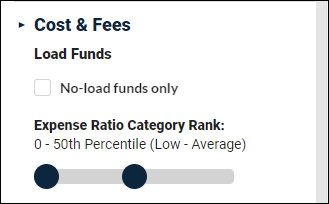
I am seeking no-load funds, so I check the box next to “No-load funds only” and move the slider for Expense Ratio Category Rank to capture the 0 to 50th percentile (expense ratio in the lower half within the category).
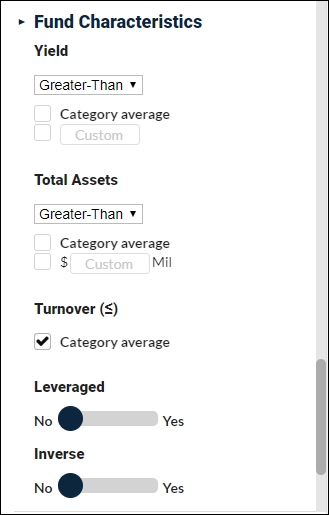
Fund Characteristics
Under characteristics, you can choose from several data fields: Yield, Total Assets, Turnover, Leveraged and Inverse.
Since I am looking for growth stocks, I am not concerned about the fund’s yield. The total assets held by the fund also don’t concern me.
However, I do want a fund that keeps turnover under control, so I select the box under Turnover to select those funds with turnover no more than the category average.
I also don’t want the fund to deploy leverage to boost returns nor do I want funds designed to perform as the inverse of whatever benchmark or index the fund is designed to track. So, I slide the toggle over to No under both Leveraged and Inverse.
Purchase
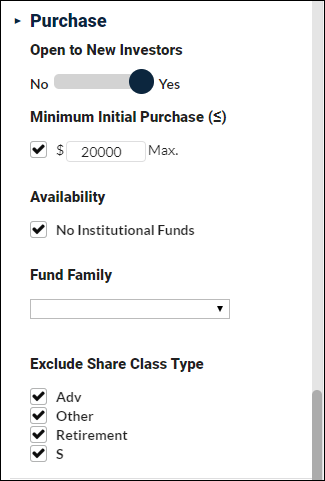
Under Purchase, you can specify Open to New Investors, Minimum Initial Purchase amount, Availability, Fund Family and Share Class Type.
I want to make sure I can invest in any funds that pass my screen, so I moved the slider over to Yes under Open to New Investors.
Since I only have $20,000 to invest, I also specified that the Minimum Initial Purchase amount was no higher than $20,000.
I also excluded institutional funds and all special share classes.
I am buying this fund outside of a company-sponsored retirement account, so I am not limited to a specific fund family [AAII’s 403(b) accounts are run by Vanguard]. However, if I were interested only in Vanguard funds, the screener gives me that option.
Risk & Volatility
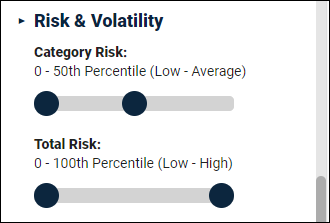
Risk & Volatility looks at Category Risk and Total Risk.
Total risk is volatility relative to all funds—stock, bond, domestic, international, etc. It is helpful to understand how the risk of a bond fund compares to that of an equity fund, but since I am looking for bonds within a specific fund category, the category risk is my primary focus.
In this case, I require that category risk in the lower half (0 to 50th percentile).
Manager Tenure
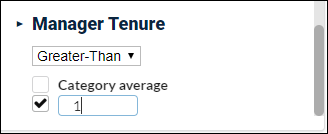
Manager tenure allows you to specify how long the lead manager has been with the fund. Tenure is more of an issue with actively managed funds versus passive (index) funds, but as an example I required a manager tenure of at least one year.
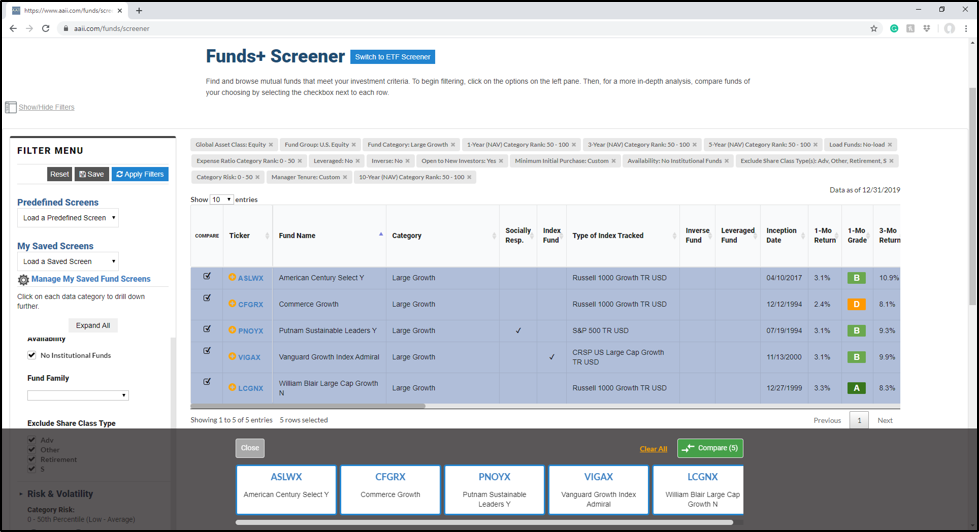
After specifying all of my filters, I clicked on the blue Apply Filters at the top of the Filter Menu. In all, five funds passed my screen:
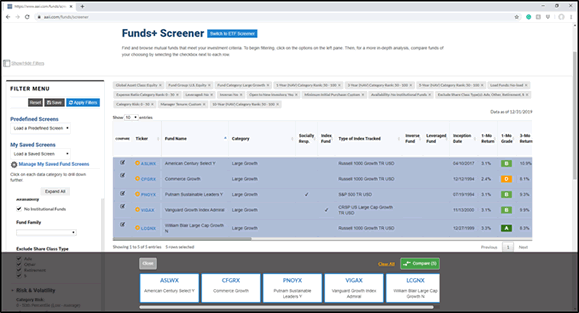
You can save mutual fund (and ETF) screens that you have created by clicking the Save button at the top of the Filter Menu area. You can access screens you have saved from the drop-down menu under My Saved Screens. Once you have loaded a screen (from the predefined list or your saved screens, you can modify it and resave it. With predefined screens, you can save them under a different name (you cannot overwrite a predefined screen) and you can either overwrite one of your own screens or save it under a different name.
All of the data columns in the table displaying the passing funds are sortable—in ascending and descending order—by clicking on the column header.
To get more detailed information on an individual fund, click on the ticker to open its Fund Evaluator page. The main Fund Evaluator page is divided into multiple sections: summary, performance, portfolio and purchase. Access to this information is included with your AAII membership. The top section of the page gives summarized data related to the selected fund, including grades for a variety of performance periods, expense ratio and risk relative to other funds in its category. Grades relate fund performance, volatility and expense ratios to category averages. The performance section offers trailing and annual performance figures for up to 10 years, along with grades to show how the fund performed on its own and how it stacked up against funds in its category. The portfolio section has summary statistics related to the fund’s portfolio holdings, as well as data on the current portfolio composition and risk measures. Lastly, the purchase section provides such important information as whether a fund is open to new investors, the minimum purchase requirements, load fees (if applicable) and overall expense ratio.
If you wish to do a side-by-side comparison of funds that passed a screen, click in the boxes in the Compare column at the far left for those funds. As you select funds to compare, their tickers will appear at the bottom of your browser window. When you are finished, click the green Compare button. This will open a new browser window with a variety of return, risk and expense data to let you compare the funds you selected.
Lastly, you will see yellow “+” signs next to tickers throughout A+ Investor. Clicking on that symbol allows you to add that ticker—stocks, mutual fund or ETF—to an existing or new portfolio.
Getting Started Archive
If you missed the previous emails in the A+ Investor Getting Started series, please visit the archive page online.
This email is being sent to you as part of your subscription to A+ Investor.
Questions regarding your AAII membership or subscriptions should be sent to members@aaii.com
Questions regarding the A+ Investor service should be sent to
aplus@aaii.com.
For guidance on using the A+ Investor tools, see the A+ Investor User Guide:
www.aaii.com/plus/userguide.
| |