Creating, Using and Editing Portfolios in Stock Investor Pro
In Stock Investor Pro, you can create your own portfolios, which can be composed of unique groups of stocks you find interesting, the stocks in a market index, or the results of a stock screen. Portfolios allow you to examine a list of stocks from update to update without having to sift through Stock Investor’s entire database.
Additional benefits of using portfolios include:
- View several companies in a singular list;
- Create statistical summary reports that show the characteristics of a portfolio;
- Export data on a group of stocks for further analysis or use in another program; and
- Perform additional screens against a specific group of stocks.
It is important to note, however, that Stock Investor does not provide portfolio-tracking capabilities. In our discussion here, a portfolio is simply a collection of companies that you specify.
This issue of Stock Investor News explains the basic process of creating, using and editing portfolios.
Creating a Portfolio
Within Stock Investor, you create and modify portfolios using the Portfolio Editor. There are three ways to access the Portfolio Editor: click on the Portfolio Editor button on the toolbar, select Portfolio Editor from the Tools menu (Tools—Portfolio Editor) or simultaneously press the Alt and P keys on the keyboard (Alt + P). These steps will open the Portfolio Editor (Figure 1).
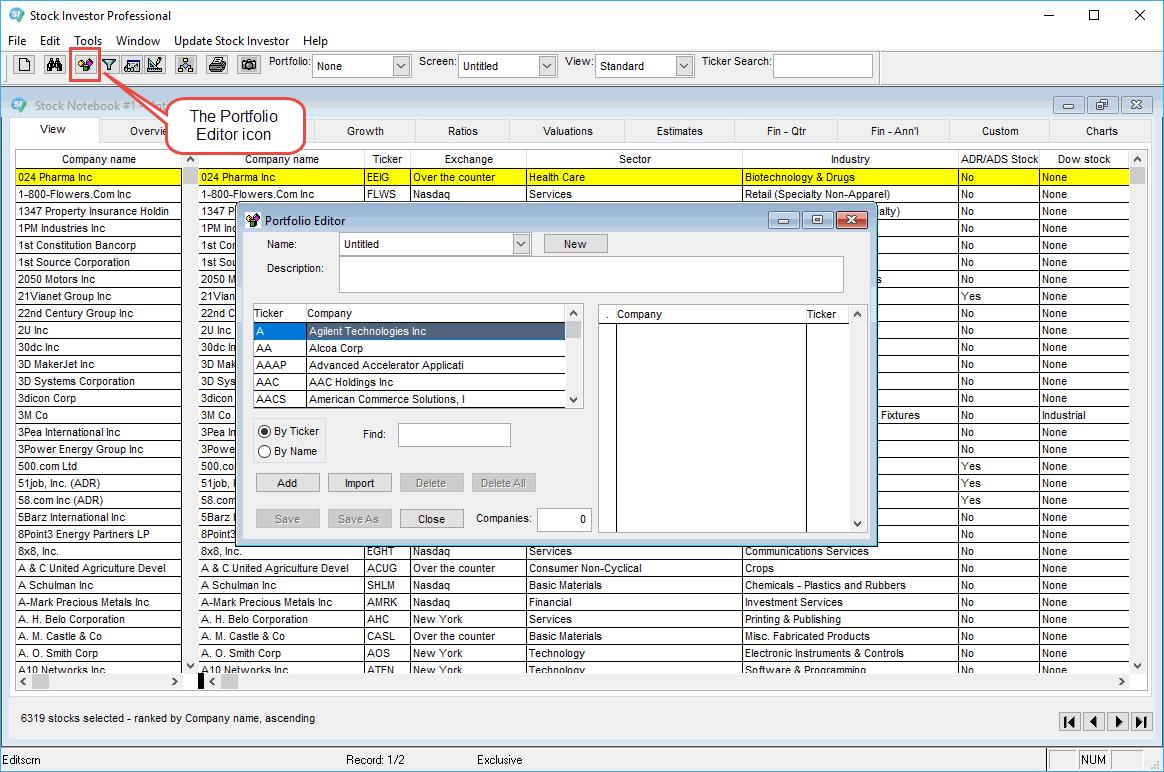
Within the Portfolio Editor, you can create new portfolios or edit existing portfolios. You can browse the database for companies you want in a portfolio either by company name or by ticker symbol. However, to avoid potential complications created by abbreviations, it is best to select companies by ticker symbol.
Search by Company Name or Ticker
To browse or search by ticker, make sure the radio button next to the By Ticker option is selected under the company list box. Please note: You will not see a flashing cursor in the “Find” box; you can just click inside the box and begin typing.
If you do not know the company’s ticker, click the radio button next to By Name and begin typing the company’s name in the Find box. The currently selected company name and ticker will be highlighted in the scroll box above the Find box where you are typing.
Adding Companies to a Portfolio
After typing in a company name or ticker, and when the company you wish to add to your portfolio is highlighted in blue within the company list, you add it to the portfolio by pressing the Enter key on your keyboard, by double-clicking on the company within the scroll box or by clicking the Add button at the bottom of the Portfolio Editor window. Doing so will add the company to the list on the right side of the Portfolio Editor window (Figure 2).
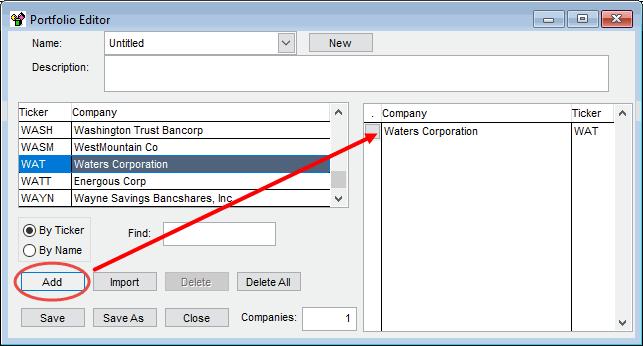
As you add ticker symbols to the portfolio, the company names will appear in the text box on the right-hand side of the Portfolio Editor window. You can keep adding symbols until the portfolio is complete. Once a company has been added to the portfolio, you cannot add it again (a portfolio cannot have duplicate entries).
Saving a Portfolio
When you are finished adding companies to your portfolio, you can save it by clicking on the Save button at the bottom of the Portfolio Editor window. The program will then prompt you to name the portfolio and, if you wish, provide a description of the portfolio (Figure 3). When you are finished, select OK and the portfolio will be saved. When you are finished creating a portfolio, you can close the Portfolio Editor by clicking the Close button at the bottom of the Portfolio Editor window.

Importing Tickers Into a Portfolio
Stock Investor allows you to import a list of ticker symbols into the Portfolio Editor to save you from having to manually select and add them. Many portfolio tracking programs and websites allow you to export tickers into either a spreadsheet file or text file, which you can then import into the Portfolio Editor.
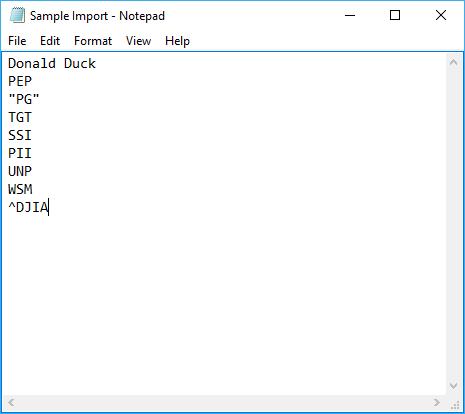
In order to import a portfolio, you need to have a text (.txt) file containing valid ticker symbols to import as a list, with one ticker per line. This means you may have to delete extra information or characters, such as company names, tabs, commas, and quotation marks. Also, you cannot have more than one ticker per line.
Figure 4 is a sample text file we will attempt to import into the Portfolio Editor.
To begin the import process, open the Portfolio Editor. Within the Portfolio Editor, click on the Import button. This will open a window where you specify the location of the text file you wish to import (Figure 5).
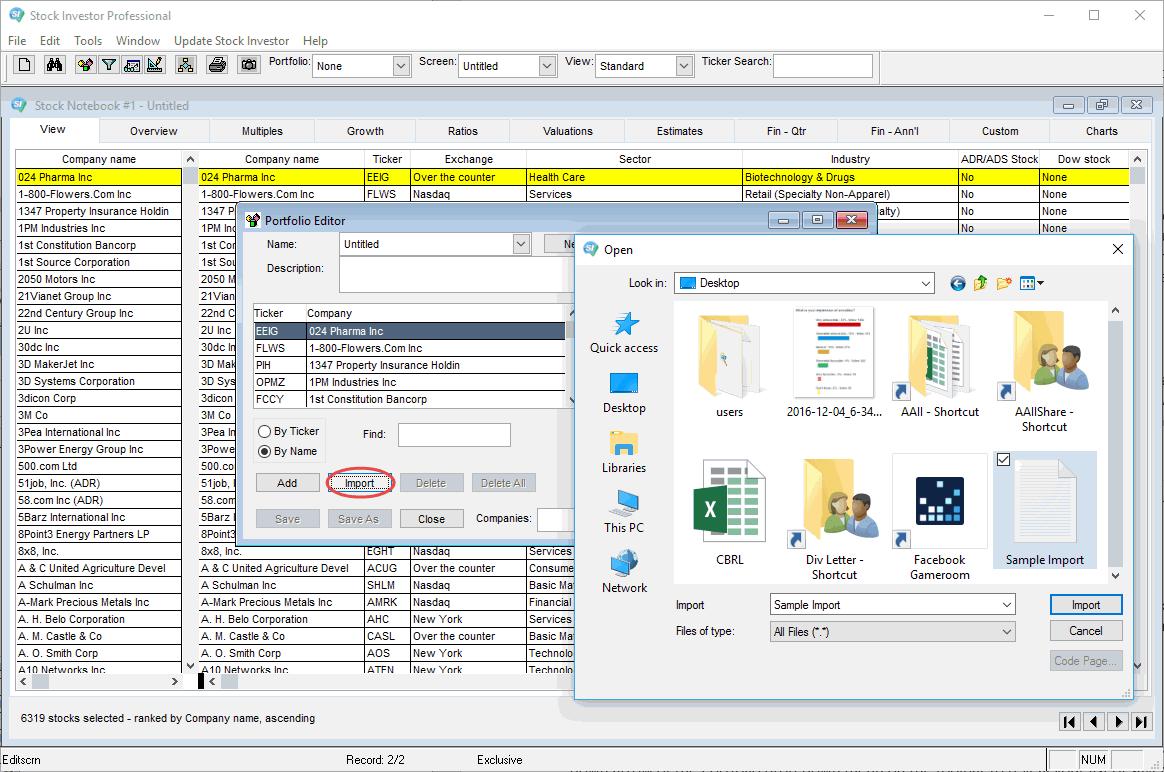
Once you have selected the file you want to import, click on the Import button in the Open window.
When the import is complete, a window will appear telling you how many tickers were added to the portfolio, how many of the tickers in the import file were already in the portfolio, and how many could not be identified and, consequently, were not imported (Figure 6).

If any of the tickers could not be identified, an Unidentified Tickers window will appear, displaying the "problem" tickers (Figure 7).
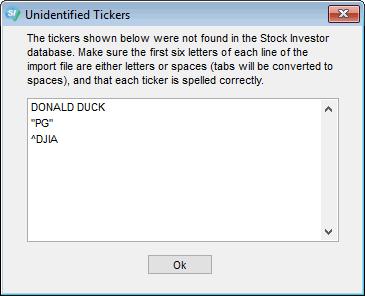
In this example, DONALD DUCK is an invalid ticker symbol. While PG is the ticker symbol for Procter & Gamble, the quotation marks around the ticker render it invalid. Lastly, Stock Investor does not recognize "non-letter" symbols, such as $ and ^, which is why ^DJIA is invalid.
After importing the ticker symbols into a portfolio, you can save it just as you would if you had manually entered the symbols.
Using Portfolios
There are a number of ways you can use portfolios in Stock Investor Pro. If you wish to view the companies in a portfolio within the Stock Notebook, you first need to load it. To do this, click on the down arrow of the Portfolio drop-down menu on the toolbar to reveal your list of saved portfolios. Selecting the Sample portfolio that we created manually loads the list of companies contained in the portfolio into the active notebook (Figure 8).

When you select a portfolio from the toolbar drop-down menu, the companies in the portfolio are automatically loaded into the Stock Notebook. As you can see in Figure 8 the Stock Notebook only contains the seven companies in the loaded Sample portfolio.
Editing Existing Portfolios
Once you have created and saved a portfolio, you can also edit it by adding or deleting companies. In order to edit the Sample portfolio that we created earlier, we must first re-open the Portfolio Editor using any of the methods outlined above.
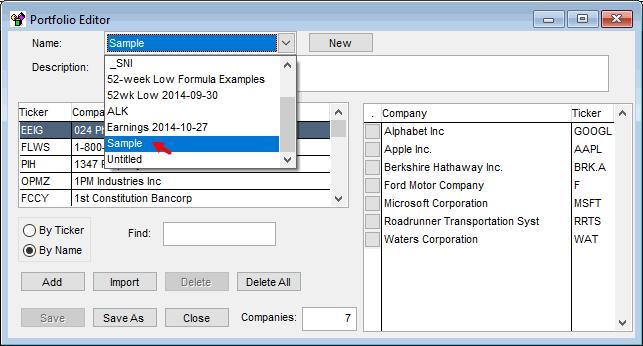
Once the Portfolio Editor window opens, load the portfolio you want to edit by selecting it from the pull-down menu at the top of the Portfolio Editor window (Figure 9).
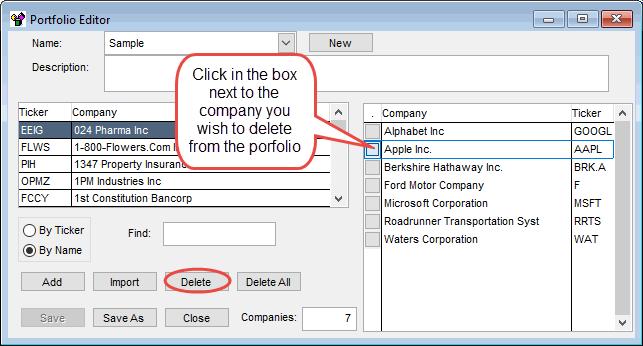
Say you want to remove Apple from the Sample portfolio. Click on the gray square found to the left of Apple in the text box on the right-hand side of the Portfolio Editor. This will select Apple and make the Delete button active (Figure 10). To remove the selected company from the portfolio, click on the Delete button in the lower left-hand corner of the Portfolio Editor window. Doing so in this example removed Apple from the portfolio list. If you wish to overwrite the original portfolio with the portfolio that reflects the changes you have made, click Save. However, if you wish to keep the edited portfolio as well as the original portfolio, click on Save As. You will then be prompted to give the portfolio a new name and description, at which point this portfolio will be saved and the original portfolio kept intact.
Deleting a Portfolio
While you can delete all of the companies from a portfolio, you cannot delete the portfolio itself using the Portfolio Editor. To delete a portfolio from Stock Investor (or a screen, view, or notebook), you use delete utility.
To access the delete utility within Stock Investor, select the Edit menu from the main menu and then select Delete (Edit—Edit Delete).
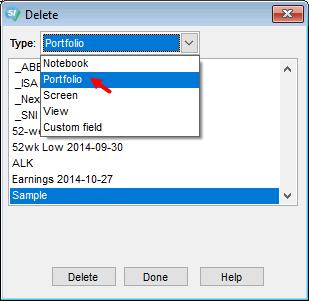
This will open the Delete window, where you first specify that you want to delete a portfolio by selecting Portfolio from the pull-down menu. Once you indicate you want to delete a Portfolio, scroll through the alphabetical listing of all portfolios you have created until you find the one to delete and click on it (Figure 11). Finally, click on the Delete button to remove it from the program.
If you have multiple portfolios to delete, you have to repeat this process for each portfolio.