Updating Stock Investor Pro
AAII offers weekly data updates to subscribers of Stock Investor Pro. These files are typically available by Sunday morning (Central Time). This issue of Stock Investor News walks you through the process of updating your SI Pro, as well as how to make use of automatic updates. There are two methods of updating the program: using the monthly CD or using the Program/Data Install option available at AAII.com.
Updating From AAII.com
To update Stock Investor Pro from AAII.com, first go to the Stock Investor Pro downloads page located at: www.aaii.com/stock-investor-pro/downloads. You may be prompted to log in using either your 10-digit AAII member number, with no spaces, or your personalized username and password. If you do not remember your member number, it can be found on your Stock Investor Pro or AAII Journal mailing label. If you have saved your Login Name and Password in the past, you will not be prompted to enter this information and will be taken directly to the Stock Investor Pro Downloads area.
From the downloads area, click on the Program/Data Install button to download the weekly data update file. The full installation file is named stockinvestorinstall.exe. You may Run or Save the file, but it is highly recommended that you save the file first, preferably to your desktop. Keep in mind that the Program/Data Install file is approximately 60MB in size and is intended for download by those using high-speed Internet connections such as cable modem, DSL, T1, or T3.
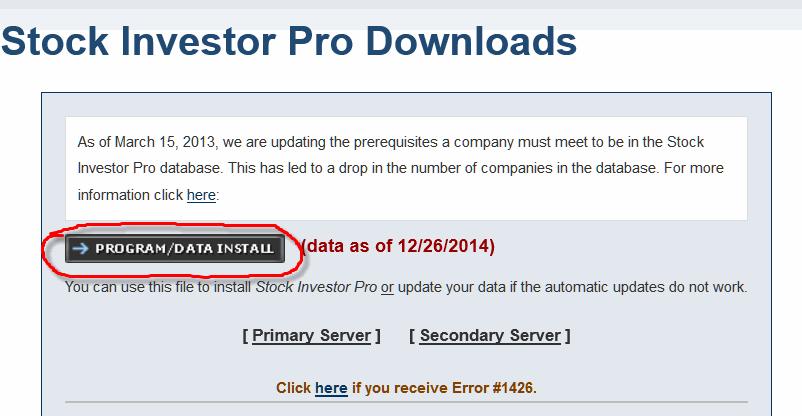
When the download process is complete, double-click on the stockinvestorinstall.exe file on your desktop. If you receive a prompt asking to allow the program to make changes to your computer, click Yes to proceed to the “InstallShield Wizard.”
InstallShield Wizard
After double-clicking on the installation file, the InstallShield Wizard window will open. At the Welcome to Stock Investor Pro Setup window, click Next to continue. Please read the Stock Investor Pro User Agreement, and then click Yes to continue. On the next screen, you will be asked to verify the location you want Stock Investor Pro installed on your computer. Click Next to use the default location, or click the Browse button to specify a different location. Next, you will be prompted to choose the folder for the program shortcuts within the Windows Start menu (AAII is the default folder). After you have chosen the folder name, click Next to continue. The final menu window before files are transferred displays a summary of the installation settings you have specified. If you are satisfied with the settings, click Next to start the file transfer process, which will take a few moments.
When the file transfers are complete, you will be asked if you would like a shortcut to the program placed on your desktop. Select No since desktop shortcuts for Stock Investor Pro, Stock Investor Pro Utilities, and Stock Investor Pro Help were already created on your desktop with initial installation of the program. You will be prompted to view the ReadMe file, which outlines any changes that have been made to the program since the last release. Click Yes to view the ReadMe file or click No to continue.
When the installation process is complete, click Finish to start the program. You will see a series of windows as Stock Investor Utilities performs various database management operations, including reindexing of the database files and the loading of predefined data. Lastly, the program will automatically recalculate the custom fields. When the custom fields are recalculated, Stock Investor Pro will open to Stock Notebook #1 – Untitled and you are ready to use the program.
Automatic Updates
The program can also perform weekly updates automatically; users do not need to visit AAII.com to manually download and install updates. Whenever you open Stock Investor Pro, the program will compare the date of the data you have installed to that of the data update file available online. If newer data is available, you will be prompted to choose between installing the newer data and continuing to use the older data. To update the program, first make sure that Stock Investor Utilities is not running on your system, then open Stock Investor Pro.
If you are asked for a username and password, enter the same name and password that you have used to access updates at the Stock Investor Downloads page on AAII.com. You can disable the automatic updates feature by clicking the check box next to Disable Automatic Updates; however, this is not recommended. To re-enable automatic updating, uncheck the box next to Disable Automatic Updates.
After you enter your username and password, hit Enter or click Ok. The program will then take a moment to compare the date of the data you have installed on your system to that of the data available on the update server. If newer data is not available, the program will open. Since the automatic update downloads files from the Internet, it requires an active Internet connection. If you are not connected to the Internet and attempt an automatic update, you will receive a message telling you to check your Internet connection or contact Technical Support.
If newer data is available, the Stock Investor Updater window will appear telling you the date of the data you have installed and the dates of the data updates that are available. For the latest data, click the radio button next to Current Data Update and click Update. If you want the latest month-end data (the data AAII uses to run its monthly stock screens), click the radio button next to Month-End Data Update and click Update.
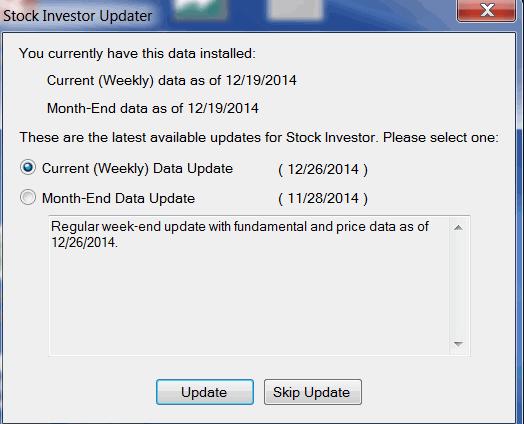
If you do not wish to update the data at this time, click Skip Update and the program will open. If you do not load the newer data and subsequently decide you want to install the update, you must close the Stock Investor Pro program and restart it to trigger the automatic update.
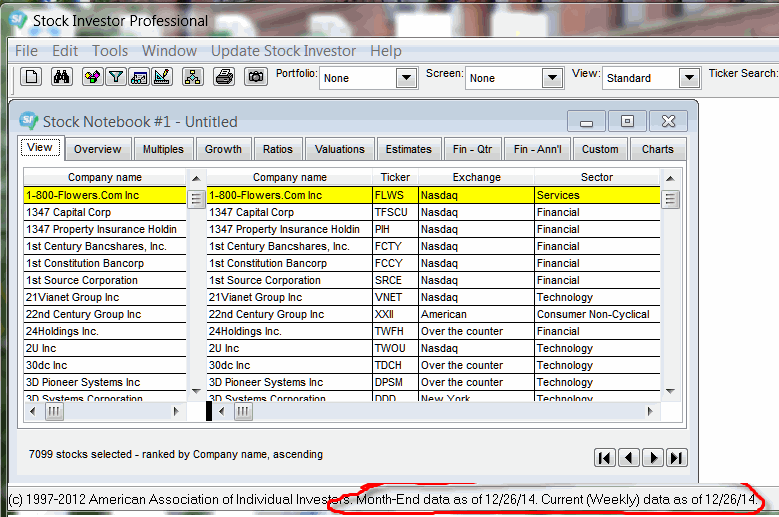
If you choose to update your data, the updater will download the update file. This may take several minutes, depending on the speed of your Internet connection. Once the download is complete, there will be a period of inactivity before the update installation begins. Please be patient during this time. You may also receive a prompt asking you to allow the program to make changes to your computer. Click Yes to proceed. Once the update installation is complete, there will be another period of inactivity lasting approximately 30 seconds before Stock Investor Utilities opens and performs a series of database management operations, including reindexing database files and installing predefined data. Lastly, the program will automatically recalculate the custom fields. Once the recalculation is complete, the Stock Investor Pro program window will open to Stock Notebook #1 – Untitled and you are ready to begin using the software. At the bottom of the program window, you will see the “data as of” dates. It should correspond with the date of the update you downloaded and installed.
Error Messages
If you encounter a problem when attempting to update Stock Investor Pro, please go to the Stock Investor Pro Troubleshooting area at AAII.com and read through the sections on automatic updates and Stock Investor errors. If you do not find a solution at these sections, contact Technical Support by emailing a detailed description of the problem and error message to techsupport@aaii.com.