


Wayne Thorp leads a class in AAII's new Essential Investing Video Course. Go to https://www.aaii.com/ves for more information and to subscribe.
The calendar has made another turn, and it is time once again for Computerized Investing’s annual PC Buyer’s Guide. The trend in the PC marketplace continues toward smaller, faster and cheaper. All of this is an attempt to stave off competition from tablets and, to a lesser extent, smartphones. Research firm Gartner estimates that 229 million tablets will be sold in 2014, compared to 276 million PCs. Next year, it is estimated that the number of tablets sold will outnumber the number of PCs sold.
However, the rumors of the PC’s death have been greatly exaggerated. In some ways, PCs are enjoying a mini “resurgence” as tablets reach a saturation point in developed markets. Research firm Gartner estimates that tablet sales grew by 11% in the third quarter of this year, compared to 55% growth for the same period last year. This slowing growth is attributable to tablet adoption peaking with mainstream users as well as the fact that the upgrade cycle of tablets is longer. Another boost to PC makers this year was Microsoft ending support for Windows XP, including discontinuing security updates. Microsoft was having a difficult time getting users to upgrade from this venerable version of Windows, and ending its support was an effort to move users to newer versions of Windows, especially Windows 8.1. Lastly, there is the reality that tablets, while very useful, cannot fully replace a PC for certain tasks. As someone who owns multiple tablets, along with multiple laptop and desktop systems, I find that tablets and even my smartphone are great ways to consume content. While I do on occasion write articles on my iPad using a Bluetooth keyboard, I still look to my PC for most of my productivity work. Furthermore, many of the investment analysis and tracking programs we use at AAII are not available on a tablet. This is why I think the PC will still be with us for years to come.
That is not to say that worldwide PC sales are growing. Quite the contrary. According to Gartner, worldwide PC sales dipped by 0.5% in the third quarter. However, this was better than expected. For 2014, the firm is projecting an overall decline in PC sales of 6.8%. As a result, we are seeing consolidation in the PC industry. For the first time ever, the top five vendors account for two-thirds of worldwide PC shipments. Sony and Samsung have withdrawn from the PC business and Toshiba has announced plans to restructure its PC business. Even Hewlett-Packard is planning on splitting itself into two companies: one comprising HP’s enterprise technology infrastructure, software and services businesses; and one that will comprise HP’s personal systems and printing businesses. However, the impact to its PC operations is not expected to be significant. Here in the U.S., however, the story is more cheerful for PC makers, as PC shipments rose 4.2% in the third quarter, according to Gartner.
This year, we are timing the release of our buyer’s guide before the Black Friday and Cyber Monday sales, to offer guidance as you head out for your post- or even pre-Thanksgiving holiday shopping. Whether you are braving the crowded stores or shopping online from the convenience of home, you will find yourself faced with a myriad of choices, including touch-based laptops, more affordable Ultrabooks and a greater array of hybrid two-in-one systems that combine the functionality of a laptop with that of a tablet. Overall, you will find that your computer-spending dollars have never gone further in terms of selecting a processor (CPU), memory, hard-drive capacity or graphics technology.
Having more options inevitably leads to more questions and increases the possibility of ending up with a piece of technology that does not meet your specific needs. The purpose of this annual guide is two-fold: to update to update you on some of the key trends in the computing industry, and to help you make an informed purchasing decision. While numerous buyer’s guides come out around this time each year, ours is unique in that it is intended for those looking for a PC to aid in the computerized investment analysis, research and tracking process. This includes tasks such as portfolio management and tracking, stock and mutual fund screening, and technical analysis and charting. Depending on the level and complexity of the analysis, these tasks require specific software that will only run on certain systems. In addition, the systems we recommend will be able to handle typical everyday tasks such as email, Web browsing, word processing and spreadsheet work.
These recommendations are my opinions, but they are also based on my own experiences with investment software and websites as well as the current trends in the software and computer industries. The systems highlighted here should allow you to run today’s crop of investment-related software titles. However, realize that computing is not a one-size-fits-all endeavor. Therefore, the system specifications we recommend may be too much computer for some readers and not enough for others. However, our goal is to outline the considerations you need to take into account when buying a new PC for computerized investment analysis so that you can pick the best computer for yourself, for today and the next few years.
Should You Upgrade?
Just because you are considering buying a new computer does not necessarily mean you need one. Even if you do not have the latest generation processor or the biggest hard drive, it does not necessarily mean it is time to retire your current PC. There are, however, a few telltale signs that your PC may have reached the end of its useful life. These include slow boot times, constant “crashing,” poor performance with only a few programs open and the inability to upgrade to the latest version of the operating system.
Depending on how old your system is, there are some relatively easy and inexpensive upgrades you may be able to perform on your current system to extend its useful life, especially if you bought it within the last few years.
One of the bigger technology headlines earlier this year was Microsoft ending support of the Windows XP operating system on April 8, 2014. Although it was 12 years old, there were still a large number of Windows users who had refused to upgrade to either Vista, 7 or 8, partly because of the overblown media hype about the deficiencies in these other versions. When last year’s PC Buyer’s Guide was written, Windows XP accounted for roughly 30% of worldwide market share, according to web analytics firm Net Applications. As of April, when Microsoft ended its support of XP, the operating system still had over 26% market share. That percentage has dropped significantly since then, down to roughly 17% in October. However, this is still a rather large percentage of the world’s PCs that are now vulnerable to malware because Microsoft is no longer offering security updates to the system.
If you are still running Windows XP, it is time to upgrade. Irrespective of whether your hardware still meets your needs, you are vulnerable to cyberattacks because, as mentioned, Microsoft is no longer issuing security updates for this version of Windows. Microsoft gave false hope to users when it backtracked and issued a patch to protect computers from the Heartbleed vulnerability, but the company stressed this was a one-time event. Complicating the problem is that, on the surface, Windows XP systems continue to work properly. Just because Microsoft is no longer supporting it does not mean it will not keep functioning. Windows XP is now a permanent, ongoing “zero day” vulnerability, meaning each day hackers may be discovering new vulnerabilities to exploit. Windows XP is permanently at risk and the only way to eliminate that risk is to stop using it and upgrade to a newer version of Windows.
On the Mac side, you should upgrade your current system if you are not running Max OS X 10.9x or 10.10x, Mavericks or Yosemite. Apple stopped providing security for Max PS X 10.8x Mountain Lion last October, so if you are still running that version of Mac OS, as with Windows XP, your system is vulnerable. Unlike Microsoft, however, Apple makes upgrading your OS much easier since it does not cost you anything to upgrade if you have kept your operating system relatively up-to-date.
Beyond upgrading your operating system, there are some relatively easy and inexpensive hardware upgrades you can perform to coax better performance from your computer. Some are relatively easy and only involve plugging in a new component, while others are “under the hood” upgrades that are still relatively easy for all but the most technologically challenged. Keep in mind that upgrading hardware tends to be much easier and cheaper to do with a desktop than with a laptop. Depending on the upgrade, you may be able to coax another year or two from your aging PC. For example, if you have a desktop PC with a display that is under 20 inches, you might consider upgrading to a 24- or even 27-inch display. The added real estate makes it easier to have multiple windows open at the same time and puts less strain on your eyes. You can find dozens of non-touch-capable 23- and 24-inch wide-screen LED monitors for less than $200, while it is easy to find a 27-inch display for under $250. Keep in mind, however, that depending on how old your computer is, you may need to also upgrade your graphics card in order to get the best possible image quality. Most importantly, your graphics card must support your monitor’s resolution. However, sometimes, all it takes to improve your graphics card is installing a driver upgrade from the manufacturer’s website.
If you find yourself constantly having to delete files to free up hard disk space, you may want to consider adding a second internal hard drive to your computer for storing data files or digital media (photos, music or video). It is easy to find one terabyte (1 TB) internal desktop hard drives for under $100. An easier option is to buy an external USB hard drive that you simply plug into your computer. Portable 1 TB USB hard drives usually run between $75 and $200.
If you find your system is running slowly, especially when you open multiple programs, you may need a memory (RAM) upgrade, assuming your computer has the slots available. This requires greater technical expertise, but it still doable for most individuals. Ideally, your PC should have at least 4 GB of RAM, especially if you are running Windows 7 or Windows 8/8.1. Two gigabyte (2 GB) desktop memory modules cost, on average, between $25 and $50, while 4 GB modules typically cost between $35 and $75.
Notebook/laptop systems tend to have shorter life cycles, as they tend to be more difficult to upgrade. Therefore, if you find yourself experiencing some of the above problems with your laptop system, chances are it is time for an upgrade.
[If terms such as hard drive or RAM are alien to you, be sure to check out the primer on computer components by clicking here.]
Defining Your Needs
If, after evaluating the status of your current computer, you decide it is time to buy a new system, it pays to do some research. Chances are you would do some level of research before buying several hundred dollars’ worth of a stock or mutual fund, so why not do the same for a new computer? As I alluded to earlier, the needs of a computerized investor will differ somewhat from those of the typical computer user. This makes it all the more important to take the time to assess your current and future computing needs before buying a new computer. Be honest about what you need from a new computer and buy accordingly. Otherwise, you may find yourself buying an underpowered PC that you will need to replace more quickly, or spending money for features you do not need. Either situation can make for an unpleasant PC buying experience!
With this guide, we focus your attention on the factors that are most important when buying a new computer for computer-aided investment analysis, research and tracking. In doing so, we hope to make it easier for you to buy a computer that will adequately address your needs for the next few years.
Choosing an Operating System
It is best to get the most controversial topic out of the way right off the bat. Before you start thinking about the type of processor your new computer should have or how big a monitor to get, there is one all-important question to answer that will dictate the overall path to your new computer: Do you go with a Windows or a Mac system? Some of the most heated “discussions” I have had with friends over the years (outside of politics, sports or religion) have been over the merits of Mac versus Windows. For the sake of our discussion, luckily, the answer is pretty straightforward and boils down to the types of software you plan on running. In the arena of investment-related software, this is a particularly important consideration, especially if you are running specialized investment analysis and tracking software, most of which are compatible with a single operating system. As a result, your software needs will directly affect the operating system you choose.
While Microsoft Windows and Apple Mac are the two dominating operating systems on the market today, the differential in market share continues to be extremely wide. According to Web analytics firm Net Applications, Windows had roughly 92% of the desktop operating system market as of September 2013, up slightly from a year ago. Mac OS had roughly 7% market share, down from nearly 8% a year ago. Linux, the open-source operating system that, like Mac OS, is derived from UNIX, controlled roughly 1.4% of the desktop operating market share, compared to 1.1% a year ago. Because it is open-source and freely distributable, Linux is a popular choice for many budget systems, which are cheaper because the manufacturers do not have to pay Windows licensing fees. Furthermore, Linux is popular among hobbyists.
Windows 8
Windows 8.1 is the latest version of Microsoft’s flagship operating system. Windows 8 created quite a buzz (and faced a fair amount of criticism) when it was released in 2012, replacing Windows 7, which was released in July 2009. This was Microsoft’s first attempt to create a unified operating system for use across desktop and laptop systems as well as tablets and smartphones. Windows 8 was a radical redesign compared to previous versions of Windows, which created a lot of confusion among consumers and criticism in the popular press. Much of the confusion is due to its two interfaces: the “Start Screen” and the traditional Windows desktop. Windows 8 is optimized for the touch-screen environment of mobile devices. As a result, the new interface alienated typical keyboard and mouse users. The Windows 8 Start Screen is optimized for touch with tablet-like apps, while preserving the more familiar Windows desktop found in previous versions of Windows for those using more traditional software programs. With the initial release of Windows 8, this Start Screen also replaced the Start button that users had become accustomed to. The Start screen displays a customizable array of tiles linking to various apps and desktop programs, some of which can display constantly updated information and content through “live tiles.” A vertical toolbar known as the “charms bar” provides access to system and app-related functions, such as search, sharing, device management and settings. The traditional desktop environment for running desktop applications is accessed via a tile on the new Start screen. And, Windows 8 includes an online store, similar to Apple iTunes, where you can obtain new applications.
On October 17, 2013, Microsoft released the first major update to Windows 8, Windows 8.1. The update was unique in that it did not introduce any new features. Instead, it was a “compromise,” making the operating system more user-friendly to keyboard and mouse users, as well as offering a number of performance enhancements. Chief among the fixes was the re-introduction of the Start button on the Windows desktop (functionality that was achieved in Windows 8 by pressing the Windows key on the keyboard or using the charms menu). Windows 8.1 now also allows you to bypass the Start Screen completely with “boot to desktop.” The operating system detects whether you are running a touch-capable device and, if not, it automatically boots to the traditional desktop view.
Other changes in Windows 8.1 included the added ability to customize to the Start Screen, such as allowing more control over positioning and sizing of tiles and app group naming; a redesign of the Windows store; and updated system and Internet search functionality with greater integration of Microsoft’s Bing search engine. Windows 8.1 is a free update to current Windows 8 users; for other Windows users it costs $120 ($200 for the Pro version).
New security measures were added to Windows 8 as well. In addition to a built-in antivirus program, the BIOS firmware code has been replaced with the Unified Extensible Firmware Interface (UEFI), which requires that an operating system be digitally signed before the PC will allow it to load, reducing the potential for malware attacks. Also new is the Early Launch Anti Malware (ELAM) feature, which allows security software to be first in line once a PC starts up, improving the security of the computer at an early stage. Most security experts agree that this is the most secure version of Windows ever. To learn more about the changes with Windows 8.1, visit the Update page on the Microsoft website.
Microsoft, unlike Apple with its single version of Mac OS, has multiple consumer editions of Windows 8: Windows 8, Windows 8 Pro, Windows 8 Pro for Students and Windows RT.
- Windows 8 is the mainstream version of the operating system and is most likely the version you would need ($119.99)
- Windows 8 Pro is aimed at “power” users and enthusiasts. It includes everything found in Windows 8, as well as advanced features to help you connect to company networks, data encryption and virtual hard drives ($199.99)
- Windows 8 Pro for Students is the same as Windows 8 Pro and requires verification of student status prior to purchase ($69.99)
- Windows RT is intended for mobile devices, to compete with the likes of the iPad and Android tablets. The Windows 8 Start Screen is optimized for touch-screen devices and comes pre-installed; you cannot buy it separately. As with the iOS and Android operating systems found on tablets and smartphones, you cannot install traditional programs on Windows RT; instead you rely on apps you download from the Windows Store.
When Windows 8 first came out, I told readers and friends alike to hold off on it unless you were buying a touch-screen laptop. I think a lot of the criticism of the new interface was misplaced. While it was a radical change from Windows 7, Windows 8 was (and still is) stable, fast and secure. In typical Microsoft fashion, however, the company was a little heavy-handed in the implementation and was somewhat dismissive of user concerns. That changed, however, with the Windows 8.1 update, which showed that Microsoft, despite what it said when Windows 8 initially rolled out, was willing to make some concessions to improve the mouse and keyboard experience while preserving the touch-oriented focus. While Window 8 is optimized for touch, the reinstatement of the Start button and the ability to boot directly to the Windows desktop make Windows 8 more accommodating for those without touch-screen displays.
Whether or not you opt for a touch display on your new computer is really up to you. Last year I said if I were buying a new laptop or notebook system, I would go with a touch-screen display. That turned out not to be true. A few months ago I purchased a desktop replacement laptop (a category of laptop that is bigger, heavier and more powerful than the typical notebook/laptop) for my home office with Windows 8, and I opted for a traditional, non-touch display. I based my decision, as should you, on how I was planning to use the system. The bulk of the work I do on my desktop and laptop computers use traditional programs, so the touch-screen interface in those circumstances is not of much use to me. However, I do think that the touch experience lends itself better to a laptop than a desktop computer.
On the desktop side of the equation, unless it is an all-in-one system, I am unsure of the utility of a touch screen. This really is a question of taste, as some people do not like the idea of smudging up their display. Furthermore, the touch experience on a desktop display, and to a lesser extent a laptop screen, is quite different from a tablet, given the positioning. Before deciding on a touch display, I suggest going to your local electronics store and trying it out firsthand.
If your PC is a relatively new computer, and especially if you are already running Windows 7, you should not have any trouble running Windows 8. When upgrading from Windows 7, the Windows 8 installer checks your system, peripherals and software for compatibility, so there is little or no risk of installing it on a system that cannot handle it. To help in the upgrade process, there are also third-party apps, such as Laplink’s PCMover Windows 8 Upgrade Assistant, that allow you to retain applications, settings and data from your older Windows PC. It is currently available for $29.95 from www.laplink.com.
All else being equal, Windows offers consumers a much broader selection of systems. In fact, according to PC Magazine, there were approximately 5,400 certified Windows 8.1 PC models as of April 2014. This tremendous selection means chances are very high you will be able to find a system that offers you the technical specifications you are looking for at the price you are willing to pay. In contrast, Apple offers the MacBook Air and MacBook Pro for notebooks and the iMac, Mac Pro and mac mini as desktop models, with limited options for customizing. Furthermore, Apple does not compete on price, so you are going to pay a premium for a Mac over a Windows system with similar specs. Lastly, there is a much larger software library for Windows compared to Mac OS.
OS X
Apple stood head and shoulders above its competition in terms of technical innovation and reliability for over a decade. It established this reputation via such groundbreaking products as the iPhone, iPad, MacBook Air and mac mini. Some would argue that competitors such as Samsung have closed the gap and even surpassed Apple in the smartphone arena. Microsoft has vastly improved the security and reliability of Windows, which had driven many former Windows users to Apple’s Mac.
One of the advantages of buying a Mac is that the software and the computer itself come from the same company (Microsoft, by comparison, is, for the most part, a software company that licenses its operating system to PC makers). This integration between Apple’s software and hardware has led to systems that tend to be more stable than Windows-based PCs. Furthermore, the Mac OS, historically, has been more secure than Windows. This was due in part to its much smaller install base, making it a less tempting target. However, the Mac’s aura of invulnerability has faded in recent years, as hackers have started introducing malware targeting the Mac OS.
The latest version of the Mac OS X operating system is version 10.10, Yosemite, which was released to the public on October 16, 2014. This is a free, one-step upgrade for users running OS X Snow Leopard (10.6.8) or later. If you are running an earlier version of Snow Leopard, you must first upgrade it to 10.6.8 and then upgrade to Yosemite. If you are running Mac OS 10.5.x or earlier, you will need to purchase an upgrade to Snow Leopard for $19.99 and then upgrade to Yosemite. Unlike Microsoft, Apple produces only one version of the OS X, eliminating the confusion about which version is right for you.
Over the last several years, Apple has moved from being a hardware-plus-operating-system maker to a veritable ecosystem in itself. When Tim Cook introduced the new line of iPhones in September, he said, “The product isn’t just a collection of features, it’s how it all works together.” Taking it a step further, Apple has been focusing on a unified user experience across its Mac OS X operating system, iOS mobile operating system and its diverse collection of devices. Forbes contributor Eric Jackson correctly pointed out that everything Apple sells these days is an iPhone accessory, even the Mac. It only makes sense, as Apple derives roughly 60% of its revenues from the iPhone. With iCloud you can access photos and documents across all devices; you can start an email or text on your iPhone or iPad and finish it on your Mac; you can even answer a call on your iPhone via your Mac.
Yosemite advances the ecosystem concept. It has a completely redesigned interface, right down to a new font. The name of the game with Yosemite, however, is continuity. Apple wants you to use your OS X and iOS devices together to build that reliance on the Apple ecosystem. Other features with Yosemite include a new Safari Web browser with improved search capabilities that, Apple claims, uses less battery life compared to Google Chrome and Mozilla Firefox; the ability to take iPhone calls on your Mac and send and receive SMS text messages from your Mac; “Handoff” functionality that passes documents between Mac and iOS devices that are in close proximity to each other; the ability of your Mac to remotely activate the Personal Hotspot on your iPhone when near each other; and syncing AirDrop files between Mac and iOS devices.
To learn more about the new features and enhancements for OS X Yosemite, visit the new features page at the Apple website.
Windows on a Mac
I mentioned earlier that your operating system decision will ultimately come down to the software you run or plan to run. The harsh truth is that the vast majority of quality, high-end investment software is written for Windows, with some notable exceptions. However, many people who abandon Windows for Mac find out too late that their favorite Windows software titles are not compatible with the Mac. Too often, I get calls from readers and members who are trying to find a Mac equivalent of a Windows software title. The reality is that Windows still has overwhelming market share compared to Mac and most software companies choose to cater to the largest piece of the pie. For the Mac, the majority of investment programs are personal finance managers (PFMs) such as Quicken Essentials for Mac. Even when there is a Mac equivalent of a program, however, it often lacks some of the more advanced features found in the Windows counterpart (as illustrated by Quicken).
If you are determined to switch to Apple but still need to run Windows software, you have two options for running your Windows titles: Either maintain a separate Windows system or use a utility that will allow you to install Windows on a Mac. For many, the former is not very convenient, mainly from a logistical standpoint. However, as the hardware used on both Mac and Windows systems have converged in recent years, a number of utilities now make it possible to run the Windows operating system, and therefore Windows-based programs, on a Mac.
Boot Camp is Apple’s multi-boot utility. It used to be included in the Mac OS X, but that seems to have changed with Mavericks and Yosemite Mac operating systems. However, you can download the software from the Apple website. The latest version of Boot Camp, 5.1, supports 64-bit versions of Windows 7, Windows 8.0 and Windows 8.1. It does not support Windows XP, Vista or any 32-bit versions of Windows. The biggest drawback with multi-boot utilities such as Boot Camp is that you cannot run Windows and Mac OS simultaneously; you have to reboot your system in order to switch between Mac OS and Windows.
Another option for those looking to run Windows on a “Mactel” system (since 2006, Macs have been using Intel processors) is to use virtualization software, whereby multiple operating systems can be running simultaneously. Keep in mind that running multiple instances of an operating system in a virtual environment can place a significant burden on your system’s resources; in addition, Windows does not always get full control of the Mac’s hardware. As a result, these virtual systems may be slower than what you experience with multi-boot utilities.
Two programs that allow you to run Windows in a virtual environment on a Mactel system are Parallels Desktop 10 for Mac, released on August 20, 2014, and VMware Fusion 7, released on September 3, 2014. Both support Mac OS X Yosemite as well as Windows 8.1. Parallels is available to try for free for 14 days, after which a new-user license costs $79.99. VMware Fusion 7 also comes with a free 30-day trial, after which a new-user license costs $69.99.
It is important to keep in mind that, to run Windows on a Mac, you must also purchase a Windows license in order to install the software.
Platforms
Choosing an operating system does not end the decision-making process when it comes to a new computer. Now you actually have to pick out the platform on which to run your chosen operating systems. Gone are the days when you only had to choose between a desktop “tower” system and a laptop. Now there are numerous sub-categories, such as ultraportables, all-in-ones, two-in-ones and hybrids that only muddy the waters.
The line between desktops and laptops has blurred over the years. It is easy to find laptops with features and capabilities of desktop systems, while some desktop systems today weigh less than a laptop. Again, you need to decide how and where you are going to be using your new computer, and choose one accordingly.
Laptop versus Desktop
Portable PCs and desktops each have distinct advantages and weaknesses, and the decision as to which is best for you often rests on the answers to the following questions:
- Do you need a computer when traveling?
- Do you need a computer in multiple locations?
- Is space at a critical premium at home or the office?
If you answered yes to any of these questions, your best options may be a notebook/laptop system.
Alternatively, the following situations may lead you toward purchasing a desktop system:
- Budget constraints,
- Preference for a larger display, or
- Looking for the most powerful PC available.
Another consideration is the ease with which desktop systems can be upgraded compared to laptops (generally speaking). Desktop systems tend to be easier to repair and upgrade, mainly because of the availability of “generic” components that you can install with relative ease and that will not present compatibility issues.
Notebook/laptop PCs, on the other hand, tend to have hardware designed specifically for the model, making them more expensive to repair and more difficult to upgrade. You may be able to find a new hard drive or memory modules from a local electronics store or through an online retailer, but you are more likely to encounter difficulties installing component upgrades on a laptop. Even the latest Mac laptops and Windows Ultrabooks have batteries that only the manufacturer can replace.
When shopping for a laptop, connectivity is key. Bluetooth allows you to connect wireless devices, such as mice, while a wireless adapter will let you to connect to your home Wi-Fi network or mobile hotspots when working at your local coffee shop or waiting for your flight at the airport.
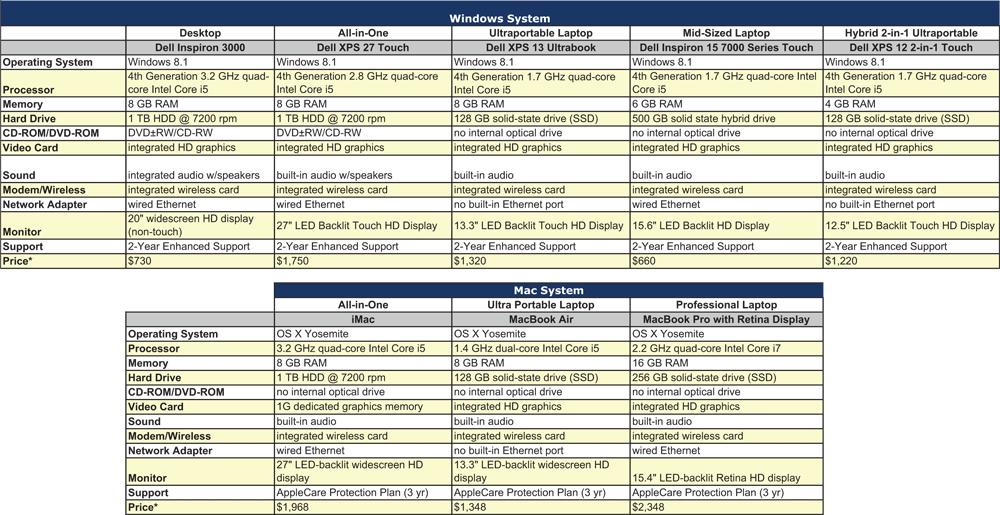
Lastly, there are cost considerations when buying a laptop (and cost advantages to buying a desktop). Expect to pay a premium for mobility. As Table 1 shows, the there is a definite price difference between comparably equipped mid-range desktop and laptop/notebook systems.
Desktop “Tower” versus All-in-One
The all-in-one computer was first popularized by Apple’s iMac and is now the fastest-growing desktop category. These are desktop systems with all of the “guts” of the computer built into the monitor: the components (processor, memory, hard drive, etc.) may be in the base or hidden behind the flat-panel display itself. Because the display and the computer itself are enclosed in a single box, they are generally more space-efficient than a traditional tower-and-monitor combination. They also tend to be easier to set up than a tower system. On the other hand, one drawback of having the two so tightly integrated is that the PC components will become obsolete faster than the display. Furthermore, it is more difficult to repair or upgrade an all-in-one PC. Also, keep in mind that if the display goes, the whole system is useless, unlike a tower-and-monitor system where you can swap out the monitor.
If you are considering a Windows all-in-one, strongly consider a touch-screen system running Windows 8.1. The larger display, and closer proximity of the monitor to the user, lends itself better to a touch-screen experience. However, for the best Windows 8.1 experience, look for full 10-finger multi-touch support, as it offers more precise operation than five-finger touch. Also, if you do opt for a touch-screen all-in-one, look for one that offers a reclining screen. This allows you to use the screen like an over-sized tablet and is especially useful for typing with an on-screen keyboard.
There is also a new sub-category developing in the all-in-one space—the battery-powered, portable all-in-one. These systems have mobile components which, all else being equal, tend to be underpowered relative to true desktop components. A built-in battery provides you with a few hours of unplugged computing. Keep in mind, though, that the large display of the typical all-in-one makes these systems impractical for true “mobile” computing.
Plan to pay a hefty price premium for equivalent computing power. As it is, you should still expect to pay more for an all-in-one system than a tower system.
If you have a small space in which to set up your computer, but are looking for a larger display than what you find with a notebook/laptop system, an all-in-one system may be worth considering. However, it is imperative that you get it right the first time, since all-in-one systems are relatively difficult to upgrade.
Ultra-Mobile Devices
Mobile devices have been the driving force in the computing world over the last several years. The devices deliver varying levels of computing power in a highly portable package. These devices include ultraportable notebooks, media tablets and convertibles.
Ultraportable Notebooks
Attempting to satisfy the need for highly portable computers with decently sized keyboards and screens, computer manufacturers are producing ultraportable notebooks with higher-resolution screens and more powerful processors. The same devices offer some of the characteristics of tablet PCs, including instant-on activation and long battery life.
The gold standard for this segment remains Apple’s MacBook Air, which has a high-definition screen ranging from 11 inches to 13 inches, the latest Intel Core processor, and a solid state drive (SSD), all while weighing less than three pounds. The price for a new MacBook Air currently ranges from $899 to $1,749.
In an attempt to counter Apple’s dominance with its MacBook Air and the emergence of tablet devices using ARM processors, Intel (which is not licensed to produce ARM chips) has spent the last few years pushing its Ultrabook initiative. This class of ultraportable laptops runs Intel chips and is intended to offer the convenience of tablets and the functionality of larger laptops/notebooks, as well as a Windows alternative to the MacBook Air. Since issuing its first Ultrabook specifications in October 2011, Intel has issued two updates, with the most recent coming in June 2013. The latest specifications that Intel submitted to manufacturers looking to produce Ultrabooks are: Intel Haswell processor, thickness of less than 0.9 inches, idle battery life of at least nine hours and touch-screen display. These systems all have some variant of a solid state drive (SSD) and most weigh less than three pounds. In addition, Intel hopes for prices to eventually come down to around $1,000. Also, “true” ultrabooks lack an internal optical drive (DVD). If this is something you require, you will probably need to purchase an external DVD drive, which generally costs less than $50.
Ultrabooks, at this point, have not reached the popularity Intel had hoped. This is mainly due to their relatively high price, but as more models come to market, the average price has been falling. Perhaps the biggest impact Ultrabooks have had on the PC industry, however, is that they have forced PC makers to focus on price and performance. This led to a general slimming down of computers in general, and laptop/notebooks in general.
Media Tablets
Tablet PCs make up the fastest-growing segment of the computer industry, and the availability of low-priced tablets has accelerated the shift away from traditional PCs. Originally pioneered by Apple and its iPad, the market is awash with tablets from a number of manufacturers. This has led to a saturation of the market, especially here in the U.S. As a result, the rapid growth the segment had seen the last few years has started to slow. However, next year most analysts expect tablets to outsell PCs worldwide.
Generally speaking, a tablet PC is a portable computer equipped with a touch screen as the primary input device. True tablets lack a physical keyboard, offering instead a virtual, on-screen substitute. Tablets lack the computing power of a typical notebook/laptop computer in terms of processing power, the ability to run full-featured programs and storage capacity. Tablets are best suited for Web browsing, email, and running native applications, or “apps.” For this reason, tablets are not really a replacement for notebooks, especially if you need to run “standard” software titles or perform many productivity tasks such as working on a long word processing documents or large spreadsheets, Web development, or editing videos and photos.
Today, you will find tablets running Microsoft Windows 8, Pro and RT; iOS from Apple; and Google’s Android.
Only Apple’s iPads run iOS. The latest-generation iPad, the iPad Air 2, was announced on October 16, 2014. After the introduction of the iPad Air in October of 2013, which was the first significant update since the iPad 3, the iPad Air 2 saw minor tweaks instead of wholesale changes. Enhancements include an improved processor, better rear- and front-facing cameras, a Touch ID fingerprint sensor and improved storage on high-end configurations. Apple was able to achieve this while making the iPad Air 2 thinner and lighter than the original iPad Air. The iPad Air 2 measures 6.6 inches by 9.4 inches by 0.29 inches and weighs one pound, making it about 17% thinner than the previous generation iPad Air. The iPad Air 2 also runs the same A8X system chip found in the new iPhone 6s, with improved graphics and computational performance. The iPad Air 2 retains same 9.7-inch Retina display with a resolution of 2,048 by 1,536 pixels and offers roughly 10 hours of battery life. As with the previous version, the iPad Air 2 comes in two models, a Wi-Fi-only model and a Wi-Fi + Cellular model, and they have storage capacities of 16 GB, 64 GB or 128 GB. According to Apple, prices for the iPad Air 2 will run from $499 to $829, depending on storage capacity and connectivity.
Responding to the growing popularity of smaller and less expensive tablets, such as Amazon’s Kindle Fire, Apple introduced a scaled-down version of the iPad in 2012—the iPad mini. The latest model, the iPad mini 3, was introduced on October 16, 2014, and went on sale on October 24, 2014. Measuring 7.8 inches by 5.3 inches by 0.29 inches with a 7.9-inch display and weighing roughly three-quarters of a pound, the mini 3 has an older and less-powerful A7 chip, Retina display with 2,048 by 1,536 resolution and 16 GB, 64 GB or 128 GB of storage. Apple also added Touch ID technology to the mini 3. It comes in Wi-Fi and W-Fi + Cellular models and currently ranges in price from $399 to $729.
The Android marketplace is decidedly more fragmented, with companies such as Acer, Archos, Asus, Google, Lenovo, Samsung and Sony competing against each other as well as Apple. Another popular tablet is Amazon’s Kindle Fire HD. Originally released in November 2011, the latest Kindle Fire HD comes in six- and seven-inch models, weighs 10.1 or 11.9 ounces, respectively, runs a custom version of the Android operating system and has 8 GB or 16 GB of storage. The devices includes access to the Amazon Appstore, streaming movies and TV shows and Kindle’s ebooks. They allow you to check email and surf the Web. They also have a 1280 × 800 HD display, 1.5GHz dual-core processor, and single-band Wi-Fi. The Kindle Fire HD 6 costs $99 and the Fire HD 7 costs $139. The cellular-enabled seven-inch Kindle Fire HDX, with 1,920 x 1,200 resolution; 16 GB, 32 GB or 64 GB of storage; and dual-band, dual antenna (MIMO) Wi-Fi, starts at $179. There is also the 8.9-inch Fire HDX, with a 2,560 by 1,600 resolution, which ranges in price from $379 to $579.
With the release of Windows 8, Microsoft threw its hat into the tablet arena. The company got off to an inauspicious start with its 10.6-inch Surface RT, running the watered-down Windows RT operating system. This was more of a traditional tablet: It did not run “full-blown” programs but instead ran apps similar to that of the iPad or Android tablets. Microsoft followed that up with the Surface Pro, running Windows 8 Pro, in February 2013. The Surface RT debuted to generally positive reviews regarding its hardware, but the Windows RT operating system was almost universally panned as being underpowered. Perhaps the biggest problem, however, was that most agreed there was no compelling reason to switch to the Surface from either an iPad or Android tablet. This, along with the introduction of the more powerful Pro, led to weak demand, which forced Microsoft to significantly reduce prices and take a $900 million charge during its 2013 fourth quarter. Today, the company no longer sells the Surface RT and has focused its efforts on the Surface Pro.
The Surface Pro 3, which Microsoft announced on May 20, 2014, runs Windows 8.1 Pro, which means you can run any type of Windows-compatible software along with Microsoft apps on it. Since it has the features of both a laptop and a tablet, some in the industry refer to it as a “laplet.” It offers 64GB or 128 GB of storage with 4 GB of memory or 256 GB or 512 GB of storage with 8 GB of memory; fourth-generation Intel i3, i5 or i7 processors; 12-inch full HD display with 2,160 by 1,440 resolution and 10-point multi-touch; USB 3.0 port; microSDCX card reader; and mini DisplayPort. The Surface Pro 3 is priced from $799 to $1,949.
I have been using the original Surface Pro since Microsoft released it, and I appreciate the power and performance it offers in such a compact package. It definitely carries a price premium over similarly powered laptops, but as Microsoft’s commercials so cleverly point out, the Surface Pro is not your typical laptop. The biggest frustration with the Surface Pro is the detachable keyboard. Beyond having to pay an extra $130 (which really should be included in the price), it is somewhat flimsy and, to be blunt, offers a sub-par typing experience.
Convertibles, 2-in-1s
Given the underwhelming response to Intel’s Ultrabook initiative, PC makers have started looking for other ways to attract buyers who may otherwise opt for a tablet. This includes convertible “hybrid” PCs, which are tablet PCs with a physical keyboard similar to that of a traditional laptop and a swivel or detachable screen that converts it into a tablet. My initial experiences with these systems back in 2012 were more than disappointing, as they were underpowered, awkward and had frustrating keyboards. With the introduction of the new more powerful and more energy-efficient Intel Haswell processor, more of these hybrids are coming to market. You can also find Windows convertibles with cheaper Intel Celeron processors, while AMD A4, A6 and A8 processors, along with the high-end Dual-Core Z-Series also power a variety of tablet PCs. Expect to pay between $400 and $850 for these types of systems.
Where to Buy
We have entered the home stretch of your PC buying odyssey. Once you have settled on the operating system and platform-type, you are finally ready to make the actual purchase. However, this does not mean the choices don’t end here. You have several purchasing options: You can buy a system directly from the manufacturer or from a retail store. Some companies—such as Apple, Dell, Hewlett-Packard (HP), and Lenovo—allow you to customize your system and order it online or over the phone and have it shipped directly to you (mail order). However, I have found that it is getting more difficult to order a truly customized system. The trend is toward base-line systems with the ability to customize certain things, such as the processor, hard disk size and amount of memory. Likewise, these and other companies sell systems at retail outlets such as Amazon.com, Apple Store, BestBuy, Costco, Office Depot/Office Max, Staples, TigerDirect.com and Walmart.
From the Manufacturer
Arguably, the greatest advantage to ordering a new computer directly from the manufacturer is that you are able to customize it to get almost, if not exactly, what you want. In addition, due to inventory practices, manufacturers are usually able to offer the latest technologies more quickly than retailers, who tend to have to move their existing inventory of older technology before restocking with the new. However, ordering directly from the manufacturer can sometimes work against you, such as when a lack of critical components delays the delivery of your new system.
One of the biggest trade-offs when buying direct is the lack of face-to-face assistance should something go wrong. Dell Tech Concierge offers a variety of computer setup and support services 24 hours a day over the phone or live chat on a single-incident basis ranging from $59 for file transfer or data backup service or Internet and email setup to $129 for new wireless network setup or virus and spyware removal. Alternatively, you can choose a one-year subscription for $239. HP offers similar SmartFriend support services that cost $29.99 to $99.99 for one-time service or $9.99 to $29.99 a month.
Furthermore, most manufacturers include in a system’s purchase price one year of on-site services as part of any warranty. These options should cover the majority of problems you typically might face—at least for the first year of owning your computer.
For repair service coverage after the manufacturer warranty expires, many larger mail-order companies offer extended warranty coverage through third parties. Realistically, there is no reason to pay for extended warranties lasting more than three years, as anything serious that happens at that point may warrant buying an entirely new system. HP and Dell both offer two-year protection plans that cost between $160 and $280, depending on the level of service you choose and the type of system you purchase. Apple’s AppleCare Protection Plan provides three years of telephone technical support and repair coverage ranging from $169 to $349, depending on the Mac system you buy.
Retail
Buying retail either from an actual brick-and-mortar store or an online retailer does not necessarily mean paying more for a system that is not quite what you are looking for. Popular stores—such as Best Buy, Office Depot/OfficeMax and Walmart—and online vendors offer competitive prices compared to manufacturers and usually offer a large enough selection for you to find a system that closely matches your needs. These same stores allow you to buy from their websites, as do online retailers such as Amazon.com, NewEgg.com and TigerDirect.com/CircuitCity.com. Online retailers tend to offer better selection and prices than brick-and-mortar stores. Furthermore, there are a number of websites that offers coupons for computer purchases, including TechBargains.com, FatWallet.com and Ebates.com.
You may have to be prepared to compromise on your list of wants, and perhaps your budget, to fit the retailer’s offerings. However, there are enough options that, if you “shop around,” you should not have a problem finding a computer system that matches your computing needs and budget.
System Recommendations
Table 2 summarizes our recommended specifications for those buying a desktop computer today to perform the most common types of investment analysis as well as general-purpose computing tasks for the next few years.
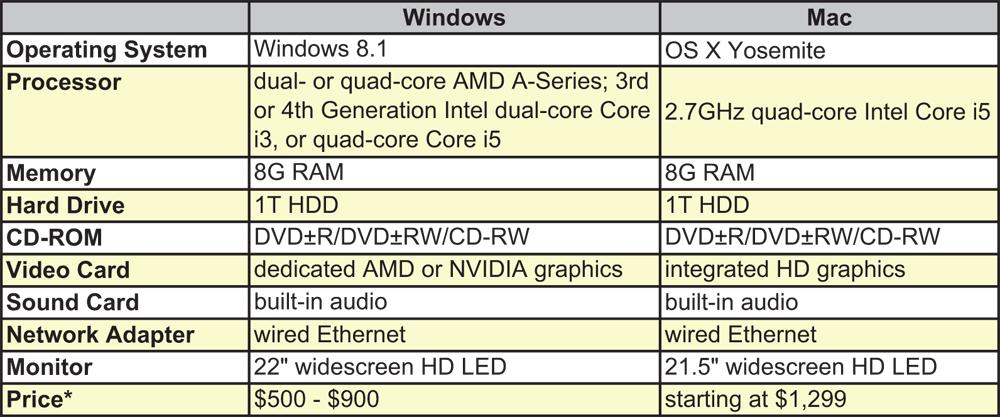
Given the rapid changes taking place in the computer industry, one certainty is that today’s top-of-the-line PC will be relegated to middle-of-the-pack status within a matter of months. However, do not be seduced by the latest technologies, as you are most likely paying for performance and options you don’t really need.
We realize that computing needs are as varied as investment styles. What we have attempted to do with this PC Buyer’s Guide is to provide an update along with our thoughts and opinions. Like investing itself, the ultimate decision of whether to buy, as well as what to buy, is up to you.
If there is one piece of advice to take from this article, it is to buy the best PC you can afford, while avoiding the features you do not need.
The next section provides more in-depth discussions and guidance on choosing the hardware components that make up your complete computer system.
Discussion
FREE REPORT

William Mc Clure from IL posted over 11 years ago:
Fred Brockman from FL posted over 11 years ago:
Wayne Thorp from IL posted over 11 years ago:
Lorenzo Perez from FL posted over 11 years ago:
Guy Stuart from Alberta, Canada posted over 11 years ago:
Tom G from VA posted over 11 years ago:
Frank Jernejcic from WV posted over 11 years ago:
J Theis from TX posted over 10 years ago:
Wayne Thorp from IL posted over 10 years ago:
Bedford Joyner from TN posted over 10 years ago:
Ian Craig from CA posted over 10 years ago:
Christophe Couallier from FL posted over 10 years ago:
You need to log in as a registered AAII user before commenting.
Log InCreate an account