




Free
A personal finance application for tracking your net worth.
Personal Capital is a free personal finance application that helps users track and manage their financial lives. While this tool is a full-functioning website (which we will highlight in a different CI edition), I wanted to highlight the functionality of Personal Capital’s mobile application this time around.
Personal Capital is focused on helping individuals calculate and monitor their net worth. This includes any real estate properties you may have, mortgages, car loans, expenses, income, investment accounts and more.
I can personally say that the company is very responsive to questions, comments or concerns. My bank wasn’t listed on the linkable accounts, but within a few days of contacting Personal Capital about it, they implemented BMO Harris integration and let me know how to link my account to the application.
Getting Started
After downloading the app, click “join now” on the home page screen, then input your email address. Next, you will have to pick a 6-digit PIN number to prevent unauthorized access on your device (Personal Capital focuses heavily on security). To authorize two-step verification, input your phone number. Users can also activate Touch ID, if their phone or device supports it.
After you have created your account, you can start to link your personal accounts, including checking, savings, credit and retirement accounts. You can search for your bank or provider by typing in its name or the website URL.
The app also lets users add accounts manually, for those who don’t see their bank or provider listed and/or are not comfortable linking their accounts. Manual account options include: home, car, jewelry, art, manual investment holdings, manual bank, manual credit card, manual loan, manual mortgage, other asset and other liability.
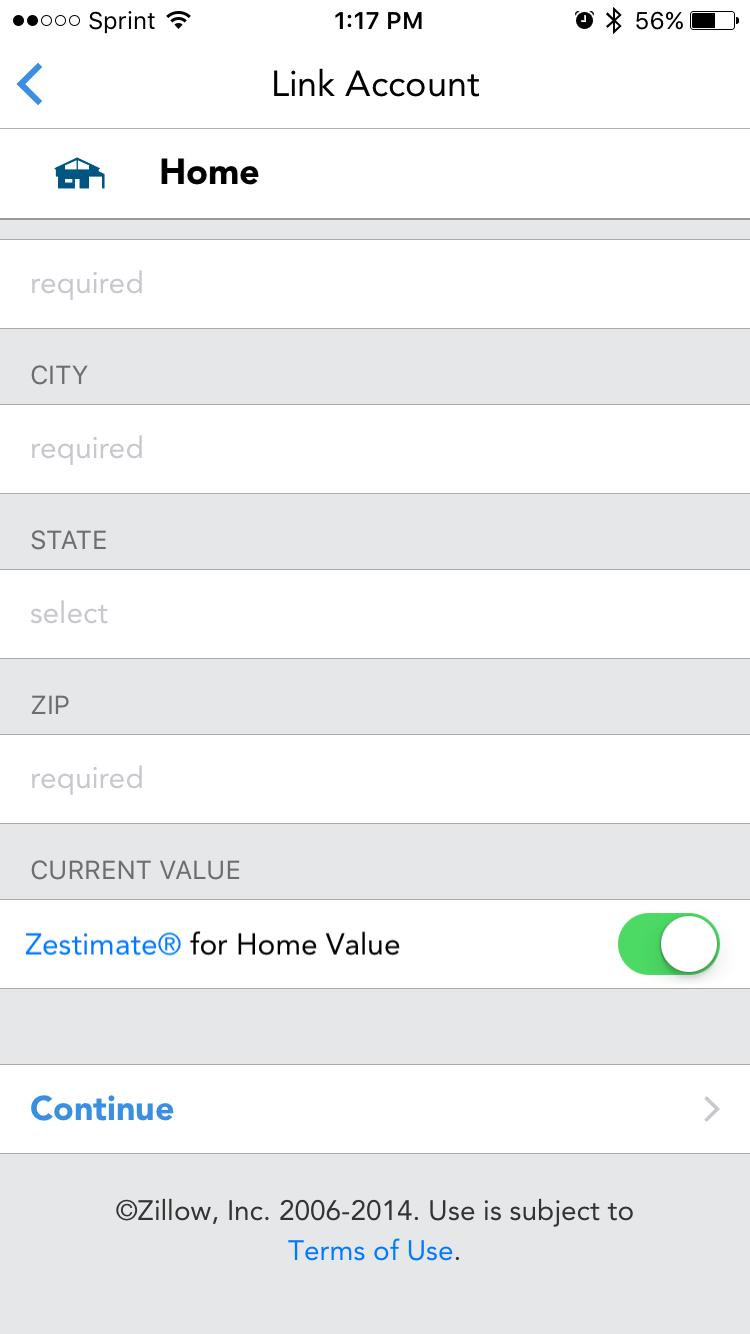
A particularly useful feature is Personal Capital’s ability to pull your home value from the real estate website Zillow. If you choose to input your home or other property into Personal Capital, you can enter a manual account and select a toggle option that allows the application to pull your Zestimate home value provided by Zillow. If you prefer to enter your home value yourself, toggle off the “Zestimate for home value” option (Figure 1).
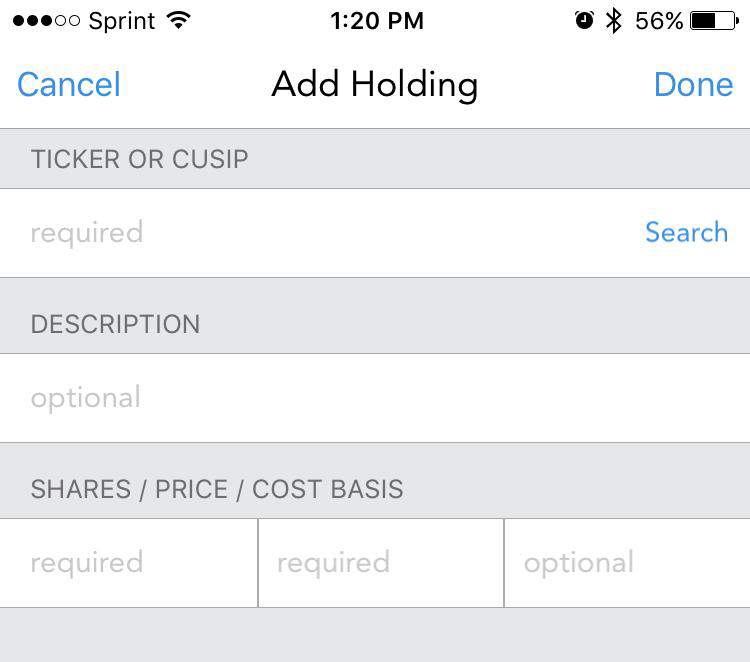
If you choose to manually input your investments, you will have to designate a name for the investment account and input individual tickers, shares held, price and cost basis (Figure 2).
Application Usability/Functionality
Once you have linked and input all your desired accounts, you can begin to monitor your net worth.
The menu button is located in the upper right-hand corner of the application. The menu has several options: net worth, transactions, cash flow, portfolio, holdings, allocation, U.S. sectors, investment checkup, advisor, daily capital blog and research and insights (Figure 3).
The Cash Flow page shows how much you’ve earned or spent in a given month, compared to the previous month or at the same time last year. You can swipe left to see more information on your cash flow, including which categories contributed to your cash flow in the last month, displayed graphically.
The different income and expense categories are driven from transactions on linked accounts. Personal Capital automatically categorizes them, but you can edit or add categories within the transactions page on the application or online.
The Portfolio page shows and aggregates portfolio balances of all linked investment accounts. You can see a summary of each account balance, accompanied by a chart. Users can click on each individual account for details on each holding within an account.
On a specific investment account’s page, each holding is listed along with its daily performance and specific portfolio value. The application’s default time period is daily performance, but users can change this default by clicking the three dots along the top right-hand corner of the screen and changing the date range. Users can choose between 30 days, 90 days, this year, last year or a custom time period. When changing the time period, the percentage figures may take a little while to update because longer time periods require the application to download more data.
The Holdings page displays your holdings and their performance in relation to the S&P 500, foreign investments [as represented by Vanguard FTSE All-World ex-US ETF (VEU)] and U.S. bonds [as represented by the iShares Core U.S. Aggregate Bond ETF (AGG)]. Users can click on one of the benchmarks to display the benchmark’s performance compared to their holdings’ performance in a chart format. The default performance period is daily, but users can change the time period by selecting the three dots in the upper right-hand corner of the screen. Again, longer time periods may take time to adjust because the application has to download more data.
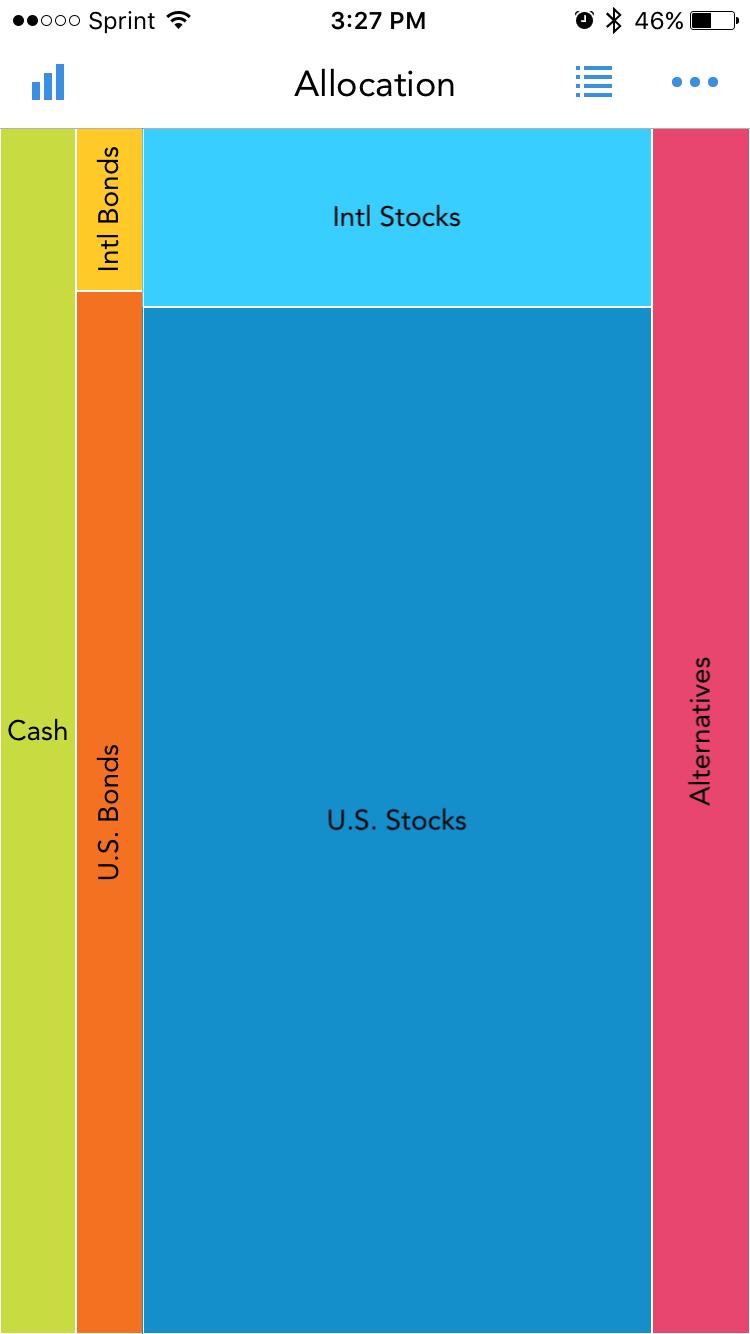
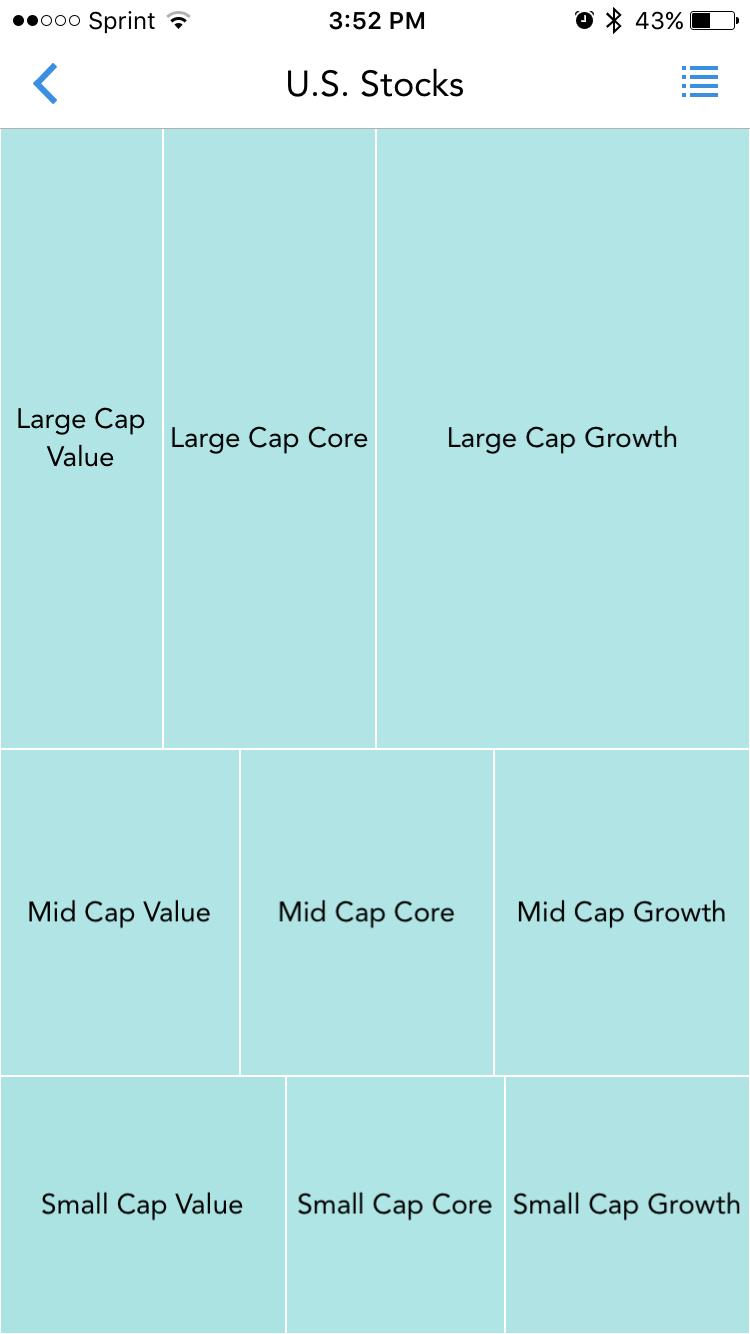
The Allocation page displays the asset allocation of holdings from your linked accounts. The allocation groups include cash, U.S. bonds, international bonds, international stocks, U.S. stocks and alternatives. Users’ portfolio asset allocations can be displayed as a block chart (Figure 4) or a list. The shape of the block chart will change based on how much is invested in a particular asset class. Clicking on each block in the block chart brings you to a separate page that dives deeper into the asset allocation breakdown. For example, clicking on “U.S. stocks” brings you to a separate page of allocation blocks broken down among large-cap value, core and growth; mid-cap value, core and growth; and small-cap value core and growth (Figure 5).
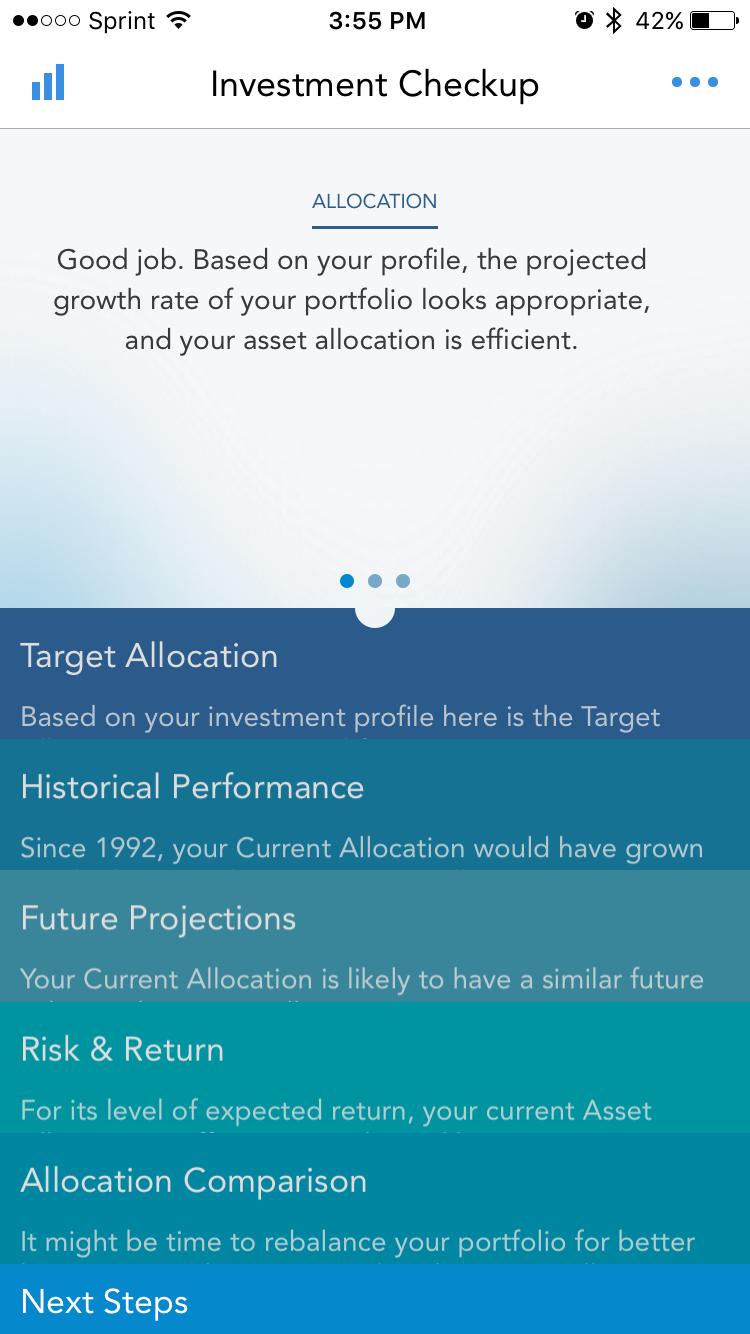
The Investment Checkup page analyzes your holdings using several different tools: target allocation, historical performance, future projections, risk and return, and allocation comparison (Figure 6). These tools are driven by information users provide when setting up their profile. To view your profile information, click on the menu button in the upper left-hand corner of the screen, select the gear-like figure in the upper right-hand corner and then click on investment profile. Your risk profile is based on when you were born, at what age you expect to retire and your desired risk tolerance.
While each of these tools is interesting to see, it’s important to remember they are driven off a “target allocation” that is generated from the three simple profile questions mentioned above. The simplistic nature of the questions asked makes the target allocation non-specific and a guess at best. Personal Capital describes the target allocation as, “a recommended asset allocation driven by the profile questions you answered. It seeks to find the greatest expected return, balanced with your need, desire and ability to take risk.” While the tools in the Investment Checkup section are visually appealing and interesting, I don’t recommend following them verbatim. Asset allocation and target allocation are complex subjects; to properly assess these topics, a much more personal comprehensive analysis should be performed.
Conclusion
Overall, the Personal Capital mobile application is an excellent choice for individuals looking to track their income, expenses and investments.
Once you’ve signed up for Personal Capital, you will also have access to their online platform, which we will cover in a later CI edition.
From personal experience, I like Personal Capital more than the other popular personal finance tool, Mint (in terms of their overall services, including mobile application). I find that Personal Capital sends more timely emails and notifications. Personal Capital also integrates more investment-related information than Mint does, which is advantageous for individual investors. The service has made significant adjustments over the last several years to include more robust services, technology and tools. CI reviewed Mint’s mobile application as well as its website a few years ago.
For those worried about security, Personal Capital works to address your concerns. The application requires two-step authentication any time you use it on a new device, allows for fingerprint verification and specifically identifies its security practices on its website.
Personal Capital for iOS and Android
Free
Discussion
FREE REPORT

jlf from AE posted over 10 years ago:
Jackie McClellan from IL posted over 10 years ago:
Paul Rogers from TX posted over 9 years ago:
You need to log in as a registered AAII user before commenting.
Log InCreate an account