


Free - $4.99
An app that brings some desktop screening technology to your mobile phone.
Screener Pro is a stock screening application that allows users to create customized fundamental and technical screens, research stocks, receive price alert push notifications and manage watchlists. When I began using Screener Pro, I realized its potential almost immediately. From the very start, I felt comfortable building screens and fiddling around with the criteria, thanks to the application’s intuitive interface. To see even a relatively simplified version of stock screening on a mobile device is very exciting. Keep in mind, though, that this is not desktop software; there are some limitations that anyone used to powerful desktop software will notice.
Screener
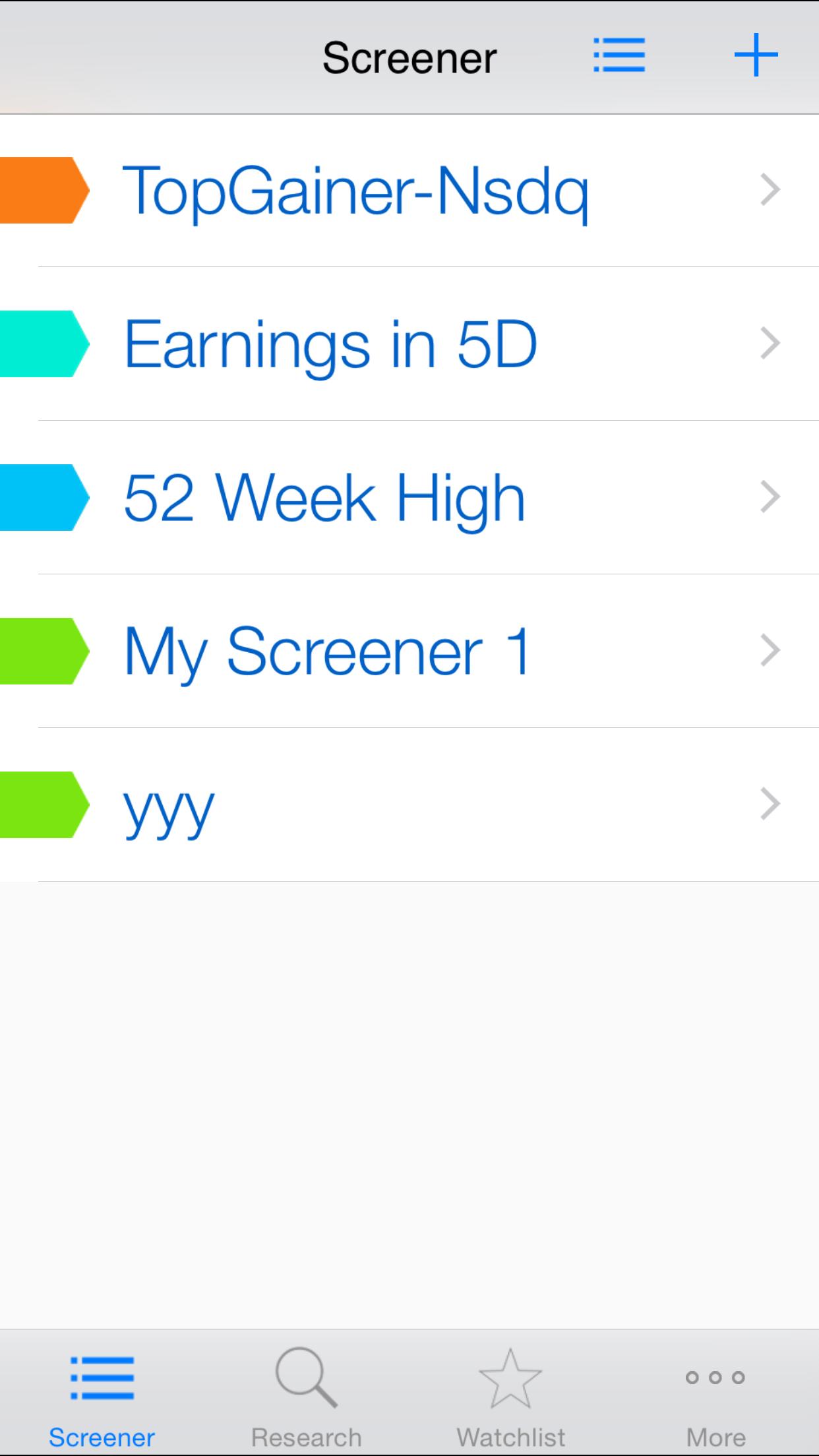
Open the screener by selecting Screener at the bottom of the app. Creating a customized list is easy with Screener Pro, as it simply involves tapping the ‘+’ button at the top right of the app. The first thing you see is a predefined list of screens that includes Nasdaq-Top Gainers and 52 Week Highs (stocks hitting a new high), as shown in Figure 1. You can also create your own screens in this section by tapping the plus button at the top right. Just name your screen and select the various filters that you want applied to it. But first you should update the scanner, which essentially identifies the pool of stocks you want your filters applied to. This can be, for example, the top gainers, oversold, downgrades, etc. If you want to use the whole database of stocks available, simply select ‘none’ for scanner filters.
You can then start choosing your filters under the filter category (Figure 2). Keep in mind that after selecting a filter, it defaults to ‘any’ for the criterion, so if you wish you will have to adjust that. You can add as many filters as you like. However, keep in mind that the more you add, the fewer the companies that are likely to pass (this is called a restrictive screen). Once you are finished adding filters, select ‘done’ at the top right to see what, if any, companies have passed your screen. Basic stock information is offered for each passing company, though you can find out more by tapping the company name. To go back to the list of screens, select ‘screener’ at the top left to see your list of screens, including the one that has just been added. Once you name a screen, it is created in your screen list; there is no ‘save’ button.
On most pages, there is a menu button (three horizontal lines) on the top right that you can tap to delete items in a list, re-sort the list or customize the tags for items in the list. A list is any combination of passing companies or a list of screens that are predefined or created.
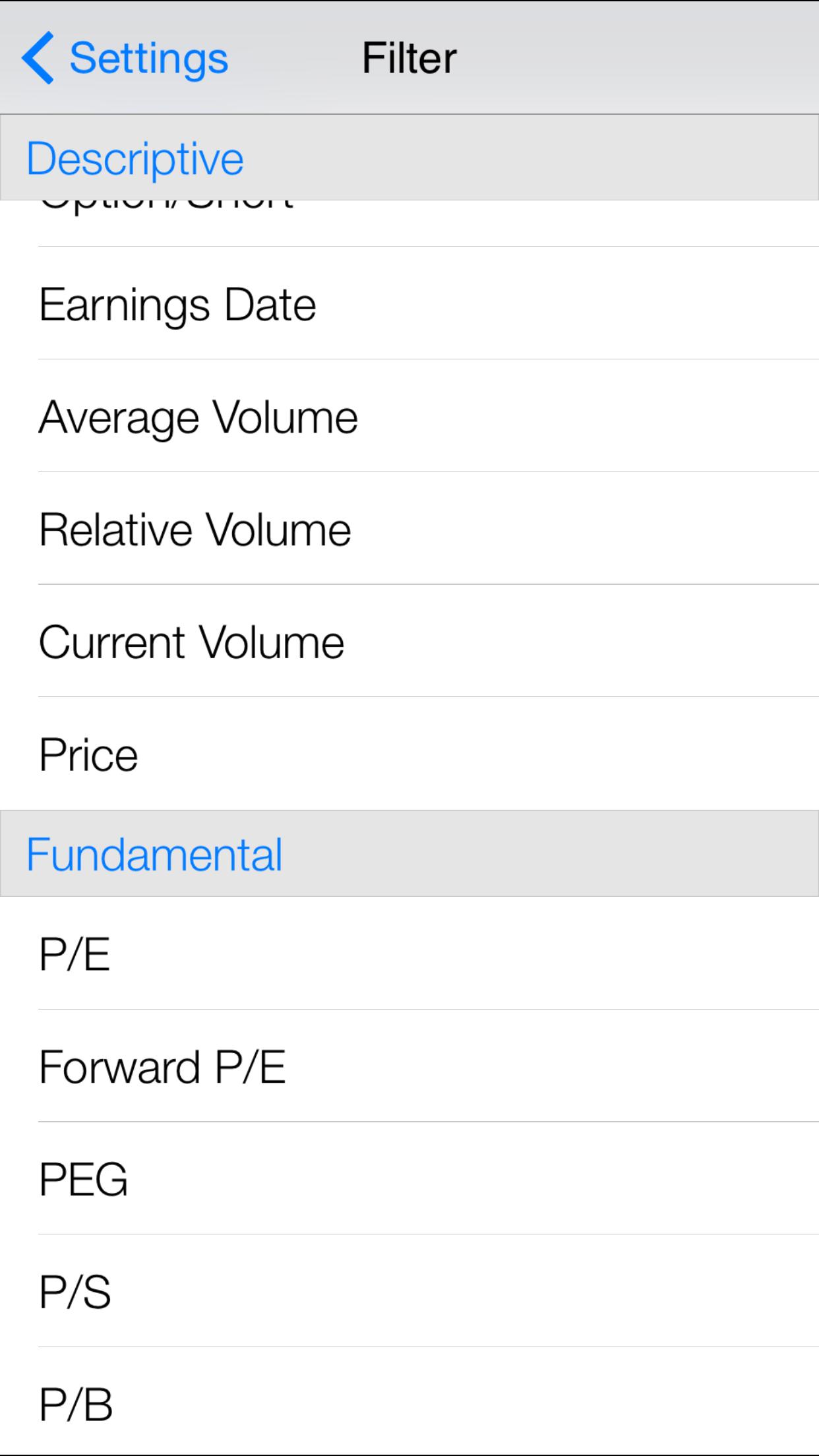
If you select a screen (customized or predefined) in the screen list, a settings button (that looks like a gear) will appear at the top right next to the menu button. This button takes you to a page where you can make changes to the screen. This is where the rubber meets the road when it comes to screening. You can add or delete filters to edit a predefined screen or a custom screen, and Screener Pro offers hundreds of possible filters. The depth of filters allows users to choose the criteria that appeal to them, such as high growth, high yields, etc. Anyone who has used a more robust screener such as AAII’s Stock Investor Pro (or a similar product) will be disappointed by the inability of Screener Pro to filter based on a company’s own historical averages, but otherwise the list of filters is fairly impressive. Both technical and fundamental filters are included and can be combined into one screen.
Each item in a list will have a colored flag next to it that can be changed to suit whatever purpose you wish to use it for. You may use colored flag “tagging” in the app if you wish to differentiate between screens that have different approaches, such as growth, value or momentum. If one of your screens has a tag color that you dislike, it is easily changed by selecting ‘Manage Tags’ from the menu. You also have the option of sorting your list alphabetically, whether it’s a list of screens or passing companies.
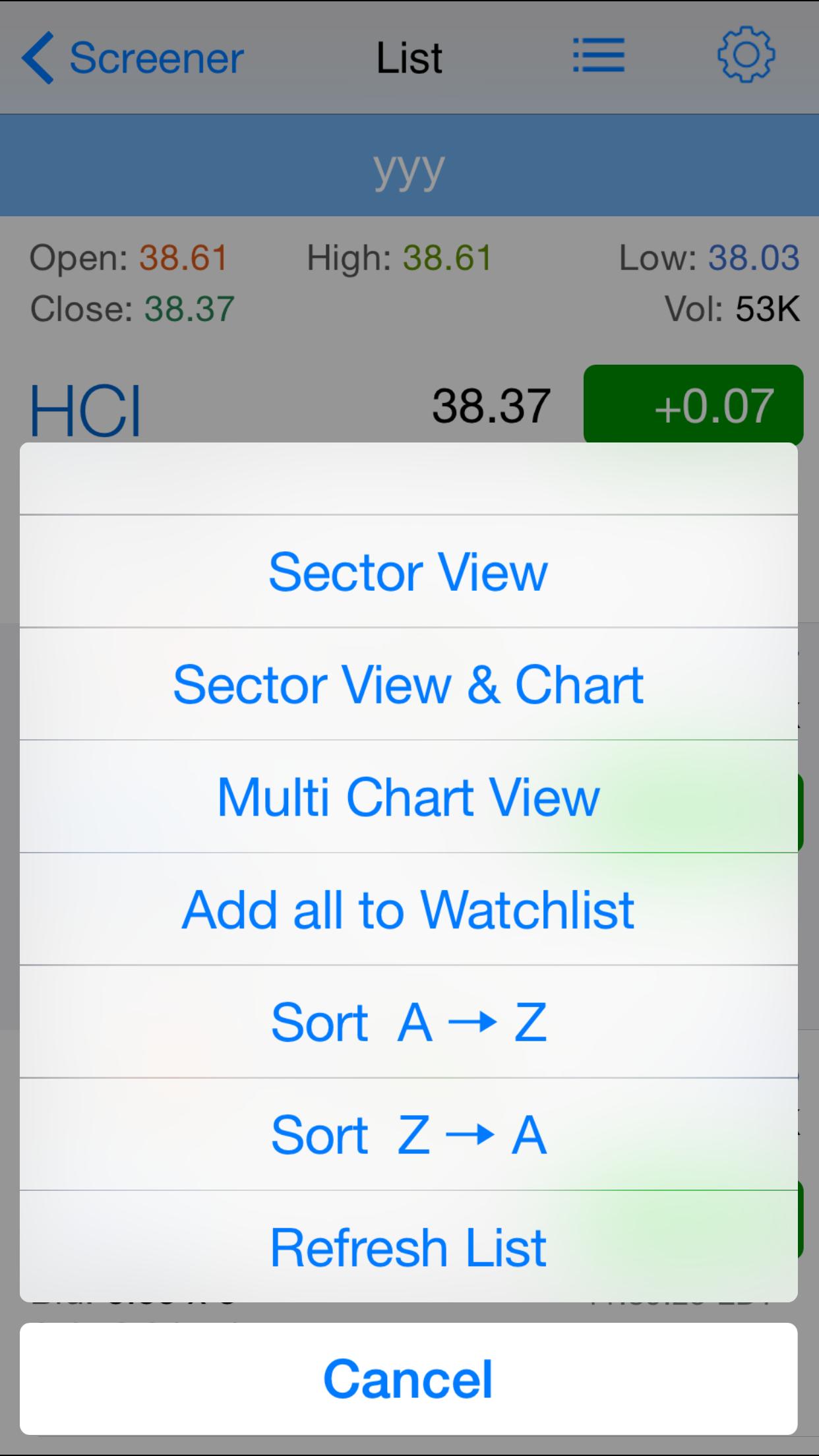
The app also identifies the sector that each company belongs to, by selecting Sector View from the menu option at the top right (Figure 3). Selecting the Sector View & Chart option provides the composition, by sector, of a list. The Multi Chart View shows a six-month price chart for each company on the list. Clicking on any of the listed companies’ price charts brings up a larger horizontal version of the same chart, which is a little easier to see. Selecting “add to watchlist” allows you to easily save all companies in this list to any of your watchlists. As with lists anywhere in the program, the list is sortable.
Research
Research is another main menu option at the bottom of the app. You are prompted to enter a ticker symbol and the app will then show you a basic price view of the company. Selecting that company pulls up a page with much more information. While technical indicators are presented first along with a chart, scrolling down provides more options such as company profile (sector, industry, description), basic information (fundamental data) and news, as well as information on which exchange-traded funds (ETFs) hold the stock. Selecting any of the above options brings up a dedicated page with the relevant information. I found it to be very informative, though it was not comprehensive by any means. Specifically, I would have liked to see historical fundamental growth rates for comparison purposes.
You can tap the company chart to get a larger, horizontal view, which makes reading it easier. The enlarged chart can be closed by simply clicking the ‘x’ at the top right. You can customize the chart by indicator(s) such as moving averages, chart type or date range. The charts were very aesthetically pleasing, but I found parts of it difficult to read since the font was quite small—even on my iPhone 6 Plus.
Watchlist
Selecting “Watchlist” from the bottom of the screen takes you to your list of saved watchlists. When you first start with the app, one watchlist—Favorites—has already been created for you. Tap the plus button at the top right to create and name a new watchlist. To add stocks, simply select the watchlist and then tap the plus button at the top right of the page.
As in the Screener and Research sections, users can select the menu button from the list home page to delete, edit or sort a watchlist.
More (Account, Settings, Upgrade)
The final main menu option is the More section. This is where you can contact the app developer, upgrade from the free version, view or change your settings, and other app tasks. I attempted to reach out to the developer to ask where it sourced the app’s data, but was unable to get a reply before publication.
Free Versus Paid Versions
You can use a limited version of the app for free to try it out. The free version allows you to create screens, but you can use only one filter at a time. It’s just enough to give you a taste of what can be done in the app, but not enough to be useful for investment purposes. The full-featured version with unlimited screens costs $4.99 (a one-time payment).
Summary
The smartphone has been a terrific tool for bringing desktop level software ranging from photography editing to document editing to a small mobile device. Is stock screening ready to make its successful leap to the smartphone? It’s in its early days yet, but the signs are good. If you are looking for full-featured desktop software in the form of an app, then Screener Pro is probably not for you. However, for many investors, Screener Pro will be a nice addition to their investing toolkit while on the go or simply lounging on the couch.
I will note that I reviewed the iOS version of the application and not the Android version. The ratings in Apple’s App Store are significantly different than the ratings on Google Play. Since the applications run on different operating systems, their functionality is likely to differ. I welcome comments from users who have used either the iOS or Android version of Screener Pro.
Screener Pro for Android and iOS
Free - $4.99
Discussion
FREE REPORT

No comments have been added yet. Add your thoughts to the discussion!
You need to log in as a registered AAII user before commenting.
Log InCreate an account