A primary challenge exchange-traded fund (ETF) and mutual fund investors face is selecting and pruning their holdings. Investors are naturally drawn to seeking out funds with strong performance without necessarily comparing how their holdings performed against other funds.
However, you have to be careful not to just chase strong absolute performance. “Strong” performance by a fund could only be “average” performance relative to other funds in its category. It’s more revealing to see how a fund has performed within its category to help separate strong performers from weak performers.
You also can’t just focus solely on return, as fund managers can take on extra risk hoping to boost their returns to bring in more investors.
As an A+ Investor, you have access to the ETF and Mutual Fund Screeners, which are designed to help you identify funds by factors such as their investment objective and style, relative return performance within their category, their absolute and relative costs, absolute and relative volatility, manager tenure, fund family and purchase constraints.
The results of the screen, or filter, are displayed in a table, and you can further research the passing funds, compare them against other funds and add them to a new or existing portfolio. These screens can be saved for use at a later time, and you can even take one of our predefined fund screens, modify it and save it as your own.
Here, we introduce you to our fund screeners by walking through creating and saving a basic mutual fund screen. Say you have $20,000 to invest and are looking for a large-cap blend fund to fill a hole in your asset allocation plan.
First, let’s begin by going to the Mutual Fund Screener. You can also access the dedicated ETF Screener.
You can select and modify the screen criteria for both screeners by clicking on the blue Add Filters button then clicking on the Save Screen button. (The image below is for the Mutual Fund Screener.)

You can access over 30 predefined mutual fund screens (over 20 predefined ETF screens) from the Predefined Screens drop-down menu on the left-side navigation. If you have created and saved your own screens, you can load them by clicking on Load Saved Screen on the left.
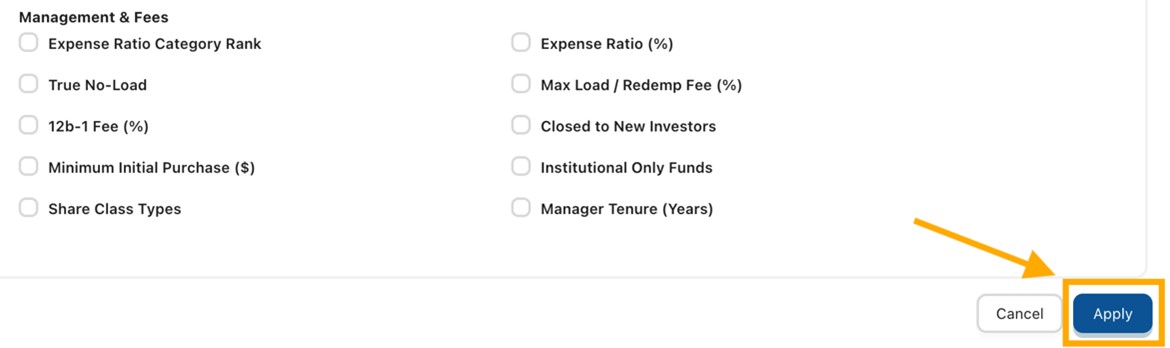
And, if you wish, you can create your own customized screens. To do so, click on the Add Filters button in the main section of the screener. This will open a pop-up window with several options to choose from, including:
Simply select the criteria you want to include in your screen and click on the blue Apply button located in the bottom-right corner of the pop-up window.
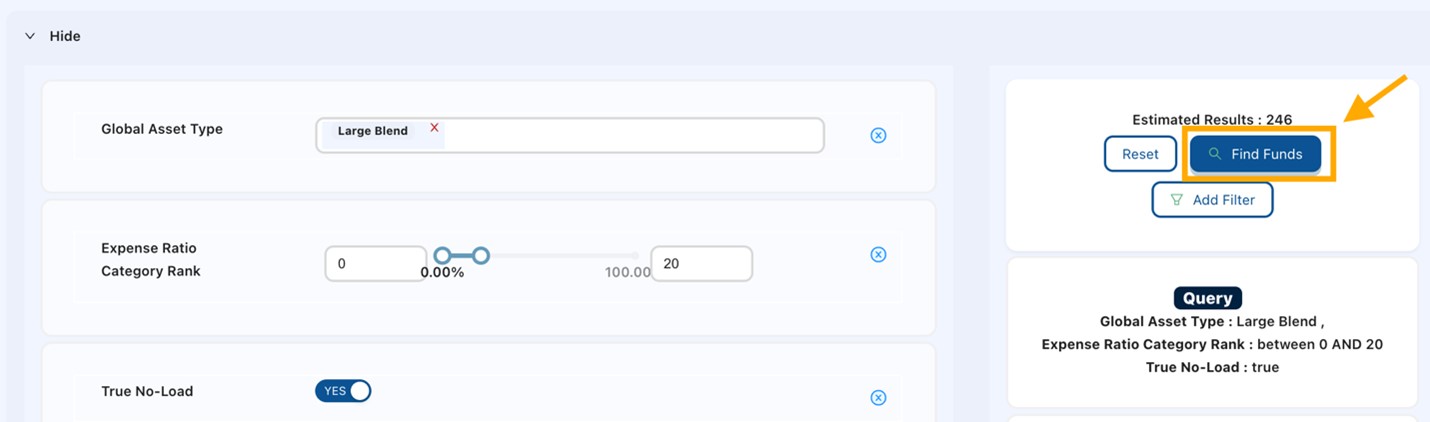
You can then adjust the filters to specify the criteria you want. In this example, we are looking for no-load, large-cap blend funds with low expense ratios. Clicking on the blue Find Funds button will call up the funds matching your criteria.
(You may notice the estimated results number. This is the number of mutual funds or ETFs meeting your criteria. It helps you determine if you should make your criteria more or less restrictive.)
You can save mutual fund (and ETF) screens that you have created by clicking the Save Screen link in the left-hand menu. You can access screens you have saved from the left-hand menu by clicking on Load Saved Screens. Once you have loaded a screen (from the predefined list or your saved screens), you can modify it and save it again. Predefined screens can be saved under a different name (they cannot be overwritten). Screens you create yourself can either be overwritten or saved under a different name.
Other Tips
Need more guidance? Click here for our A+ Investor User Guide.

