Getting Started
Alerts
A+ Investor/Platinum Subscriber Benefits
To access the My Portfolio tracker, click on My Portfolio from the My Tools menu at the top-right of the AAII website (www.aaii.com).
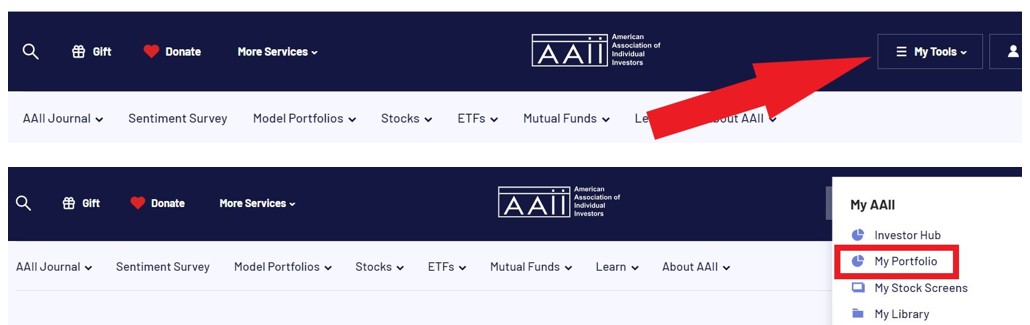
Alternatively, go to the Investor Hub (https://hub.aaii.com) and select My Portfolio from the main left-hand menu.
If you have not yet created any portfolios within My Portfolio, select the + New Portfolio to get started.
If you have already set up one or more portfolios with My Portfolio, scroll down to the end of your list of portfolios and click on the Create Portfolio button.
When you are creating a new portfolio, you first arrive at this screen with three options for adding tickers:
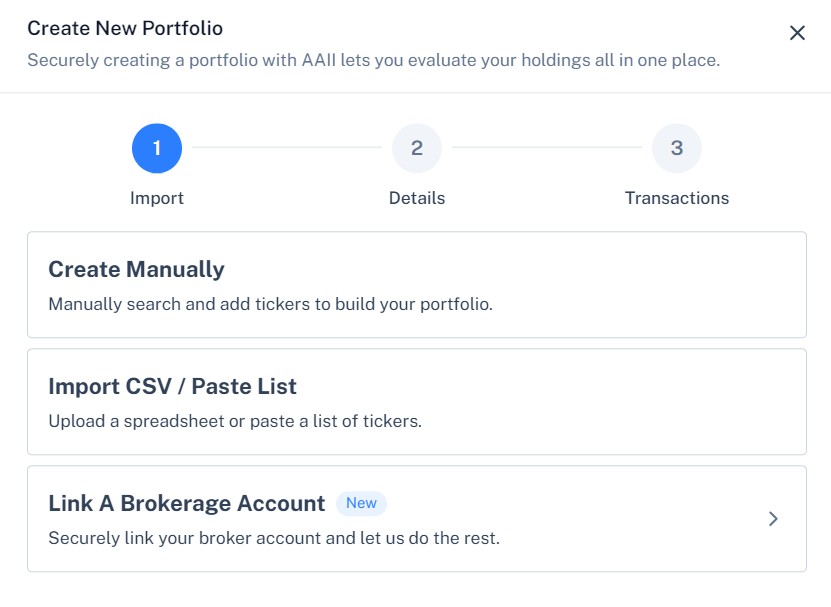
The first step is to name your new portfolio. Portfolio names can be up to 25 characters in length, including spaces. Special characters allowed in portfolio names include numbers, apostrophes, ampersands, commas, number signs, back slashes, parentheses and dollar signs. Each of your portfolios must have a different name.
The next step is to add ticker symbols.
My Portfolio supports tickers for individual stocks, mutual funds and exchange-traded funds (ETFs). In all, the universe covers the majority of stocks traded on U.S. exchanges as well as funds and ETFs issued by U.S. investment companies.
Please note: My Portfolio does not currently support preferred shares, individual bonds or closed-end funds. If you wish to track the current total value of your individual bonds, enter it using the ticker $BOND.
A maximum of 200 tickers can be tracked in a single portfolio. There is no limit on the number of portfolios a particular stock can be added to, but the maximum number of portfolios each subscriber can have is 25.
The final step is to add your transactions for each holding, if desired: Date, sell/buy, number of shares, commission and share price.
At this page you can enter in a CASH balance by clicking on the pencil to the left of CASH ($CASH). This will open a window where you can enter in your cash balance (without the $ sign).
At this page you can enter in a CASH balance by clicking on the pencil to the left of CASH ($CASH). This will open a window where you can enter in your cash balance (without the $ sign).
To enter or change information for a given holding in your portfolio, click the Modify Portfolio button at the top when you are in the portfolio:
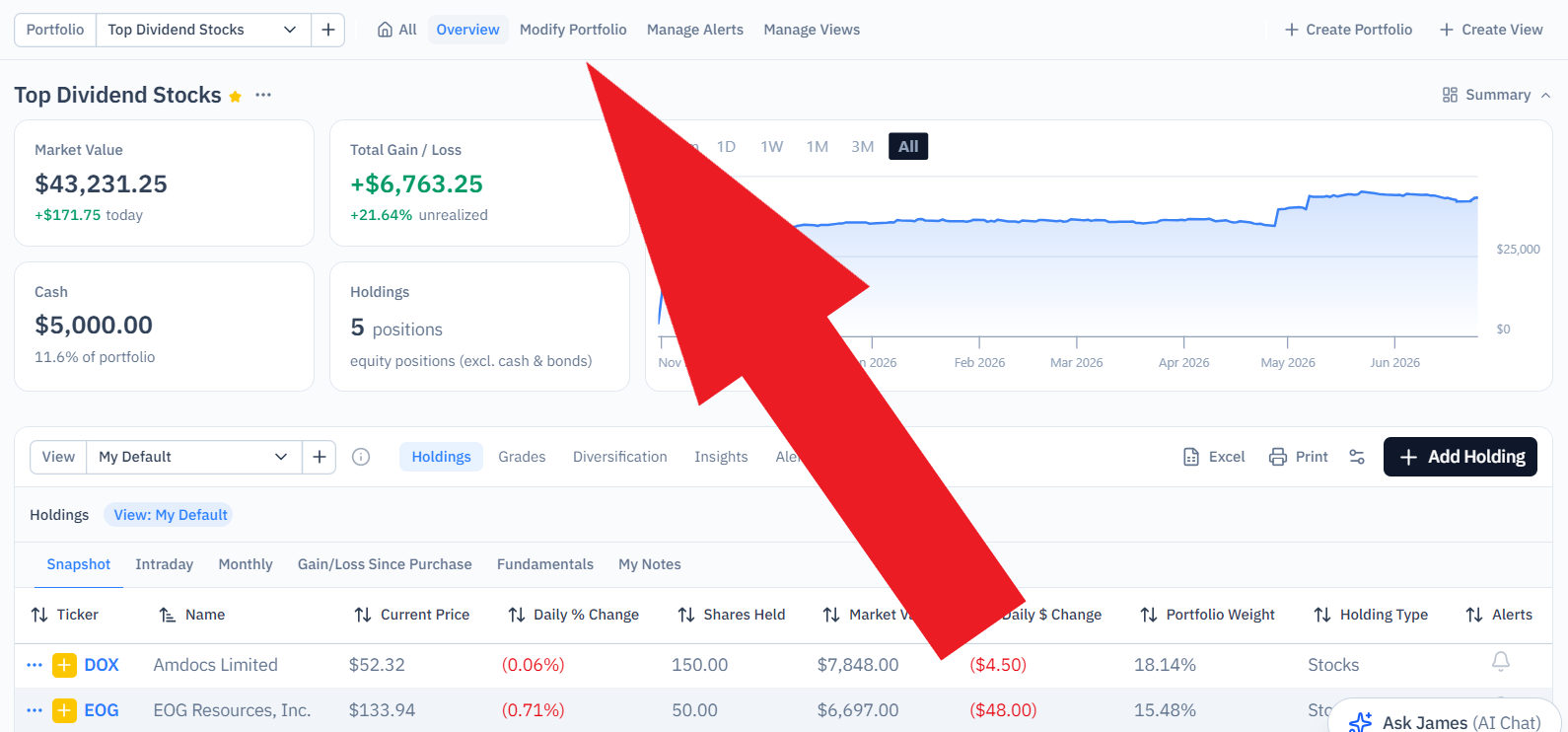
Then, click on the down arrow to the right of a holding’s name to open the transaction window.
The minimum information you need to enter for a given holding in order to unlock the portfolio analyzer tools is the number of shares you currently own. Type that number in the Shares cell. If you wish to get more detailed performance analysis, enter in the transaction date, purchase price per share and total commission. Dates are chosen from a pop-up calendar.
You can edit or delete any transaction at any time, if needed.
Once you have entered in all the transaction data for a given ticker, click the Done button at the bottom of the page.
Repeat the process for each stock, mutual fund and ETF. Once you have entered in all the data for all the tickers in your portfolio, click the Done button at the bottom of the page.
While My Portfolio can function as a watchlist tool, where you enter in only tickers, the true power of the tool comes from entering in buy and sell dates, buy and sell prices and commission data. We strongly encourage you to provide as much detail as possible when entering in your portfolio.
A+ Investor Subscribers: Once you have entered in the information for all your portfolio holdings, you can make use of all the portfolio analysis tools A+ Investor offers.
The portfolio you have favorited will be displayed at the top of your list of All Portfolios.
You can favorite a portfolio at the All Portfolios list by selecting the three dots to the left of the portfolio name in the list and choosing Favorite.
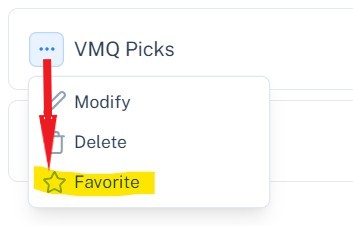
You’ll then see a yellow star to the right of the portfolio name.
You can change your favorite portfolio at any time. However, only one portfolio can be your favorite.
After a portfolio is created, you may want to manage the holdings in the list. To enter or change information for a given holding in your portfolio, click the Modify Portfolio button at the top:
The modify options include:
To add or edit transactions, click on the down arrow to the right of a holding’s name to open the transaction window.
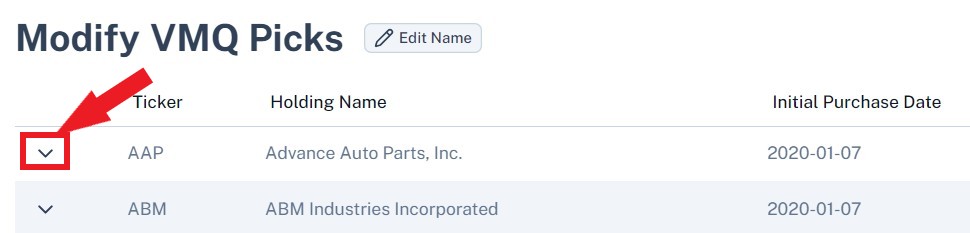
To remove a stock from a portfolio, select the three dots to the far right of the company name and choose Delete. Then select the Done button at the bottom of the holdings list.
When a stock is removed from a portfolio, none of the information is saved, including the transaction data and any notes you may have entered. Please exercise caution before deleting a stock from your portfolio.
The My Notes column allows you to add additional information about each stock. This might be reminders about why you added the stock, the characteristics of the stock at the time you added it, etc. Notes are limited to 140 characters, including spaces, in length. To view your notes once you’ve input them, select on the “My Notes” tab from the top of the Holdings list.
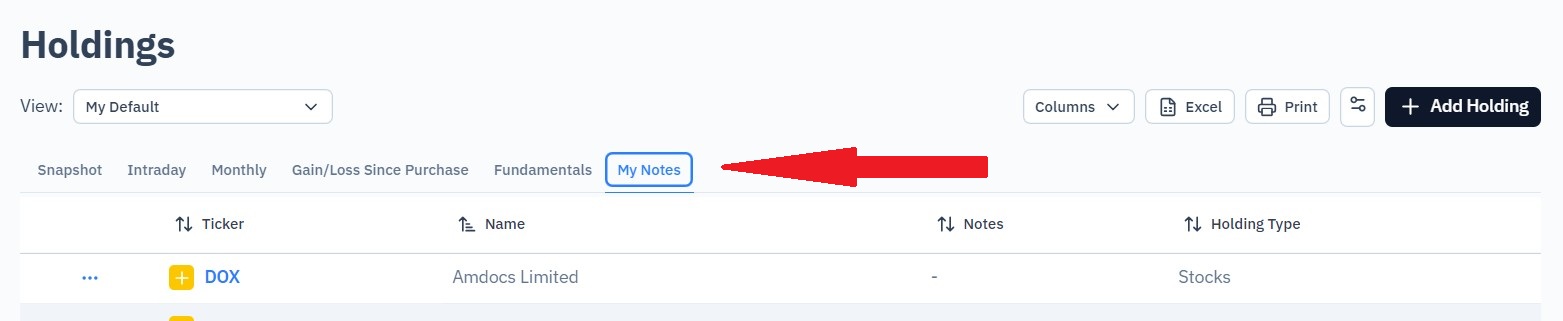
To add or edit notes for a stock in your portfolio, go to Modify Portfolio. Select the three dots to the far left of the holding and select Edit Notes from the drop-down menu.
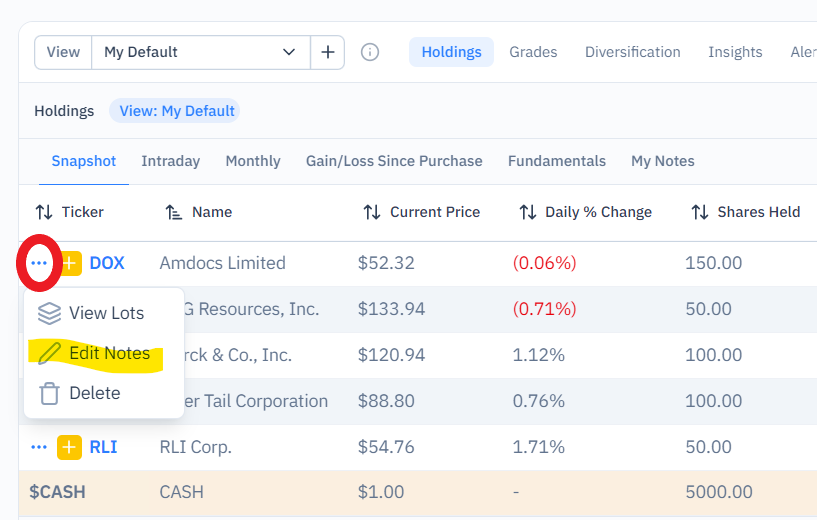
Select the “Save” button when finished, or cancel if you do not wish to save your changes. Then select the Done button at the bottom of the holdings list.
Notes can be viewed by selecting the “My Notes” tab from the top of the Holdings list.
The transaction date is filled in for you with the date the stock was added to your portfolio. The date can be changed by selecting Modify Portfolio and then selecting the down arrow to the left of the stock’s name.
You can also specify the transaction type (buy or sell), the number of shares bought or sold, the purchase/sales price and the commission.
Select the Done button at the bottom of the holdings list when you are finished.
Portfolios can be renamed at any time by selecting Modify Portfolio button at the top right and clicking the Edit Name button to the right of the portfolio’s name
Portfolio names can be up to 25 characters in length, including spaces. Special characters allowed include numbers, apostrophes, ampersands, commas, number signs, back slashes, parentheses and dollar signs. Each of your portfolios must have a different name. Click Done to save your portfolio name change.
To delete a portfolio, select the three dots to the left of the portfolio name at the My Portfolio page and select Delete.
A screen asking you to confirm the portfolio deletion will appear. Selecting the Delete button permanently deletes the portfolio, including any transaction information and notes you have entered.
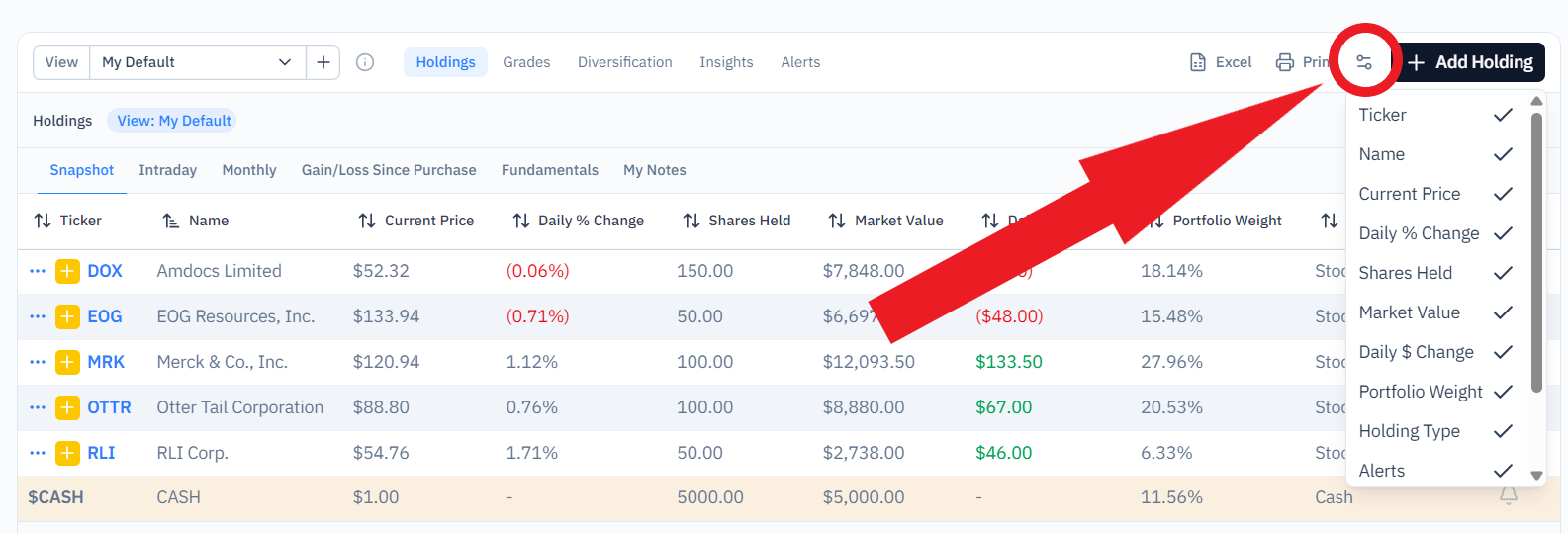
You can remove specific columns to narrow down the information displayed on any of your portfolio tables. This applies to the Snapshot, Intraday, Monthly, Gain/Loss Since Purchase, Fundamentals and My Notes tabs above your list of holdings.
Simply click the Controls icon and deselect columns from the drop-down menu.
At the top of the holdings table in My Portfolio, there is a View drop-down menu. My Default view is automatically loaded and shows the performance of your individual holdings along with their portfolio weight.
To change the view, click the down arrow on the drop-down menu.
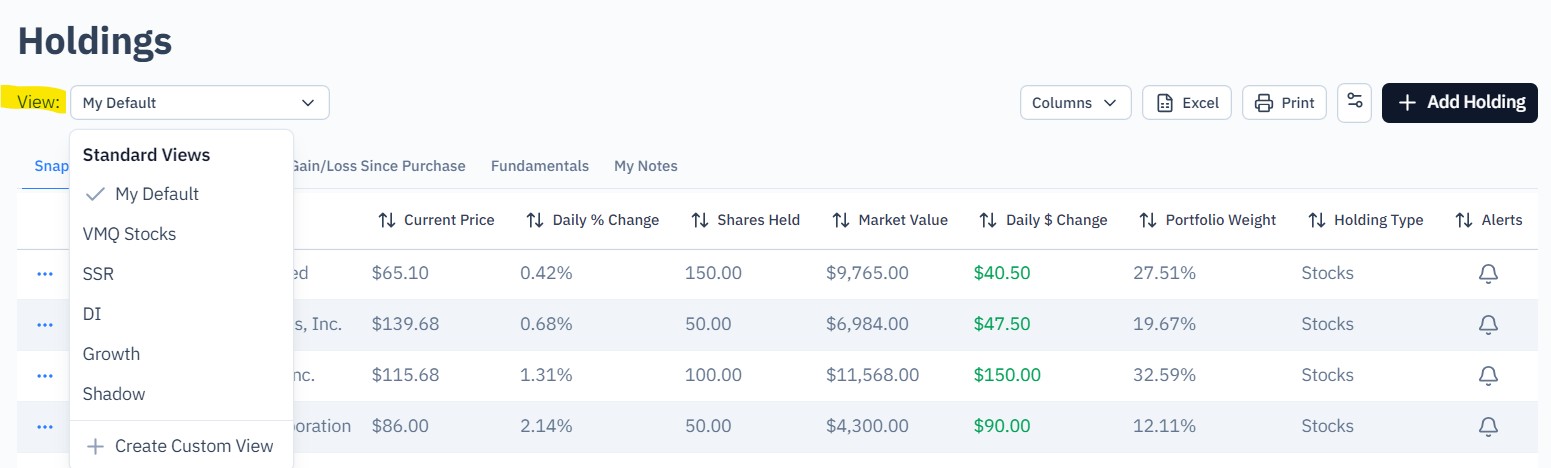
The Shadow view is available to all AAII members and reports valuation, market capitalization and relative strength data relevant to the Model Shadow Stock Portfolio.
There are also customized views for our premium portfolios: VMQ Stocks, Stock Superstars Report (SSR), Dividend Investing (DI) and Growth Investing. If you subscribe to one or more of these, you can load a view that features the criteria used for the service. AAII Platinum subscribers have access to all views.
The View menu also includes a + Create Custom View option. Selecting this allows you to build a view for stocks or funds with the key metrics that matter most to you. For stocks, you can choose from more than 2,000 stock data fields across multiple categories. Listed under SI Pro, the stock data categories include financial statement data, company information, earnings estimates, growth rates, valuation multiples, price statistics, ratios and more. Data for ETFs and mutual funds is categorized under annual returns, trailing returns and characteristics.
The filters you choose show up in a list on the right side of the Custom View Builder.

AAII members can choose up to 10 data fields, divided among their custom views. A+ Investor and AAII Platinum subscribers can choose from any of the available data fields.
Name and save your custom view at the bottom of the custom screen builder screen. It will then show up in the View drop-down menu.
More details on setting up views for portfolios of funds, see Customize How You Track Your ETFs and Mutual Funds.
Price alerts are a tool for all AAII members to track daily price changes for stocks, mutual funds and exchange-traded funds (ETFs) that you follow in My Portfolio. If the stocks, ETFs and funds that are most important to you meet certain price change criteria that you select, you will receive a daily price alert.
AAII members will receive price alerts if stocks, mutual funds and ETFs you follow meet certain price change criteria that you select. A daily email alert is generated shortly after market close if any of your holdings has price actions that pass your configurable alert rules.
You can go to My Portfolio, open one of your portfolios and select Alerts to view a summary of the holdings in any of their portfolios that meet your price alert settings. My Portfolio price changes will be available daily around 6 p.m. Central Time, Monday through Friday. To see a summary of all alerts for all of your portfolios, go here.
AAII members can receive price alerts for stocks, mutual funds and ETFs that meet user-defined price change movements or reach a new 52-week high/low. AAII members can choose to receive price alerts for all of the portfolios set up in My Portfolio or for select portfolios. The price action settings are universal. A universal setting means that alerts are set for all the holdings in the portfolios you select and cannot be set for individual holdings.
AAII members can define custom price alert settings for stocks, mutual funds and ETFs you follow in My Portfolio. The user can define any daily increase or decrease by using any combination of whole numbers with fractions. You have the option to manage your price action alert rules for holdings with daily increases, for example, of more than 1%, 1.5%, 2.0%, 5%, 10%, etc., or for daily decreases of more than 1.3%, 2.6%, 4.5%, 8.4%, 12%, etc.
AAII members can also set price action alert rules for holdings that reach a new 52-week high or 52-week low.
Price alerts allow AAII members to track price changes for holdings you follow so that you don’t have to be constantly checking the prices of your holdings. You can set the price alert criteria you want and then you will be notified of that price change.
If you have not set up a portfolio of stocks, mutual funds or ETFs in My Portfolio, then the price alerts tool is not available. To receive price alerts, AAII members must have a portfolio set up in My Portfolio.
The price alerts tool does not track intraday price changes. The tool tracks daily price change alerts from the closing price at the end of the previous trading day to the closing price on the current trading day.
To set up price alerts, go to My Portfolio and select one of your portfolios. Then, click on Manage Alerts from the top of the screen.

You can disable or enable notifications for all price alerts of a certain type or modify your settings. First, you need to enable the alerts and then you need to click Adjust Settings to manage your price alert rules. Remember that these settings are universal for all of your portfolios that you select.
After clicking Adjust Settings, you have the ability to select the price actions you’d like to receive alerts on.
AAII members also have the option under Portfolio List to specify the portfolios that you would like to get price alerts on. For this example, we selected to receive price alerts for all four portfolios that we created in My Portfolio.
When you add or remove a checkmark from these lists, your action is automatically saved.
With the price alert settings selected, you can view a summary of your holdings that meet your price alert settings by clicking on Alerts.
Grade alerts are a tool for A+ Investor subscribers to track daily grade changes for stocks that you follow in My Portfolio. If the stocks that are most important to you meet certain grade change criteria that you select, you will receive a daily grade alert notification.
A+ Investor subscribers receive grade alert notifications if stocks you follow meet certain grade change criteria that you select. A daily email alert is generated based on the previous trading day, if any of your holdings have grade actions that pass your configurable alert rules.
A+ subscribers can view a summary of your holdings that meet your grade alert settings online by going to My Portfolio and selecting Alerts. The daily grade change alert reflects changes from the previous trading day, and informs you of any A+ grade changes from stocks in your portfolios. To see a summary of all grade alerts for all of your portfolios, go here and toggle to the Grade tab.
My Portfolio grade changes are available daily online around 9 a.m. Central Time, Tuesday through Saturday.
A+ Investor subscribers can receive grade alerts for stocks that meet user-defined grade change movements up or down for the following grade investment factors: value, growth, momentum, estimate revisions and quality. There are also settings for stocks with newly initiated grades and dropped grades.
A+ Investor subscribers can choose to receive grade alerts for all of the portfolios set up in My Portfolio or for select portfolios. The grade action settings are universal for all the portfolios you select. A universal setting means that alerts are set for all the holdings in a particular portfolio and cannot be set for individual holdings.
A+ Investor subscribers can define custom grade alert settings for stocks added to My Portfolio. The user can define any grade changes (up or down) for the five grade investment factors (value, growth, momentum, estimate revisions and quality). For each of these five investment factors, A+ Investor subscribers can select to view grade changes (up or down) for one grade change, two grade changes, three grade changes and four grade changes.
For example, if you want to set a grade alert for the value grade and want to view your stocks that have moved at least two grade changes, from a grade of C to A or from C to F, you would select 2 from the Grade Changes choices for the Value Grade Action row. If you select 1 from the Grade Changes choices for the Growth Grade Action row, it would show any stocks with at least one upgrade or downgrade—say, from a grade of B to A or from B to C.
A+ Investor subscribers can also choose to view stocks with newly initiated grades by checking the box under Initiated Grades for each factor. For example, some stocks may not presently have a grade for a certain factor because they don’t meet the minimum number of valid (non-null) ratios and corresponding ranking to be assigned a grade. When they do meet the criteria for generating a grade, you can be notified.
A+ Investor subscribers can also choose to view stocks with newly dropped grades by checking the box under Dropped Grades. Similar to newly Initiated Grades, there are some stocks that had a grade for a certain factor because they met the minimum number of valid (non-null) ratios and corresponding ranking to be assigned a grade, but now they do not.
Grade alerts allow A+ Investor subscribers to track grade changes for stocks you follow so that you don’t have to be constantly checking the grades of your stocks. You can set the grade alert criteria you want and then you will be notified of that grade change.
If you have not set up a portfolio of stocks in My Portfolio, then the grade alerts tool is not available. To receive grade alerts, A+ Investor subscribers must have a portfolio set up in My Portfolio.
My Portfolio is an area where you can easily evaluate your investment strategy, monitor your holdings, see your returns and more.
Grade alerts are not available for mutual funds and exchange-traded funds (ETFs).
Grade alerts are an exclusive tool for A+ Investor subscribers to track daily grade changes for stocks that you set up and follow in My Portfolio.
If you already have a portfolio of stocks set up in My Portfolio, then you are ready to use the grade alerts tool. If you do not have a portfolio set up in My Portfolio and want to receive grade alerts, then the first step is to create a portfolio with stocks to track in My Portfolio.
To set up grade alerts, go to My Portfolio and select one of your portfolios. Then, click on Manage Alerts from the top of the screen.
You can disable or enable notifications for all grade alerts of a certain type or modify your settings. First, you need to enable the alerts and then you need to click Adjust Settings to manage your grade alerts. Remember that these settings are universal for all of your portfolios that you select.
A+ Investor subscribers also have the option under the A+ Daily Grade Change Alerts to specify the portfolios that you would like to get grade alerts on.
When you add or remove a checkmark from these lists, your action is automatically saved.
With the desired grade alert settings selected, you can view a summary of your stocks that meet your grade alert settings by clicking on My Alerts at the top of the page, then choose the Grade Alerts tab.
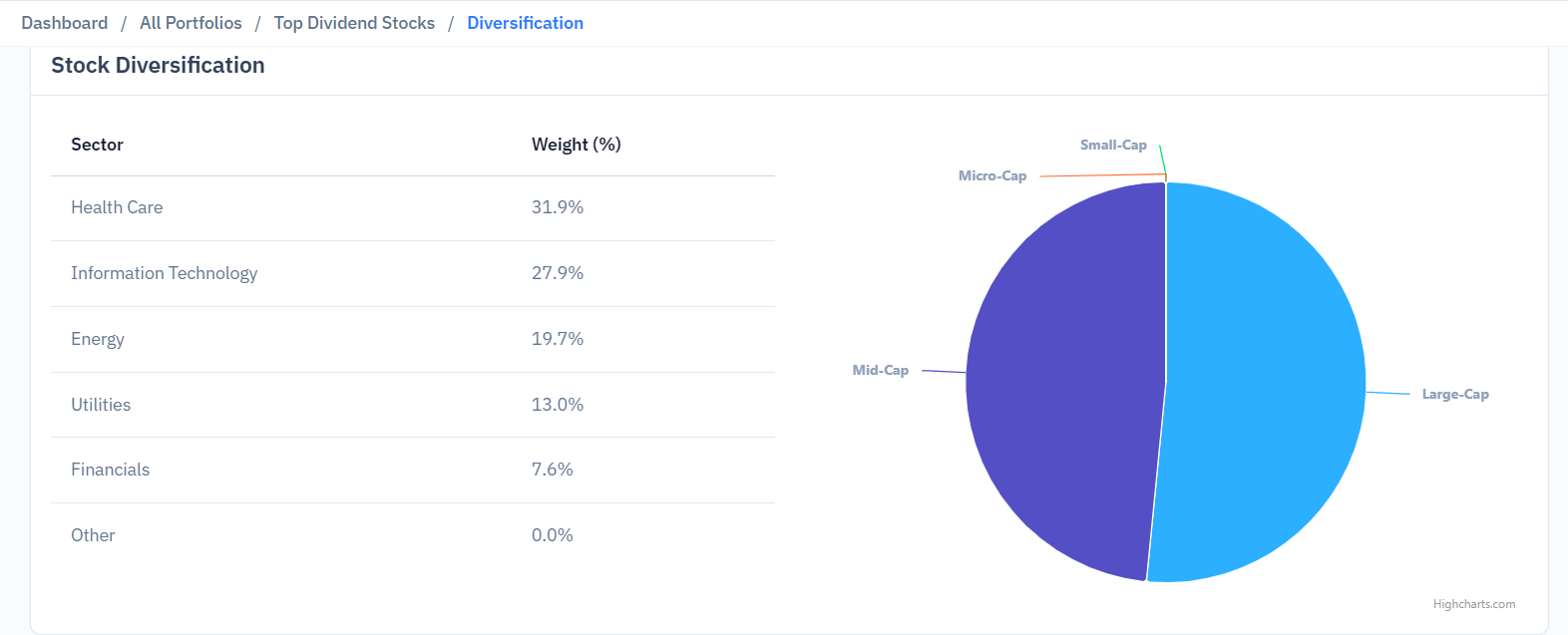
The Diversification Analyzer tab displays pie charts and analysis designed to show you how diversified your portfolio is.
In the Asset Allocation Analyzerbox, you can select which kind of investor you are in terms of risk tolerance: conservative, moderate, or aggressive. Once you have done so, your portfolio holdings are then compared with a suggested allocation based on the type of investor you chose and AAII’s asset allocation models.
The Asset Allocation Analyzer breaks down your portfolio’s holdings into five broad asset classes: domestic stock, foreign stock, bonds, cash and other. Then, depending on the type of investor you are, the allocation analyzer shows how far your current allocation differs from the suggested allocation of someone with a similar risk tolerance. When you are overweighted or underweighted in an asset class relative to the suggested allocation, the difference is shown.
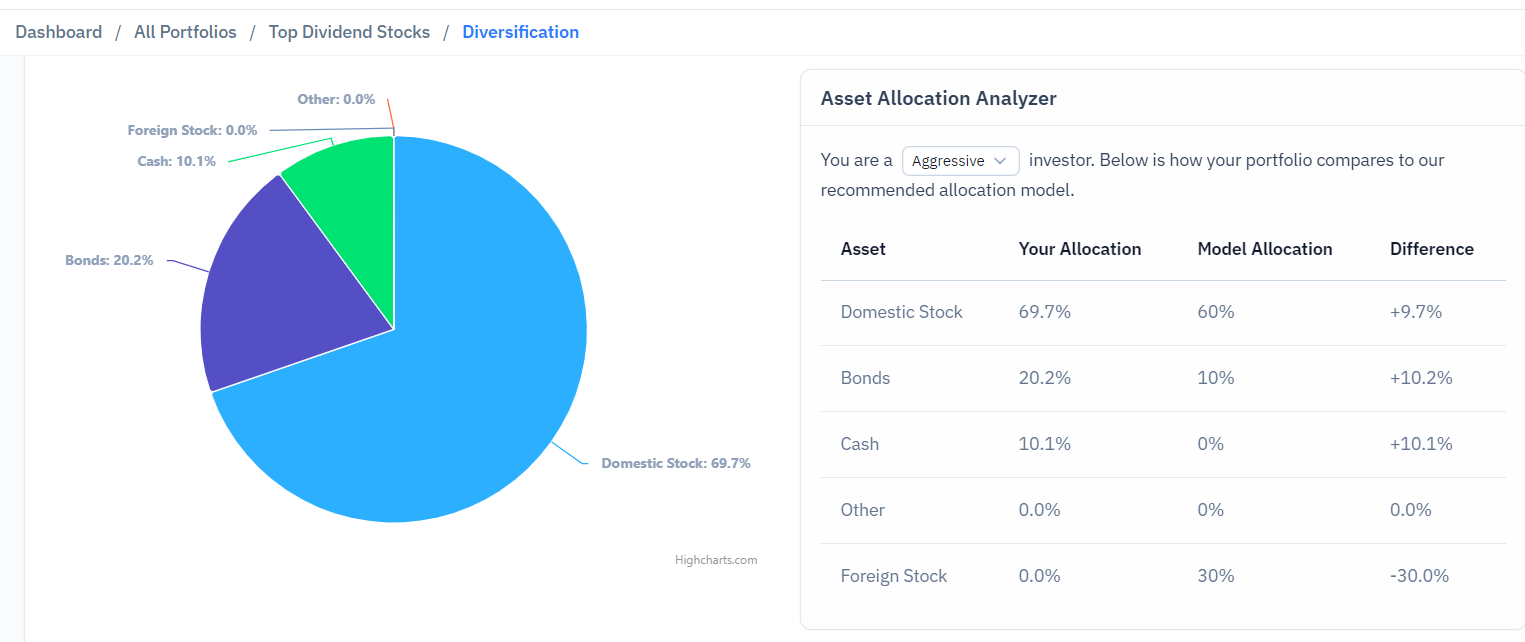
This tool is useful because it offers you insight into whether you are taking on too much or too little risk, given your acceptable risk level.
Note: If you don’t enter in the number of shares you own of a given security in your portfolio, the Diversification Analyzer will not be able to provide a breakdown of your portfolio, since it needs the number of shares to calculate individual holding and overall portfolio values.
The Stock Diversification and Geographical Diversification breakdowns analyze your portfolio across individual stocks and the equity portions of any mutual funds or ETFs you hold in your portfolio; they do not consider bonds.
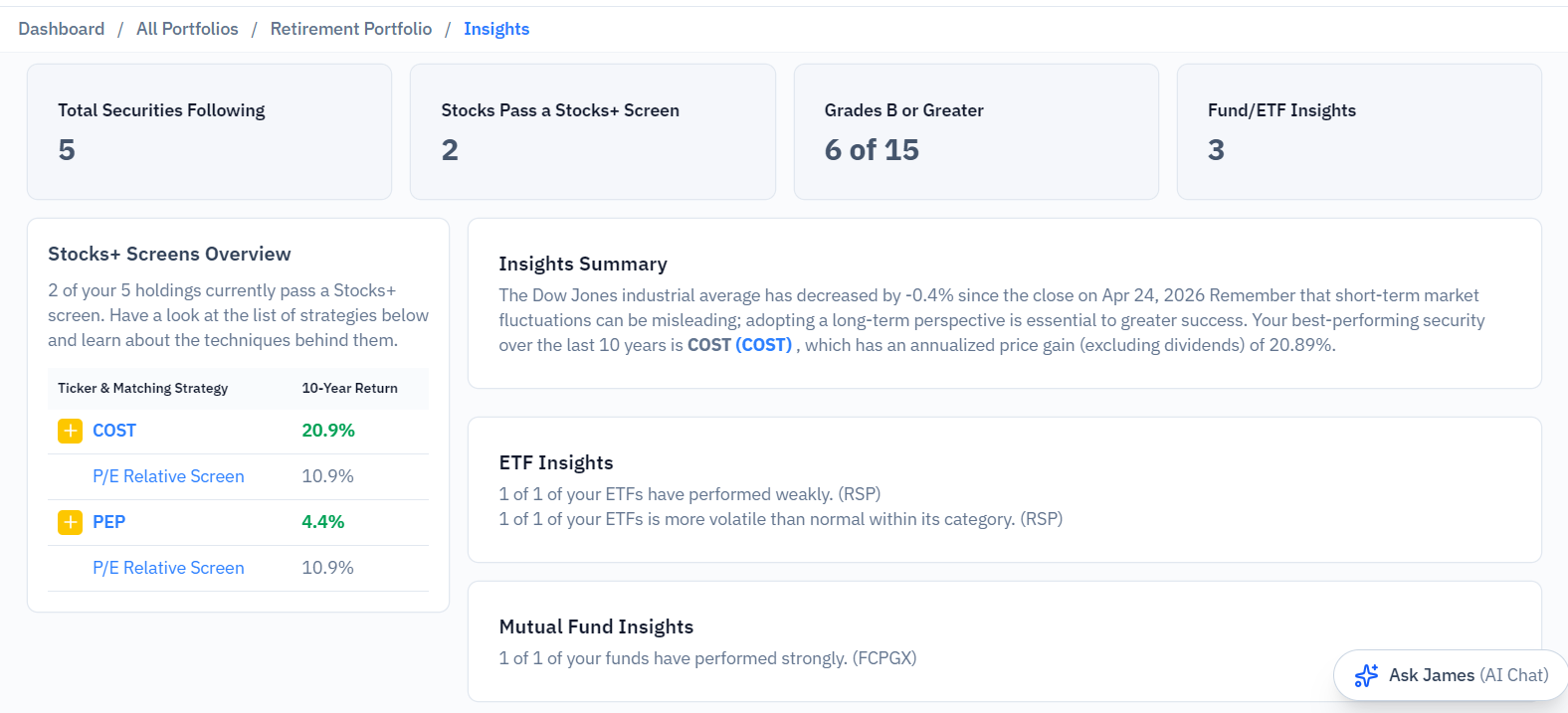
For stocks, the Insights tab shows which stocks in your portfolio are currently meeting the criteria of any of AAII’s stock screening strategies. You see a list of the tickers passing any of AAII’s stock screening strategies, along with the strategy (or strategies) they currently pass. Click on the screen to find out more about the approach.
Insights also tells you how many stocks in your portfolio rate a B or better on any of the five A+ Investor Grades (value, momentum, quality, estimate revisions and growth]).
To see fund and ETF Insights, select a portfolio with mutual funds and/or ETFs from the drop-down menu at the top of the My Portfolio page.
Here’s a sample of the insights you’ll see: