

Related

Investor Professor
There are basic steps you can take to recognize and help protect against the inevitable email and internet scams and attacks.
by Jess Sherman | July 2020

Among the many actions performed each minute in cyberspace are website surfing, shopping, banking and gaming. There are also many “smart” devices such as televisions, refrigerators and watches transferring data to and downloading data from the internet. These common everyday activities carry the cyberthreats of social engineering to gain unauthorized access to data, steal your identity, commit fraud and hold your computer hostage, to name just a few. As the percentage of the population using the internet increases, so do the security risks. With the rise in use of social media sites and networks, people are making more personal information available to the online world, making it more difficult to protect valuable data.
Phishing scams—in which attackers pose as a trustworthy party to trick people into handing over personal details or account information—were the most common type of internet crime in 2019, according to an FBI report. Internet users lost more than $57.8 million in 2019 as the result of phishing, with over 114,000 victims targeted in the U.S. As phishing becomes more profitable, hackers are becoming increasingly sophisticated in the methods they use to gain access to your personal information.
The coronavirus pandemic has increased our dependence on the internet, as social distancing and shelter-in-place rules disrupted economic and interpersonal activity. In cyberspace, dependence creates vulnerability, and malicious attempts to exploit this sudden societal shift have proliferated online. Law enforcement officials reported that criminals are, among other things, selling fake coronavirus cures online, posing as intergovernmental or governmental health organizations in phishing emails and inserting malware into online resources tracking the pandemic.
Steven Merrill, head of the FBI’s Financial Crimes Section, discussed the online schemes the FBI was investigating as of April 2020. At that time, the agency was expecting an uptick in just about every type of scheme. Because so many people—adults and students—were working from home in a setup that placed them outside the digital protections that they would have when working in a school or an office, the risks were higher. The ways in which the coronavirus highlights many cybersecurity problems invites reconsideration of cybersecurity strategies and tools that individuals can implement.
Some examples of prevalent schemes include:
While it may seem obvious, the first thing individuals can do to limit the likelihood of becoming a scam victim is to use caution in online communication.
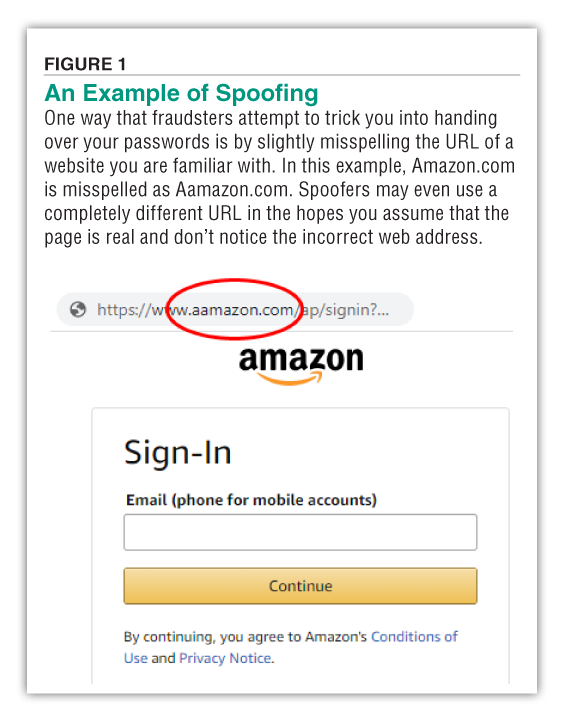
For emails, verify who the sender is—criminals will sometimes change just one letter in an email address to make it look like one you know. Be very wary of attachments or links; hover your mouse over a link before clicking to see where it’s sending you. In general, be suspicious of anyone offering you something that’s too good to be true, or a secret investment opportunity or medical advice. Seek out legitimate sources of information. For medical information, those trusted sources are your own doctor, CDC.gov and your state and local health department. For financial information, visit FTC.gov, IRS.gov or Investor.gov (SEC website).
Other strategies individuals can implement to improve security savviness follow.
Because your operating system manages all the functionality on your computer, phone, tablet and other smart devices, it can be a vulnerable target for hackers. Operating systems have many built-in functions to help prevent attacks. The problem, though, is that cyberthreats are constantly changing. That’s why Microsoft, Apple, Google and others regularly offer operating system updates: to keep on top of changing threats from cybercriminals. If you don’t update your operating system, you leave yourself vulnerable to losing the information on your device or compromising access to key accounts. That can cost you your identity, your information and even money.
Most operating systems?for both mobile devices and personal computers?come with a feature that allows you to automatically download and install updates. This is the simplest way to ensure that your computers and other devices are constantly up to date. The only trick? Taking the time to enable the automatic updates in the first place! To minimize disruptions to your daily routine, you can choose to enable automatic updates for your software and apps. You can also set your devices to update automatically when you are connected to Wi-Fi or schedule updates to install overnight when your device is plugged in.
Here’s how to enable automatic updates on your computers and install updates on your other devices.
Windows
To turn on automatic updates for your PC, select the Start button, go to Settings (the gear icon) and scroll down to Update & Security. Click on it to go to Windows Update and select Advanced Options. Under “Choose how updates are installed,” select zero for the number of days the updates can be deferred.
For details on how to keep your PC up to date, visit the Microsoft Windows support website.
Macintosh
To turn on automatic updates for your Mac, select the Apple menu, go to System Preferences and click on Software Update. Select “Automatically check for updates.” You can choose to enable options for automatically downloading macOS and Apple application updates.
For details on how to keep your Mac up to date, visit the Apple support website.
Android
Depending on the brand of Android phone you have, the process is a bit different. Most Android devices will automatically notify you of new updates by default. However, these updates will only download when the device is connected to Wi-Fi and the battery holds a charge of over 50%. If you’d like to check for updates, go to your phone’s settings app and select About Phone or Software Update, then tap the Check for Updates option. If an update is available, an Update button will appear. Depending on the operating system, you’ll see Install Now, Reboot and Install or Install System Software.
For details on how to keep your Android device up to date, visit the Android support website.
iOS
You can update your iPhone, iPad or iPod touch to the latest version of iOS or iPadOS wirelessly. If a message says that an update is available, tap Install Now. You can also follow these steps to check for a software update:
For details on how to keep your iOS device up to date, visit the Apple support website.
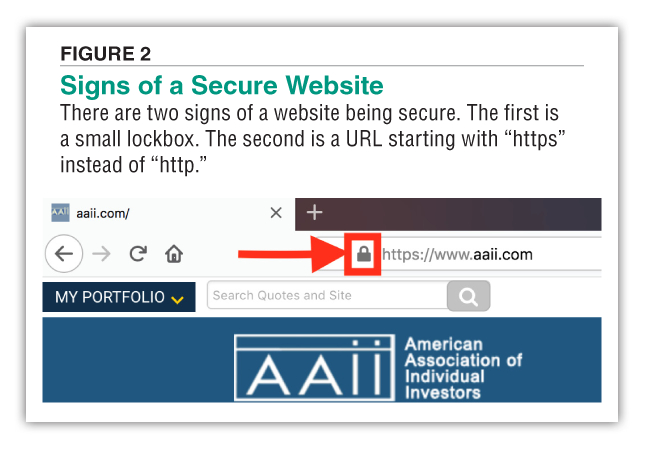
Stick with reputable retailers when giving out your credit card info and look for indicators that the site is secure. There are two signs that a website is secure: a little lock icon on the browser’s status bar, or a URL for the website that begins with “https” (the “s” stands for “secure”). Figure 2 shows an example of what to look for.
Regularly check your bank statements and credit card bill for any suspicious charges.
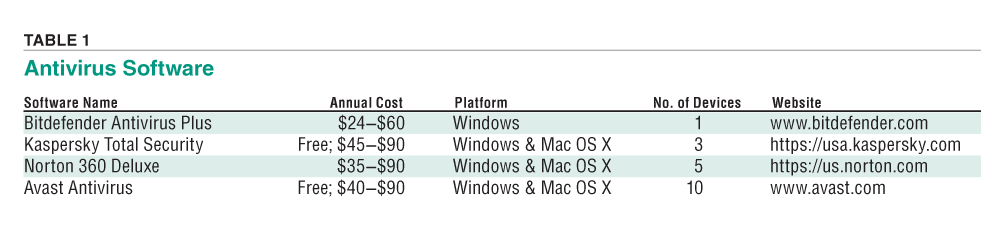
Installing good cybersecurity software on all your devices and setting them to auto-update protects you from the latest malware and other threats. Free cybersecurity software is better than none at all, but it’s prudent to invest in a reputable and comprehensive paid version of anti-malware software.
There are three basic requirements that an antivirus system needs: 1) A high detection rate for malware and other threats; 2) a low impact on system resources; and 3) an easy-to-use interface.
Table 1 lists examples of accredited antivirus software.
Still using your kid’s birthday or email address as your universal password? You’re heading toward trouble. The need to adopt effective password management solutions cannot be stressed enough. Despite passwords being the easiest way of maintaining website security, they also provide the highest security risks if not managed properly. The ideal password is a random collection of letters, numbers and symbols. A good rule of thumb is to use at least one number, one uppercase letter and one symbol. Also, don’t use the same password for all your online accounts. Finally, be sure to change your passwords at least every six months.
In the best of times, keeping track of your passwords was an overwhelming task for many. And now, with everyone struggling to adapt to a coronavirus world, the last thing you need to worry about is which Post-it note has which password on it. This is where a trusted password manager program comes in handy. A password manager is essentially an encrypted digital vault that stores the login information you use to access mobile device apps, websites and other services. Besides keeping your identity, credentials and sensitive data safe, a password manager can generate strong, unique passwords for you to ensure you aren’t reusing the same ones across your devices and services.
Most password managers have the same essential functions. But things differ when you get to the extra features. Some password managers alert you to the latest data breaches, sometimes for an extra price. To help choose among them, here are pros and cons for the most popular password managers. In choosing a password manager program, give preference to any that have had their software code independently audited for any potential security vulnerabilities.
Dashlane is one of the best known managers on the market. It’s known as a very user-friendly manager with many benefits, including:
However, Dashlane also has disadvantages. The premium version costs around $60 per year. If you opt for the free version, you can only use the service on one device, as synchronization is not supported. The mobile version can also be a bit more user-friendly.
LastPass is another popular password manager. Its advantages include:
The premium version of this manager costs $36 per year ($48 for families with up to six users). The free version does not support mobile apps. Also, with the free version it is not possible to share passwords in a safe way.
1Password got its start as an Apple-only application and has carved out a dedicated following in that audience. The company recently made large strides toward bringing its Windows and Android software closer to its MacOS and iOS apps, but 1Password is still best for users who rely entirely on the Apple ecosystem.
1Password is one of the few password managers that hasn’t gone for the freemium pricing model. There’s a 30-day free trial for new users, but after that, it’s $36 per year for a single user, or $60 per year for a family plan good for up to five users. (Add $12 per year for each additional user after that.)
Password managers are not a one-size-fits-all solution. While our highlighted picks cover multiple good options, your needs may be different. Here are some more password managers that we’ve tested and liked:
Proactively back up your important information on a regular basis. That way, if you fall victim to a virus or ransomware and have trouble retrieving your information, it won’t sting so much if you’ve already put your important files onto a USB stick, saved them to an external hard drive and/or uploaded them to a cloud storage service. ?
Investor Professor

Financial Planning

Editor's Note

STEVE E from VA posted over 6 years ago:
J S from CO posted over 6 years ago:
VICTOR S from NC posted over 6 years ago:
DAVE G from WA posted over 6 years ago:
You need to log in as a registered AAII user before commenting.
Log InCreate an account