


Charles Rotblut leads a class in AAII's new Essential Investing Video Course. Go to https://www.aaii.com/ves for more information and to subscribe.
- The AAII Investor Hub centralizes portfolios, stock screens and saved research into one streamlined dashboard
- Upgrades to My Portfolio include asset allocation views, imports, customization and integrated screening tools
- The James AI assistant provides portfolio insights and gives you unbiased information
AAII’s Investor Hub has been launched. This new online dashboard brings your portfolios, watchlists and research together in one place. More importantly, it gives you investment insights faster and more efficiently.
On a single page, you can access AAII’s completely rebuilt My Portfolio tracker, your favorite stock screens, your personal library of AAII Journal articles and our brand new artificial intelligence (AI) chatbot, James. As I explain how each of these features can assist you in making better investment decisions, keep in mind that this is just the beginning. Additional features are forthcoming.
Big Improvements to My Portfolio
We rebuilt our popular My Portfolio tracking tool from the ground up. It is now more intuitive, with several added features and a new modern look.
The new My Portfolio home page in the Investor Hub shows an asset allocation breakdown for each of your portfolios. This allows you to assess your overall allocation at a high level.
If you previously created one or more portfolios in the legacy My Portfolio tool, you can immediately start using the new My Portfolio. All of your existing portfolios have been transferred over. If you haven’t set up a portfolio or watchlist on AAII.com, you can easily do so by selecting My Portfolio in the Investor Hub, then clicking the Create Portfolio button.
In response to member feedback, we added the ability to import holdings—including number of shares and purchase lots—from your brokerage or mutual fund account via a spreadsheet file. (We are in the process of adding full integration with brokerage accounts.) To import your holdings or create a portfolio manually:
- Download a spreadsheet in the CSV file format from your brokerage or mutual fund account.
- Select My Portfolio from the left-hand menu bar in the Investor Hub.
- Scroll to the bottom of the My Portfolio page, and select Create Portfolio.
- Select either Import CSV / Paste List or Create Manually, and then click the Next button.
- Name your portfolio, and either upload the file or enter the tickers manually. Then, click Next.
- Click Finish to save your portfolio.
New views have also been added to My Portfolio. All AAII members can judge the performance of their individual holdings and their portfolio weight in the My Default view. The Shadow view provides valuation, market capitalization and relative strength data, just like we show for the Model Shadow Stock Portfolio. To change the view, open the View drop-down menu on the left above the portfolio holdings table. You can also remove specific columns to narrow down the information displayed in your portfolio tables; simply click the Columns drop-down menu to deselect data (Figure 1).
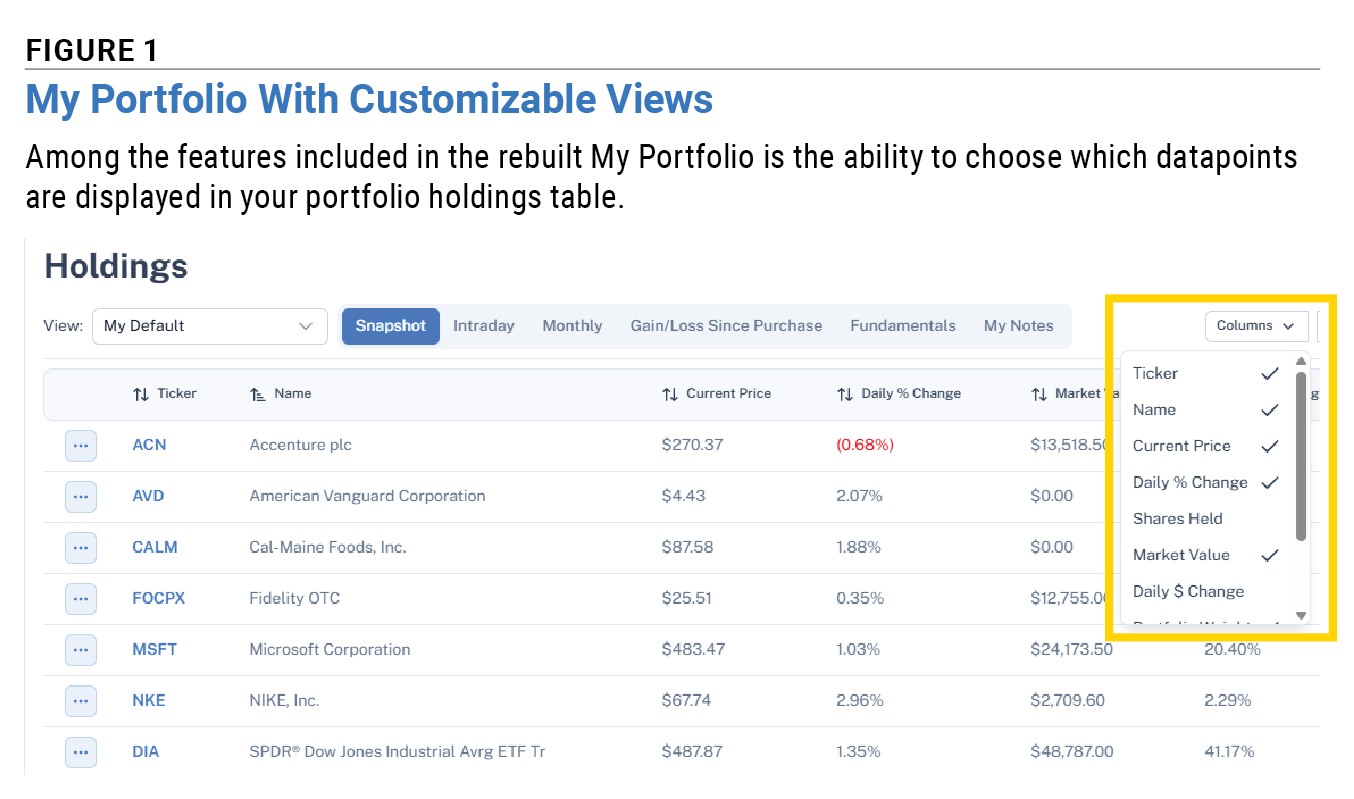
Subscribers to Dividend Investing, Growth Investing, Stock Superstars Report (SSR) and VMQ Stocks can see customized views featuring the criteria used for each newsletter they subscribe to. AAII Platinum subscribers have access to all views. More customization options are forthcoming.
Price alerts on the portfolios of your choice remain available for all AAII members. A+ Investor and AAII Platinum subscribers can continue to receive daily A+ Stock Grade Alerts and weekly A+ Insights on their portfolios.
Stock Screens at Your Fingertips
We’ve integrated key features of the AAII Stock Screens into the AAII Investor Hub. This makes it easy to go from reviewing your portfolios to finding potential new investment ideas.
You can access your favorite stock screens by clicking AAII Stock Screens on the Investor Hub’s left-hand menu and then selecting My Screens. This will show the returns for each of the screens you are tracking and the types of stocks each screen finds (value, growth, yield, etc.). The Stocks Passing My Screens tab shows you the current stocks passing each of your favorited screens.
If you haven’t favorited a screen yet, doing so is easy. Simply click on the star located to the left of any screen’s name either on the All Screens page of the Investor Hub or on the AAII Stock Screens page of AAII.com.
The My Screens page also has a tab showing you which of the stocks held in your portfolio(s) currently pass a stock screen (Figure 2). This is useful for determining whether a stock remains attractive and, if so, which factors are making it attractive.
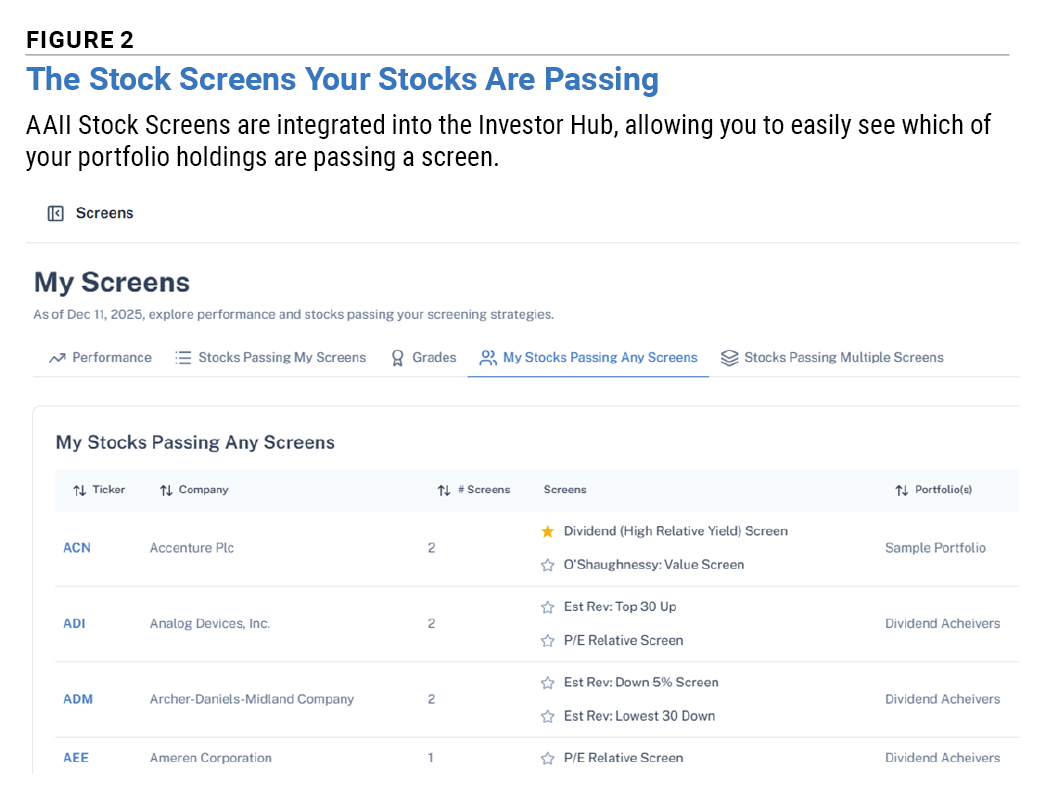
Want more ideas? The Stocks Passing Multiple Screens tab shows you which stocks in the entire universe are currently passing two or more AAII Stock Screens. It is a great way to find potential all-star stocks. Ideally, the group of screening approaches passed by a stock is diverse enough to capture unique, yet desirable qualities.
Once you find a stock you are interested in, you can add it directly to a portfolio or watchlist by clicking on the stock’s ticker symbol and then selecting Follow This Stock from the stock’s Evaluator page.
James: The Members-Only AI Assistant
Our brand new chatbot, James, combines AI with AAII’s comprehensive database and knowledge base to give you unbiased information. This AI chatbot is built specifically for AAII members.
The Ask James feature makes managing your portfolio easier. It quickly provides insights and analysis about the investments in your portfolio. For example, you can ask the chatbot how attractive your stocks are based on AAII’s valuation, growth and quality metrics. Alternatively, you can ask for a list of stock screens that your holdings are currently passing, have recently started passing or have recently stopped passing.
The AI chatbot is accessed anywhere on the Investor Hub by clicking on the small picture of AAII founder James Cloonan in the bottom-right corner. To get answers about stocks held in a specific portfolio, we suggest going to that portfolio in the Investor Hub first and then opening the Ask James feature. Predefined questions for the chatbot can be viewed by clicking on the “+” sign in the chat window (Figure 3). You can also type in your own questions.
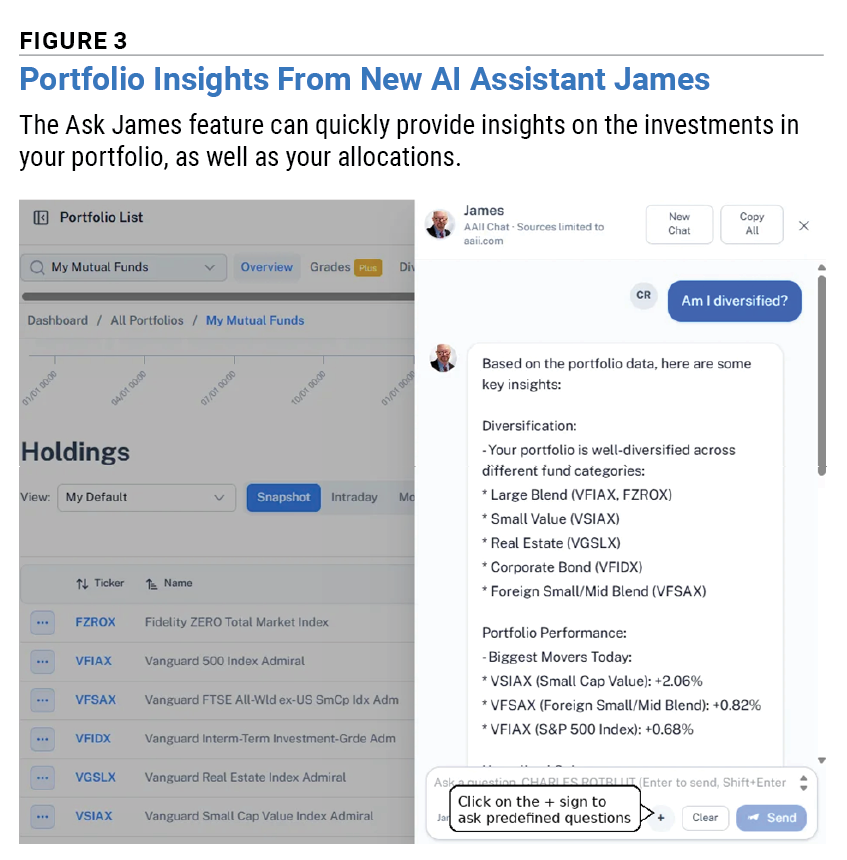
We are quickly expanding the AAII content and data the chatbot is trained on to make it even more useful. Give it a try.
Build Your Personal AAII Library
Did you know you can save AAII Journal articles for future reference? Say you want to save the December 2025 AAII Journal article “AAII 2025–2026 Tax Guide: 2026 Tax Rates, Deductions and Allowable Benefits” for future reference. Simply click on the Save ribbon icon located on the left-hand side of the article.
Articles you have saved can then be viewed in two places on the Investor Hub. One, the articles you favorited most recently will appear under My Library at the bottom of the Investor Hub home page. Two, you can choose My Library from the main menu at the top-left of the Investor Hub to view all of your saved articles.
My Library not only lists your favorited articles, but it also allows you to create separate folders should you want to group those articles by topic or date.
Personalize Your Dashboard
Here’s a hidden gem we’ve included: the ability to customize the display of the Investor Hub. Clicking on your name in the upper-left corner of the Investor Hub will reveal a drop-down menu with customization options (Figure 4).
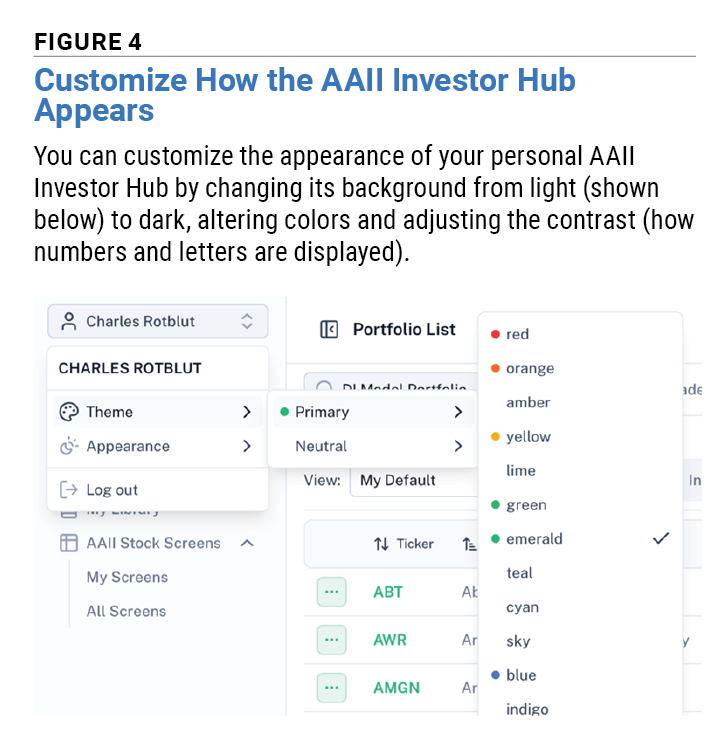
Selecting Appearance gives you the option to choose between light and dark backgrounds.
Selecting Theme allows you to adjust the color scheme of the site in two different ways.
- Primary adjusts the colors of article categories, tab headings and ticker symbols within the Investor Hub.
- Neutral gives you five choices for adjusting contrast, meaning how text and numbers are displayed against either the light or dark background.
AAII Investor Hub Roadmap
The Investor Hub features highlighted in this article are just the beginning. Additional features and capabilities are being added to make the Investor Hub even more useful to individual investors like you.
As mentioned above, we are working on offering AAII members the ability to link their brokerage accounts to My Portfolio. This will enable the secure importing of holdings and tax lots. The AI chatbot James will be enhanced to answer even more questions and provide more helpful information about your portfolio and other investing-related topics. New personalization options will allow you to customize your Investor Hub to get the most out of it.
Select Roadmap at the bottom of the left-hand navigation menu to stay current with upcoming enhancements.
Your Guide to the New AAII Investor Hub Video
We think you’d like this related webinar! Inside the New AAII Investor Hub & My Portfolio+

Related

AAII Model Portfolios
Broadening Market Participation Benefits Model Shadow Stock Portfolio
Related

Discussion
FREE REPORT

BARRY J from TX posted 8 months ago:
DAVE G from TX posted 8 months ago:
CHARLES R from IL posted 8 months ago:
DAVE G from TX posted 8 months ago:
DAVID L from NC posted 6 months ago:
Robert B from PA posted 6 months ago:
You need to log in as a registered AAII user before commenting.
Log InCreate an account