


Charles Rotblut leads a class in AAII's new Essential Investing Video Course. Go to https://www.aaii.com/ves for more information and to subscribe.
- Learn how to import brokerage accounts into AAII My Portfolio for tracking
- Understand how extensive data fields and A+ Grades allow for deeper portfolio analysis beyond broker limitations
- Discover secure broker syncing via Plaid, including privacy protections and account control
Many members have asked for the ability to import their brokerage holdings directly into AAII’s My Portfolio tracking tool. We’re happy to say that you can now do this.
In this month’s How-To, I explain how to sync your holdings with My Portfolio in a simple and safe manner. The completely rebuilt My Portfolio is located in the AAII Investor Hub and is available to all AAII members.
The Benefits of Syncing to My Portfolio
Most brokerage firms limit the type of analysis you can conduct on your portfolio holdings. You are handcuffed to the data they choose to display.
AAII’s My Portfolio gives you the flexibility to customize the data you use to analyze your portfolio by choosing from over 2,000 data fields. These metrics include key financial ratios like the payout ratio, financial statement data, current and historical valuation and yield information, relative strength measures, and much more. (AAII members can choose up to five data fields; there is no limit for A+ Investor and AAII Platinum subscribers.)
This flexibility is in addition to the five tabs of predefined data built into My Portfolio plus the special Model Shadow Stock Portfolio view. Subscribers to our premium newsletters or AAII Platinum also get access to specialized views based on the other AAII model portfolios.
Account Syncing Is Secure Through Plaid
We know security matters to you; this is why we use Plaid to facilitate syncing your investment accounts with My Portfolio. Plaid is a well-known, well-respected integrator of financial information. It is used by thousands of banks and credit unions—including Bank of America, Chase, Citibank and Wells Fargo.
Many brokerage and investment firms also work with Plaid. Those firms include, but are not limited to, Charles Schwab, E-Trade, Interactive Brokers, Robinhood and Vanguard. [Note: Fidelity is an exception among major brokers as it does not work with Plaid. Fidelity has its own connection system. We are exploring how to integrate it into My Portfolio.]
When you link a brokerage account to My Portfolio, we do not store or see your login information. We simply connect you to Plaid using a token that identifies you as a unique user. Plaid then sends you to your broker to log in.
Your brokerage account login credentials and passwords are not stored. Neither we nor Plaid have the ability to alter the holdings in your brokerage accounts. Via Plaid, our tool simply asks which investments you hold in the synced accounts; how many shares of each stock, exchange-traded fund (ETF) or mutual fund you own; and what their cost basis is. The only thing AAII stores is the token used by Plaid to identify who you are.
You always retain the ability to control which accounts are synced. You can also stop syncing and delete an account from My Portfolio anytime you wish.
Syncing Your Brokerage Account to My Portfolio
The process for syncing a brokerage or mutual fund account to My Portfolio is simple. First, click on the black “+ New Portfolio” box on the My Portfolio home page.
A pop-up window will appear offering the following three options (Figure 1).
- Create Manually: Type the name or ticker symbol of a stock, ETF or mutual fund you wish to add.
- Import CSV / Paste List: Upload a spreadsheet in the CSV file format that contains a ticker symbol column, or copy and paste a list of ticker symbols.
- Link A Brokerage Account: This gives you the option to sync with the financial institution of your choice via Plaid.
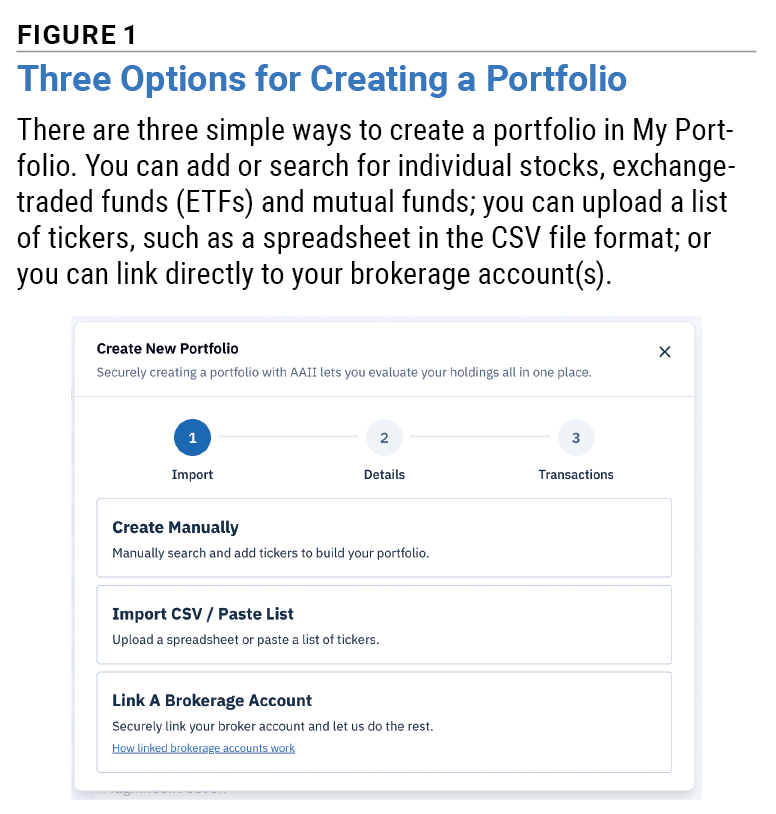
Once you choose Link A Brokerage Account, you will be directed to a page with a blue Connect Brokerage button. After you click that button, a new pop-up window will appear asking you to log in to Plaid using a phone number. If you already use Plaid with other websites or through other apps, enter the phone number associated with your account. If not, you can register with Plaid by entering a phone number at this stage. An advantage to doing so is that Plaid will remember the firms you work with.
Alternatively, you can choose to continue without providing a phone number. This latter method will require an extra step or two every time you want to sync your portfolio, but it is an option for those who prefer it.
The first time you use Plaid, you will be presented with a list of popular financial institutions (Figure 2). You can choose a firm by scrolling through the extensive list or searching for your firm if it is not listed. E-Trade, Interactive Brokers and Robinhood can all be quickly found by typing their names into the search bar.
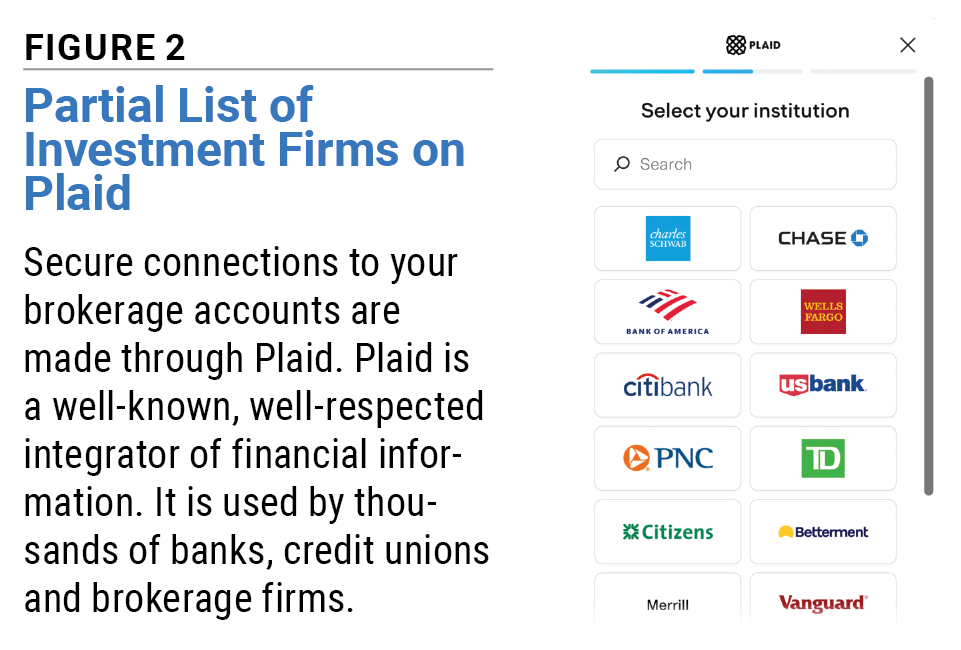
Once you select the investment firm you want to sync with, you will be directed to the broker’s website to log in. Though the login window will overlay My Portfolio, it is from the financial firm’s site. You will be giving your broker your login information, not AAII or Plaid.
If you have more than one account at the financial institution, you will be asked which accounts you want to sync to My Portfolio.
Once the account holdings appear on your screen in My Portfolio, simply click the blue Import Selected button. When finished, your linked brokerage accounts will appear at the top of the My Portfolio home page. (This page is also called All Portfolios in the left-hand navigation menu of the AAII Investor Hub).
Managing Your Synced Portfolios
Your synced portfolio’s performance along with its return, fundamental ratios and any metrics in a custom view will update each day you are connected to the internet. If you use the AAII Investor Hub app offline, be sure to sync your app when you have an internet connection to update it with the current information.
If you make transactions in your brokerage account, simply resync your My Portfolio to the broker by clicking on the blue Sync All button on the My Portfolio home page. My Portfolio will add any new portfolio holdings. It will also be adjusted for any additional shares purchased or the partial selling of shares from an existing investment.
You can disconnect or delete a linked brokerage account from My Portfolio at any time.
To disconnect a linked portfolio, go to the My Portfolio home page. Then click on the red Unlink button located right above the portfolio’s balance. This will break the connection between your portfolio and Plaid (Figure 3).
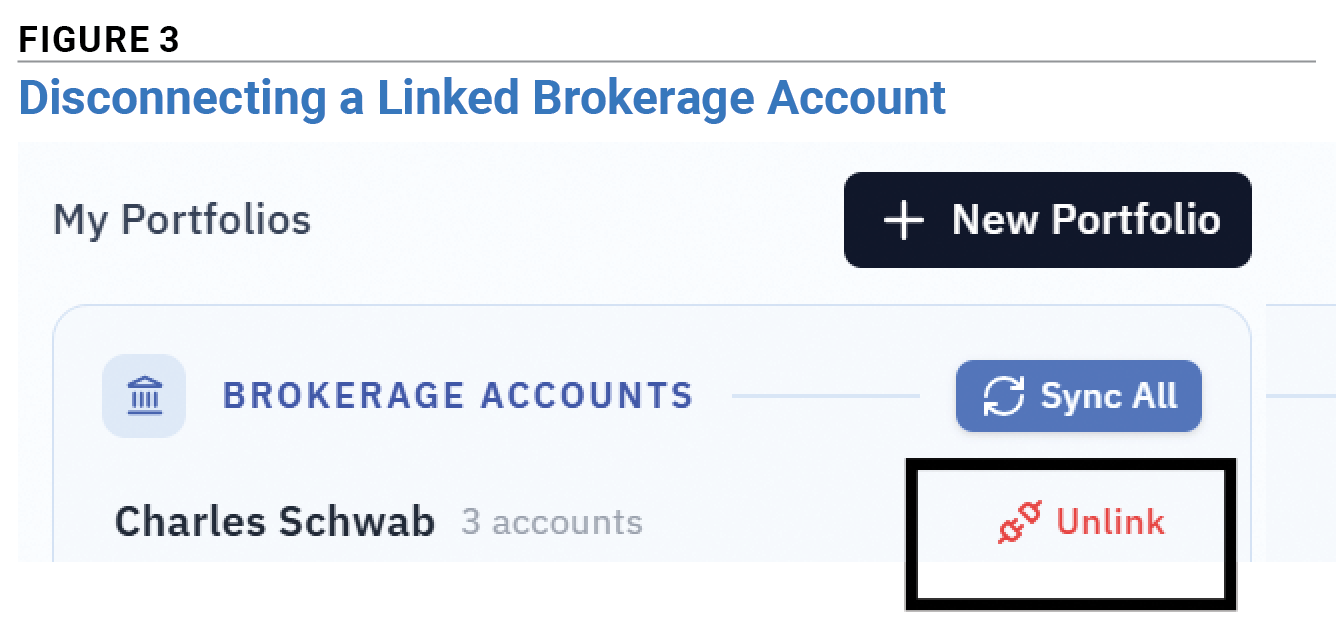
If you have more than one portfolio linked with the same broker, you will be asked to disconnect all portfolios linked to that investment firm. This is because you are revoking Plaid’s access to that firm.
You will also be presented with two options. You can either convert the portfolio to an AAII portfolio or you can delete the synced portfolio entirely. Converting the linked account to an AAII portfolio allows you to keep tracking your holdings. However, any changes made to the portfolio through your broker must be made manually going forward.
Deleting a portfolio is just what it sounds like. Your linked account and its information will be removed from My Portfolio. AAII will not keep any history of it.
You can resync a disconnected or deleted brokerage account portfolio anytime you want by going through the Link A Brokerage Account steps. It will be treated as a brand-new linked portfolio by My Portfolio because we are not storing any of your brokerage information.
New Features Continue to Be Added to My Portfolio
Even more new features are coming soon; you can track them at our AAII Investor Hub Roadmap. If you haven’t taken advantage of the completely rebuilt My Portfolio, now is the time to begin using this valuable member benefit.
Better Analyze Your Brokerage Account by Syncing It to AAII’s My Portfolio Video
We think you’d like this related webinar! The New Way to Track and Analyze Investments.

Related
Related

AAII How-To
Your Guide to the New AAII Investor Hub
Discussion
FREE REPORT

Get your free copy of our special
report analyzing the tech stocks
most likely to outperform the
market.
ROBERT A from NC posted 5 months ago:
DAVID L from PA posted 5 months ago:
CHARLES R from IL posted 5 months ago:
Paul P from NJ posted 22 days ago:
You need to log in as a registered AAII user before commenting.
Log InCreate an account