Many of the questions we get about setting up a portfolio in the My Portfolio tool deal with how to go about entering tickers from a brokerage account. At this time, we are looking into a way to automatically import portfolio holdings into My Portfolio, but in the meantime there are some time-saving steps you can take to set up a portfolio in My Portfolio that reflects the holdings in a brokerage account. This week we walk you through those steps.
Most, if not all, online brokers will allow you to export your holdings in an account to Excel or a text document.
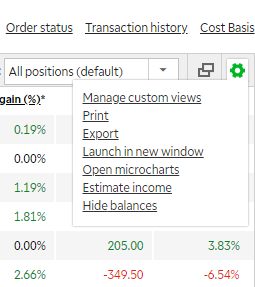
We have an account with TD Ameritrade and on the Positions page there is a menu icon that, when clicked, reveals the Export option:
Clicking on Export exports a variety of information to an Excel spreadsheet, including tickers:
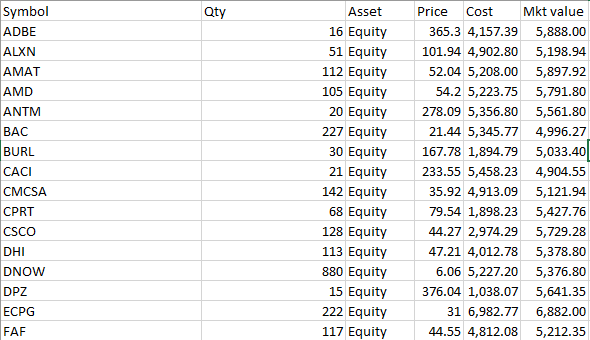
We select the cells with the tickers we wish to enter into the portfolio and copy them.
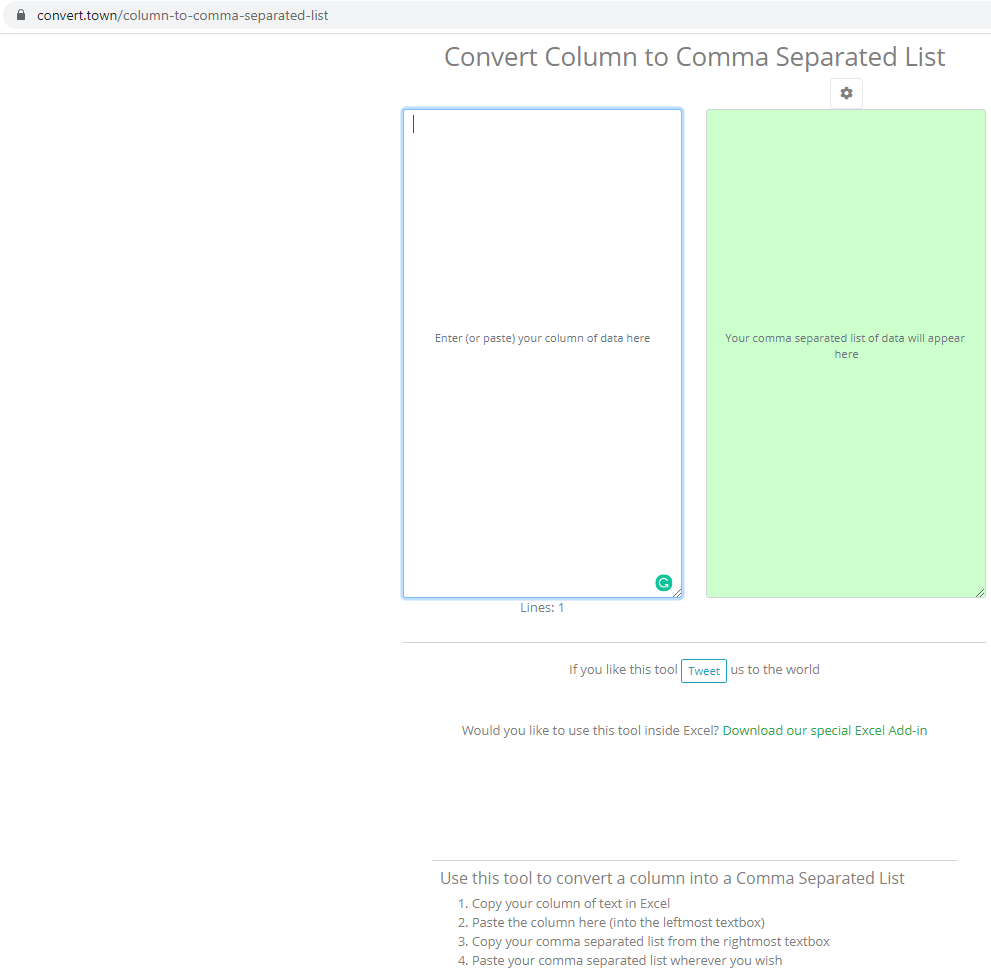
This data we copied from Excel is in column form and we need to convert that into a comma-separated list for copying and pasting into My Portfolio. You can use this free tool to do just that: https://convert.town/column-to-comma-separated-list
NOTE: This link is being provided as a convenience and for informational purposes only; it does not constitute an endorsement or an approval by AAII of any of the products, services or opinions of the corporation or organization or individual. AAII bears no responsibility for the accuracy, legality or content of the external site or for that of subsequent links. Contact the external site for answers to questions regarding its content.
So we paste the ticker cells from the spreadsheet file into the Enter (paste) your column of data here area, and the site automatically converts the data into a comma-separated list and automatically adds it to our clipboard.
Now we go to the My Portfolio tool in A+ Investor by clicking on the link at the top of any AAII.com webpage:

If you have not yet created any portfolios within My Portfolio, you will receive this message when you arrive at My Portfolio:
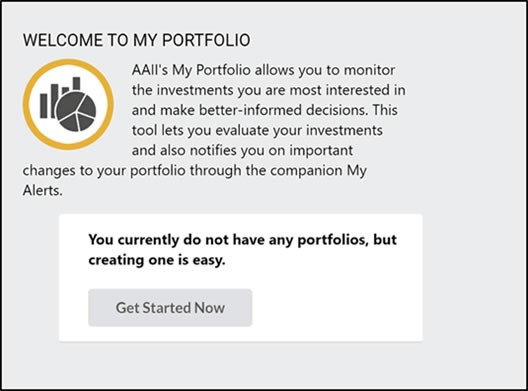
Click the Get Started Now button to create your first portfolio and then follow the instructions below.
If you have already set up one or more portfolios with My Portfolio, click on CREATE next to the portfolio drop-down menu:

When you are creating a new portfolio, you first arrive at the Create New Portfolio page.
For this example, we are creating a portfolio called “TDA Portfolio,” which we type in the NEW PORTFOLIO NAME area. Then we click in the ENTER TICKERS box and paste the comma-separated list from the Convert.Town website (click in the area and then press CTRL + V (the keyboard shortcut for the paste command):
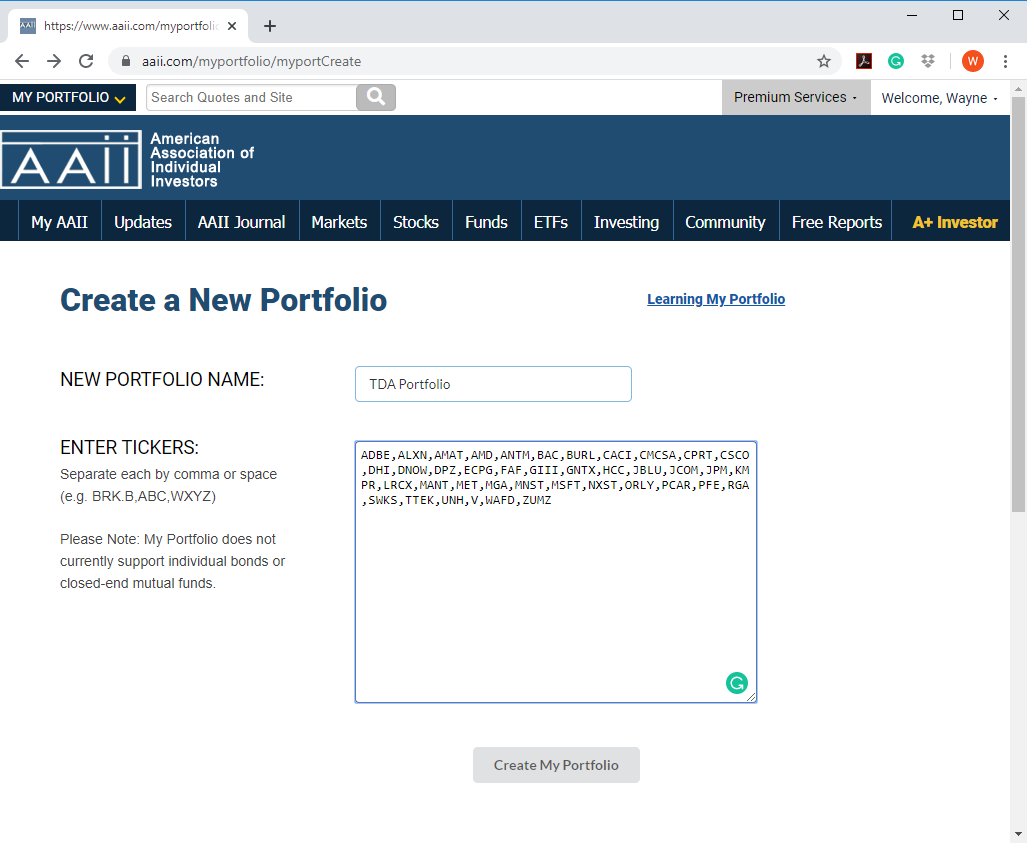
After we have named the portfolio and copied in the tickers, we click the Create My Portfolio button at the bottom of the page to save the portfolio.
This then takes us to the Snapshot page of the portfolio we created (in this case TDA Portfolio):
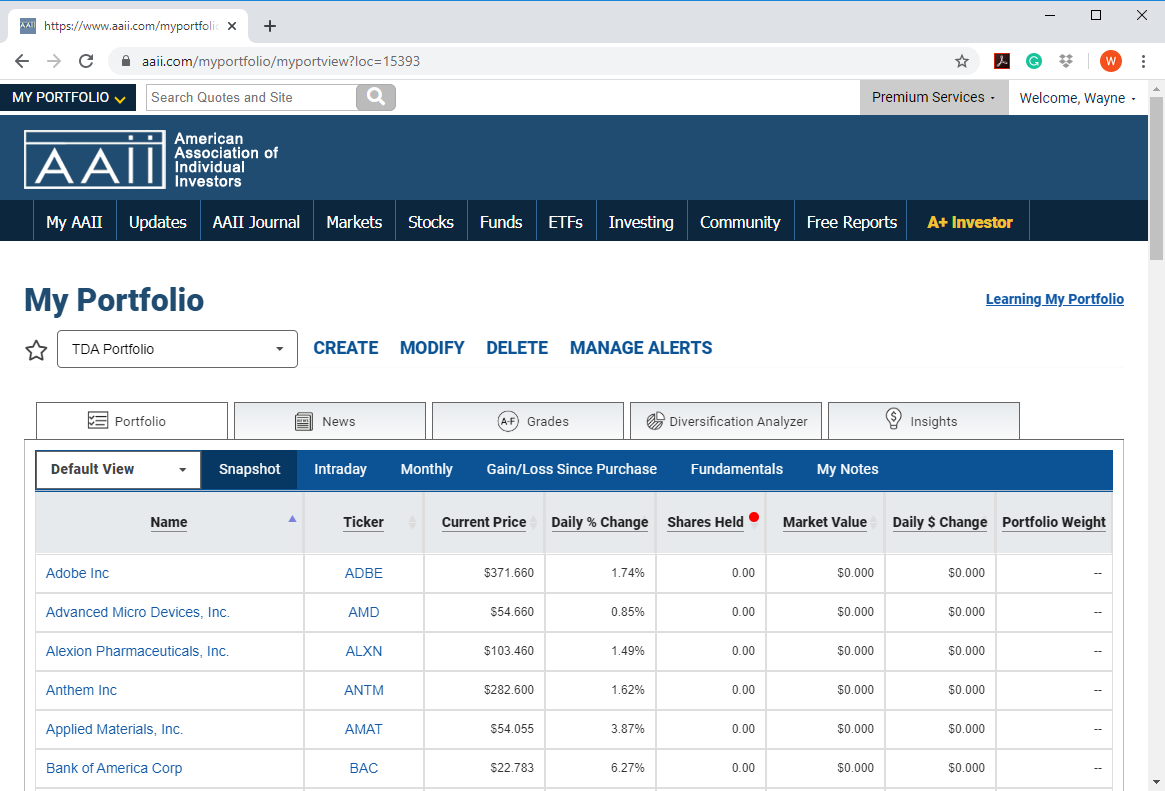
To maximize the value of My Portfolio and make use of the Diversification Analyzer available to A+ Investor subscribers, you need to enter in the number of shares of each ticker in the portfolio.
Clicking the MODIFY link to the left of the portfolio drop-down menu allows us to modify the holdings of the loaded portfolio, in this case our TDA Portfolio:
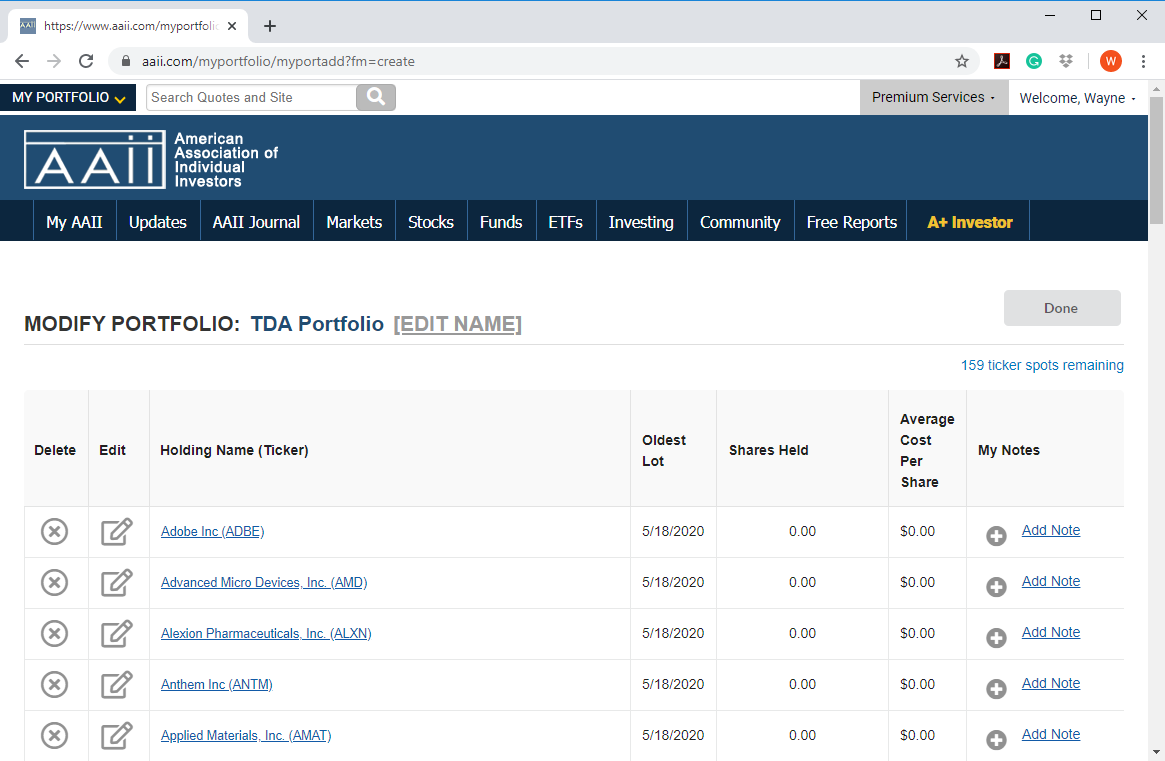
To enter in the number of shares for a given ticker, which is required to unlock the power of the Diversification Analyzer, as well as purchase date and purchase price (needed to track performance), click on the pencil icon in the Edit column for the desired ticker. To enter in the number of shares we hold for Adobe Inc. (ADBE), we click the edit icon in the Adobe row to get to the MODIFY TRANSACTIONS page for Adobe. We own 16 shares of Adobe, so we enter that into the Shares cell. That is the only information needed to make use of the Diversification Analyzer:
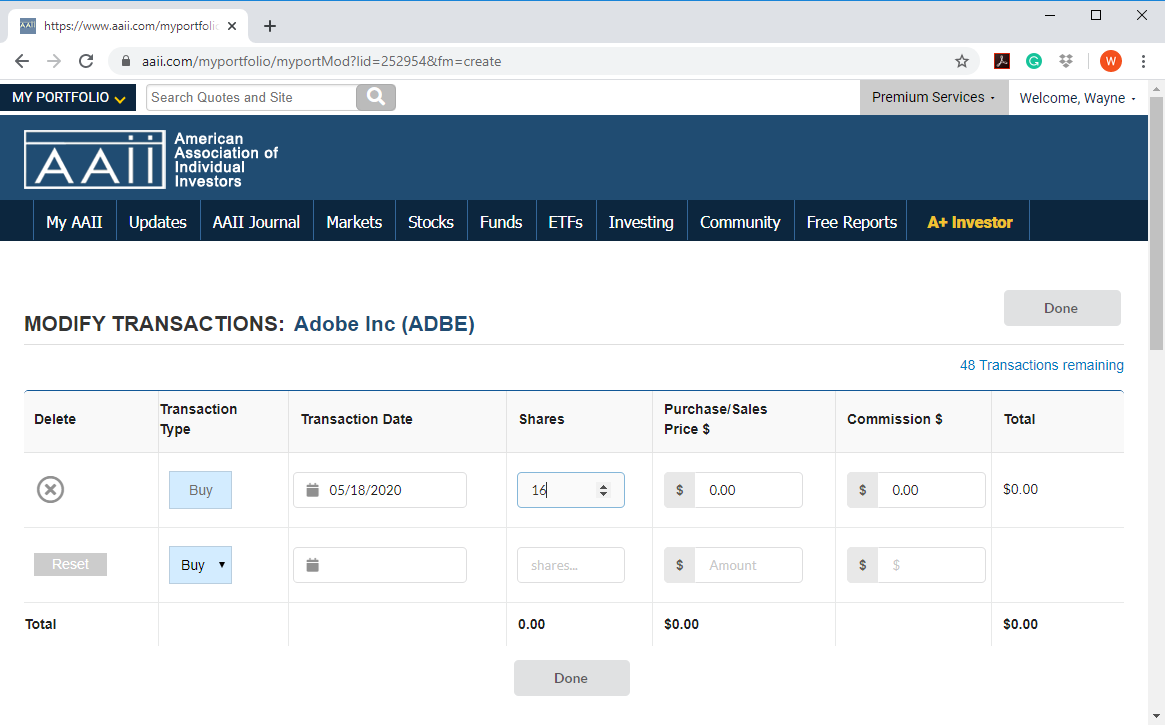
To finish, click the Done button. This will return you to the Modify Portfolio page, where you can repeat the process to update the number of shares for each ticker.
We continue to look into ways to improve the usefulness of My Portfolio and welcome your feedback at aplus@aaii.com. At this time, we are looking into ways to improve the entry and modifying of holdings, including importing of transaction histories and offering the ability to modify the number of shares held, purchase date and purchase price on a single page.

