As an A+ Investor subscriber, you have undoubtedly received a survey or two from me asking for your feedback on the overall quality of the A+ service and how we can improve it.
Please know that I read the results of each survey, and the feedback you provide goes into a spreadsheet that I review and prioritize to help guide my projects each quarter.
Over the last few months, based on this feedback, I have been working with AAII’s developers and programmers to implement a series of upgrades to the tools of the A+ Investor suite. This installment of Making the Grade highlights these enhancements.
The My Portfolio investment tracking tool did not support closed-end funds or many Canadian stocks when we launched it.
Over the past few months, we have worked to allow users to track closed-end funds with My Portfolio and roughly 400 or so additional Canadian stocks.
From an analysis standpoint, you can look up tickers for closed-end funds and view select data from QuoteMedia. We, as of yet, do not have evaluator pages for closed-end funds similar to those for open-ended funds or ETFs. However, we are considering the cost of such data, which for the universe of less than 500 closed-end funds is more than the data for the 24,000-plus open-ended fund universe.
For those wanting to analyze the expanded universe of Canadian stocks in A+ Investor, Stock Evaluator pages are available for them.
Since we launched the custom stock screener a few months ago, we have fielded a tremendous amount of user feedback. Based on this feedback, we have made a series of enhancements:
Idea Screens Built into Custom Stock Screener
A+ Investor subscribers can now load the results of an AAII Stock Ideas screen from the custom stock screener.
From the drop-down menu at the top-left of the screener page (where you can also select screens that you have created and saved), scroll down to the AAII Stock Ideas. There you will find the 50-plus stock screens that AAII tracks. Selecting one of the idea screens will load the companies that pass the criteria of the screen as of the close of the previous trading day.
For example, selecting the Neff screen loaded the three companies that passed as of the close on Friday, November 19:
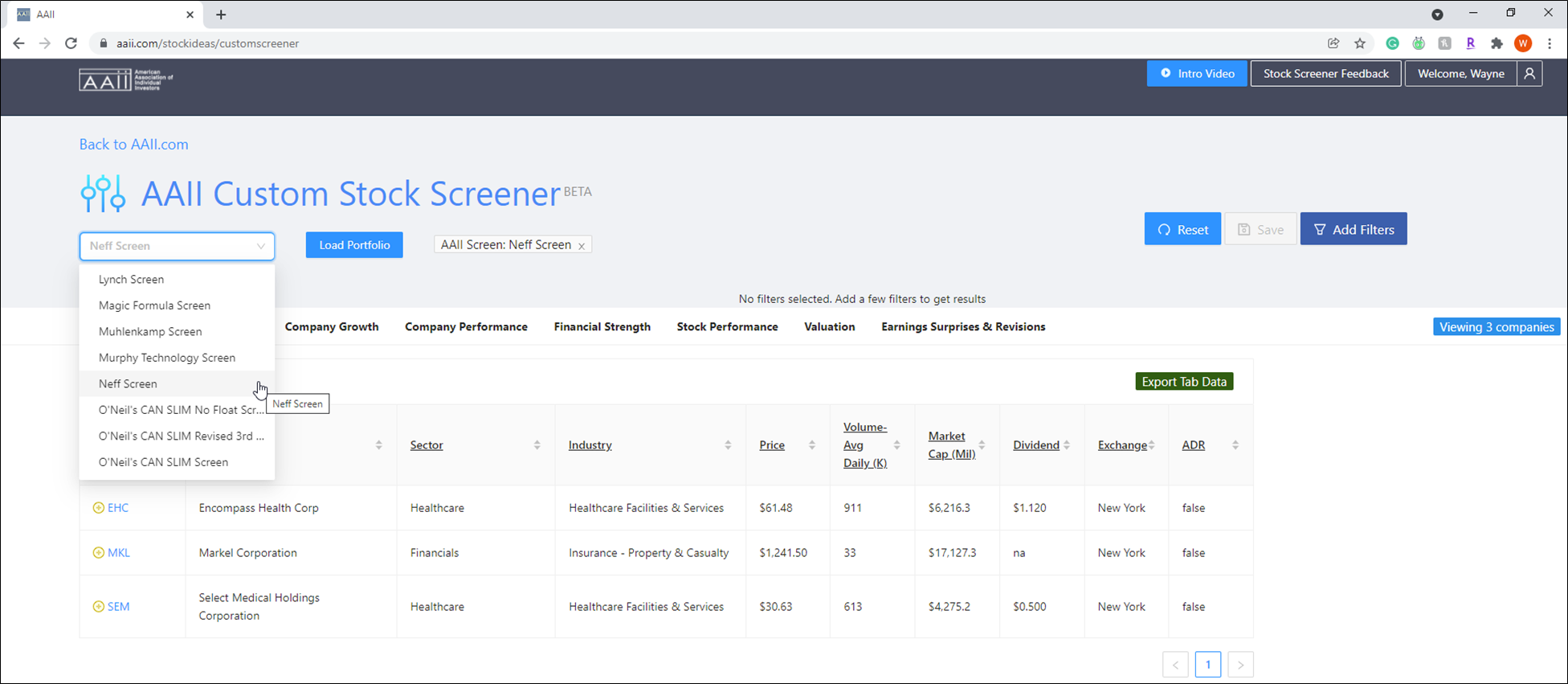
As A+ Investor subscribers, the results of these screens are updated daily, Tuesday through Saturday, as of the previous trading day’s close.
You can also run custom screens against the stocks that pass any of the Stock Ideas screens. This is especially useful if many companies are passing and you want to narrow down the number even more.
For example, if you select the Est Rev Up 5% screen, which looks for companies whose consensus estimates have risen by 5% or more, you would see that 143 stocks passed as of November. You know if the results of a Stock Ideas screen are loaded because the name of the screen will appear to the right of the Load Portfolio button.
Clicking the Add Filters button allows you to add additional screening filters. You can also apply the filters of a saved custom screen from the drop-down menu. When you do this, the name of the applied saved screen will appear in the drop-down.
In this example, I added filters that require an A+ Value, Estimate Revisions and Quality grades of B or better and a Piotroski F-Score (a measure of financial strength) that ranks in the top 20% of the entire stock universe. Be sure to click the Apply Filters button after selecting any additional filters to run them against the results of the loaded Stock Ideas screen. These additional filters reduced the 143 companies passing the Estimate Revisions Up 5% screen to 17:
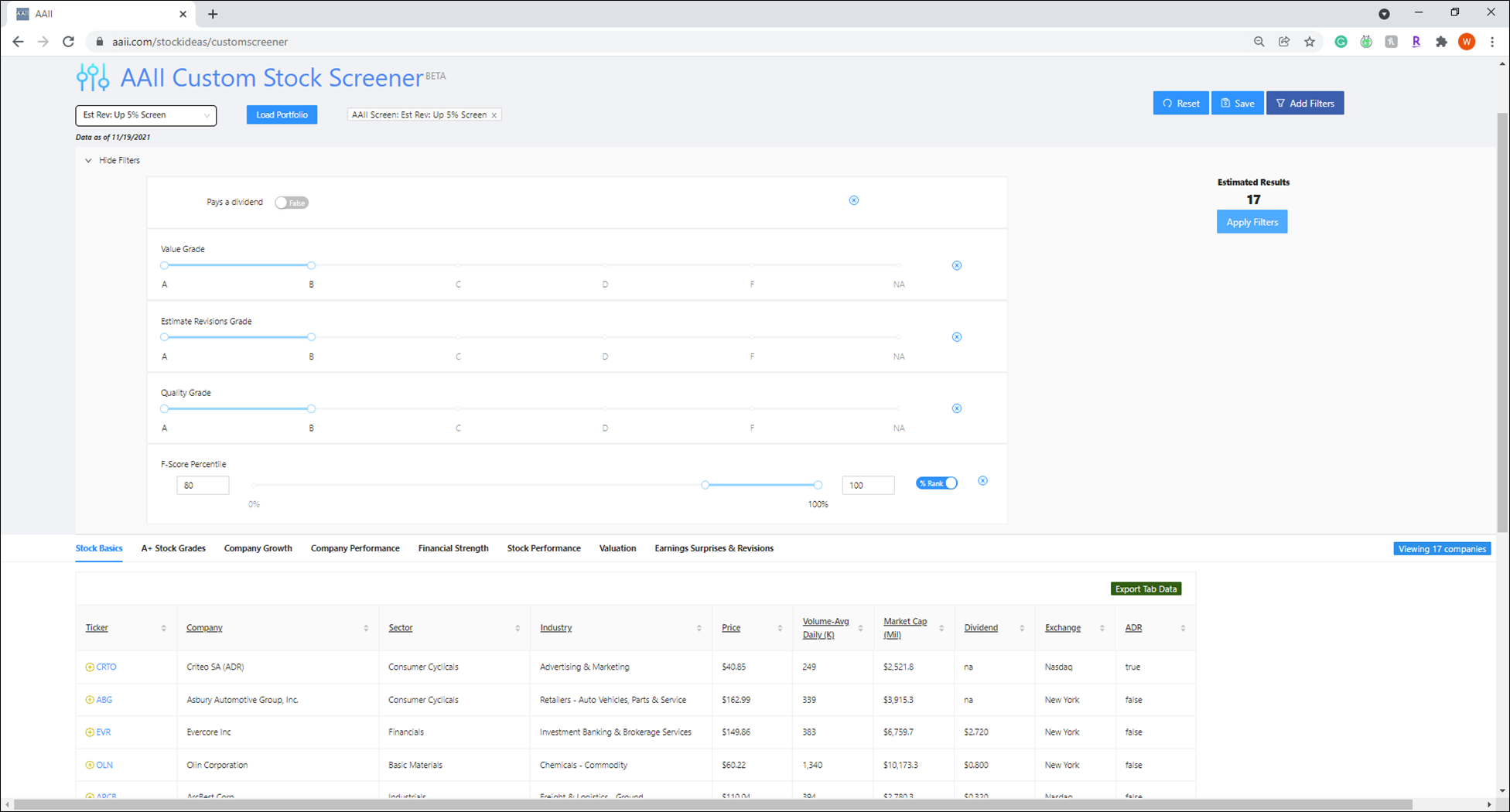
To “unload” a selected Stock Ideas screen, either click the “X” next to the screen name to the right of the Load Portfolio button or click the Reset button at the top-right of the custom stock screener window.
Running Custom Screens Against Stocks Tracked With My Portfolio
In a similar fashion to running custom screens against the results of AAII Stock Idea screens, you can also run custom screens against any stocks held in portfolios you created in the My Portfolio tool. [Note that you currently cannot run AAII Stock Ideas screens against a portfolio, but we are working on that as a future enhancement.]
To load a portfolio, click the Load Portfolio button. This will bring up the list of all the portfolios you’ve created with My Portfolio:
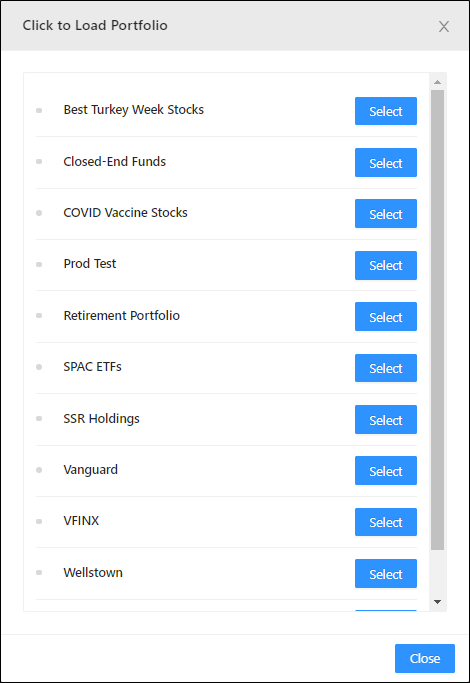
Click the Select button to the right of the portfolio you wish to load. However, remember that any portfolio you load will need at least one stock ticker since the screen can only filter through stocks. The name of a selected portfolio will appear in the box next to the Load Portfolio button at the top of the screener window.
Here I loaded my Retirement Portfolio, which holds four individual stocks:
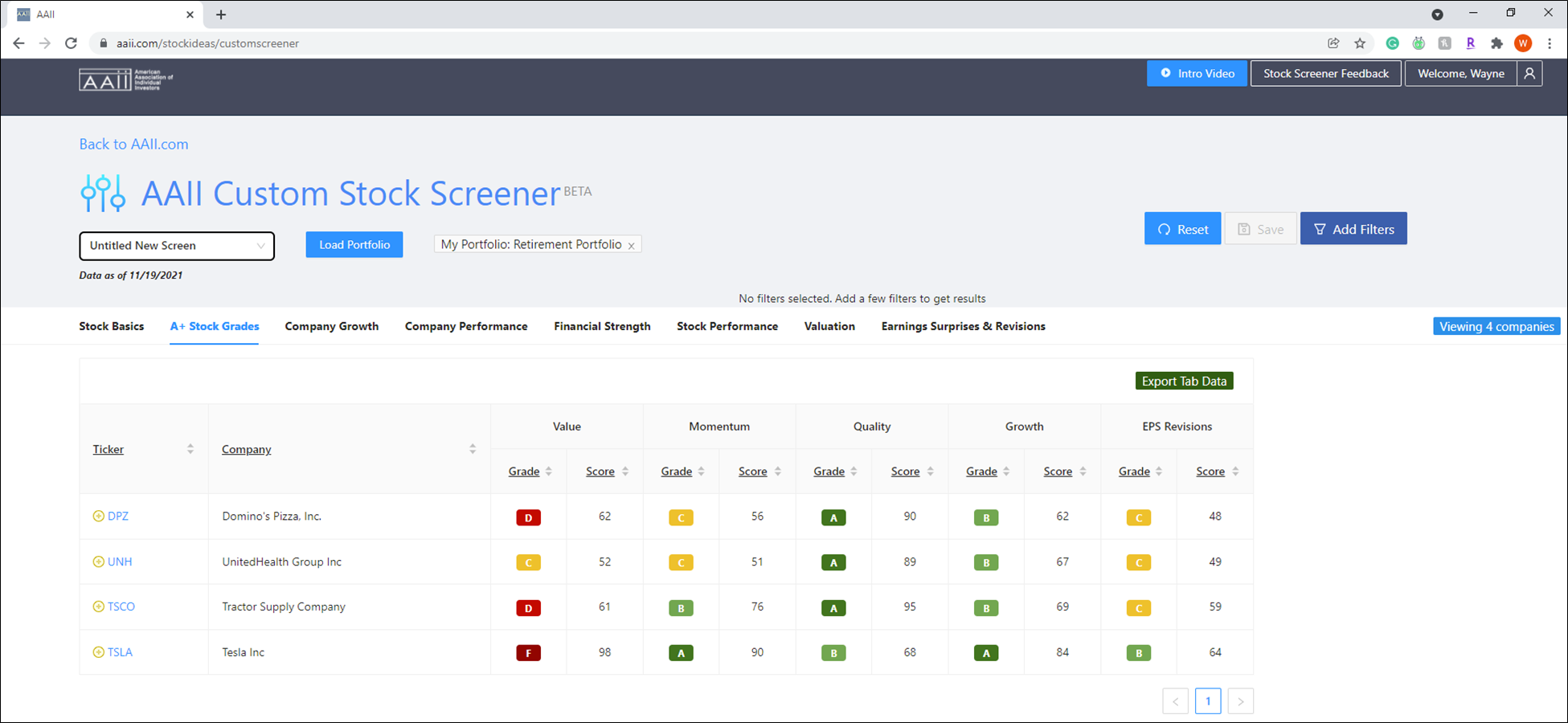
Loading a portfolio also allows you to view select performance and financial data on the different tabs of the results area for the stocks in the loaded portfolio. For example, in the image above, I view the A+ Stock Grades tab for the four stocks in the My Retirement portfolio.
To run filters against the stocks in the loaded portfolio, once again click the Add Filters button or select a saved screen from the drop-down menu.
Whether you add filters to run against the stocks in a loaded portfolio or select a saved screen, you need to click the Apply Filters button to run the screening filters against the stocks of the loaded portfolio. Depending on the number of stocks in the loaded portfolio and how restrictive the screening parameters you select are, you could end up with No Results (no passing companies).
To “unload” a selected portfolio, either click the “X” next to the portfolio name to the right of the Load Portfolio button or click the Reset button at the top-right of the custom stock screener window.
Another enhancement to the custom stock screener allows you to create new portfolios for My Portfolio when you click the yellow “+” button next to a ticker on the results table:
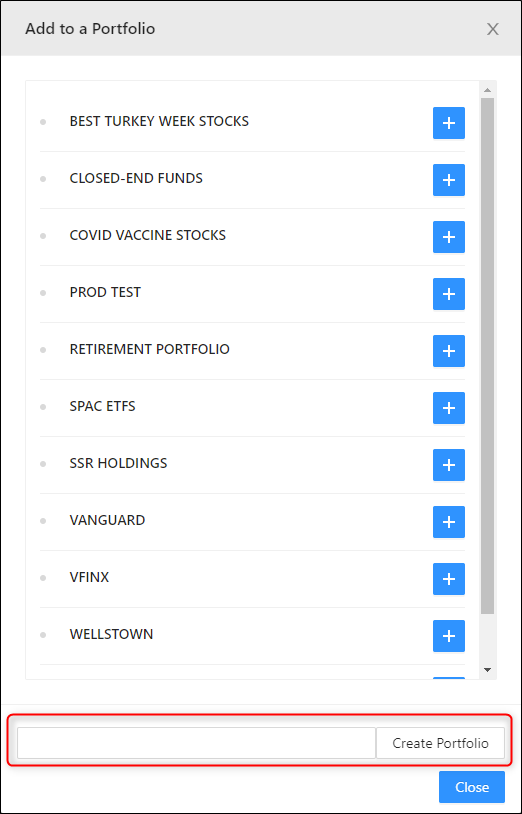
After clicking the “+” button to add a stock to a portfolio, you have the option of selecting a pre-existing portfolio, or you can type in the name of a new portfolio and click the Create Portfolio button.
Any portfolios you create within the custom stock screener will also be accessible from the main My Portfolio tool.
New Screening Variables
Based on the feedback we have received from users of the custom stock screener, we added two screening variables:
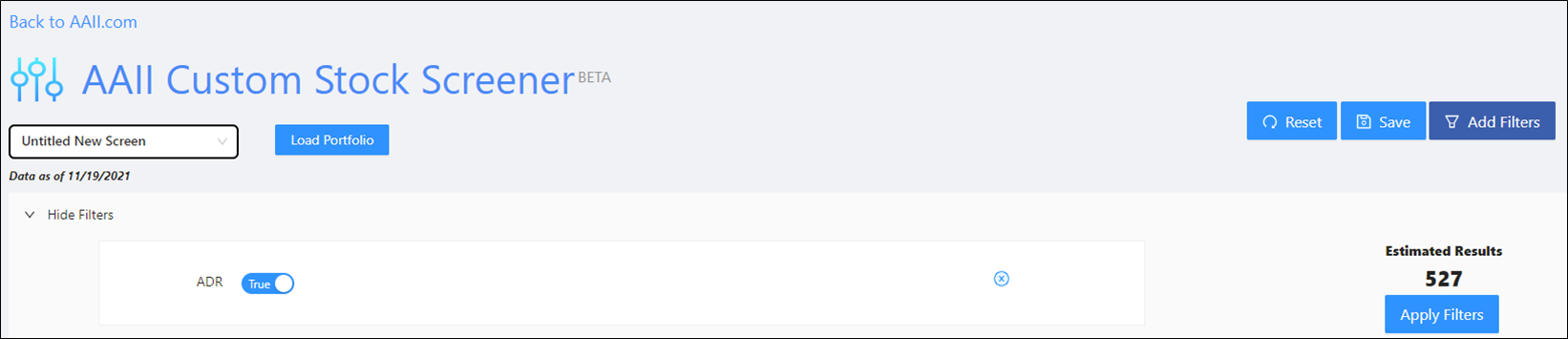
ADRs (American depositary receipts) are negotiable certificates issued by a U.S. depositary bank representing a specified number of shares—usually one share—of a foreign company’s stock. Some investors choose to exclude ADRs from their screening results because of foreign companies’ special tax situations.
The ADR filter is a True/False flag. Selecting ADR from the Stock Basics data category presents you with a toggle between True and False. Moving the toggle to False will exclude companies trading as ADRs, while the True toggle will isolate those companies trading as ADRs. As of November 19, 2021, the A+ Investor stock universe contained 527 ADRs:
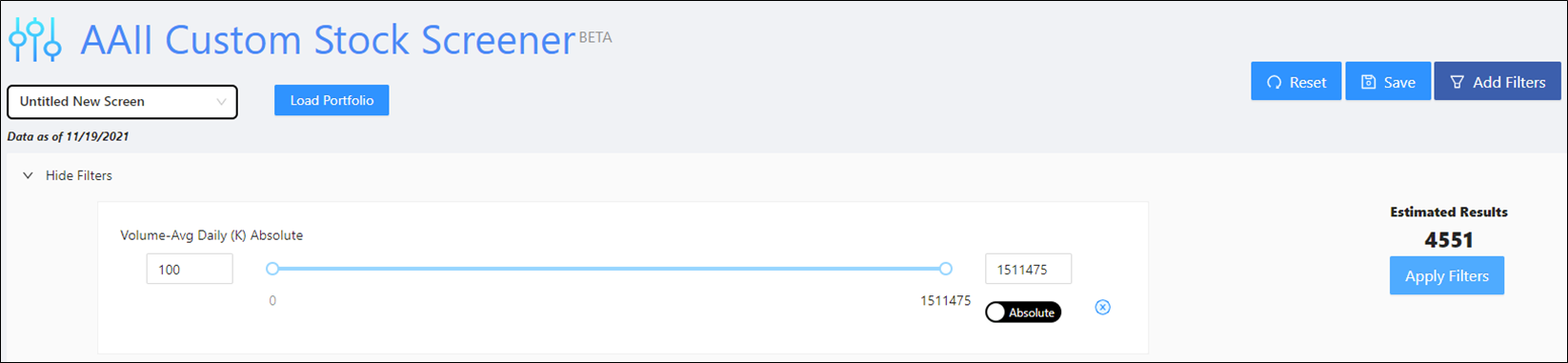
Volume—Average Daily represents the average daily trading volume over the last 10 trading days. You can screen on the absolute trading volume (measured in thousands of shares) or by percentile rank for this field.
Export Data in Excel Format
To allow users to save and further manipulate select financial data for the stocks in the A+ Investor universe, we have added an export button to each data tab of the results table of the custom stock screener:
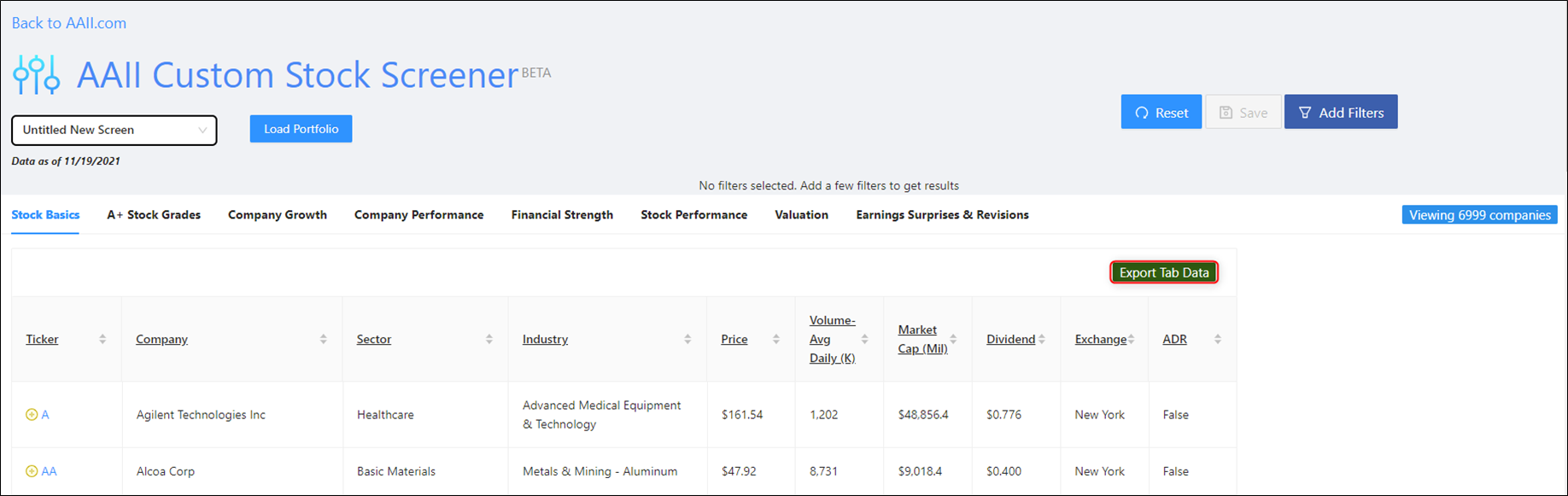
Whether you want to export data from a given data tab for the entire stock universe, the stocks in a loaded portfolio or the results of a custom screen or an AAII Stock Ideas screen, click the green Export Tab Data. This will download an Excel spreadsheet with the data fields of the “active” stock universe for whichever data tab you are viewing.
The name of the spreadsheet file you download will be the data tab you are exporting and the data-as-of-date of the current data.
As I mentioned at the top, we are always looking to make A+ Investor and all AAII products and services better to help our members and subscribers become better managers of their assets.
One of the projects AAII analysts and programmers are working on this quarter are My Portfolio alerts. The goal is to send email alerts when stocks hit specific price targets or move by a certain percentage. In addition, we are working on alerts for when the A+ Stock Grades for specific stocks see an upgrade or downgrade.
So please keep that feedback coming and be on the lookout for more enhancements and new features in the coming months. Feel free to reach out to me directly at wayne@aaii.com.
The holiday season is upon us again, and I am headed to Michigan this week to spend Thanksgiving with my mother and sister.
I will be taking a break next week, but Making the Grade will return on Monday, December 6.
No matter what your Thanksgiving plans are, may they be filled with happiness and, above all, good health.

