Welcome to the weekly email for A+ Investors. Now that you have completed the Getting Started series, this weekly newsletter will serve as an extension of that—offering useful tidbits to help you solve the common problems you have as an individual investor as well as offering up “challenges” to learn how you are using the service or what works for you when it comes to investing. For future reference, you can find the A+ Investor Getting Started series archive here.
This process is very much a two-way street. If you think there are areas where we could make the Getting Started series better, please let me know and we can address them going forward. As you use A+ Investor and find that there are other “tutorial” topics that would be useful to you, please feel free to pass those ideas along to me as well. You can always reach A+ Investor at aplus@aaii.com.
Based on the feedback I have received so far from A+ Investor users, I want to take the opportunity to revisit the new My Portfolio tool. While My Portfolio is accessible to all AAII members, it also offers some unique features that are available only to A+ Investor subscribers, including Portfolio Insights and Diversification Analysis. However, to get the most out of those features, you first need to create a portfolio with your holdings. You may also wish to create a separate portfolio or two to hold your stock, mutual fund or exchange-traded fund (ETF) ideas. So, I wanted to take the opportunity to provide a more in-depth review of creating a new portfolio in My Portfolio.
Creating a portfolio will allow you to gain insights into your portfolio holdings:
To access the portfolio tracker, click on the My Portfolio button at the top-left of the AAII website (www.aaii.com).
If you have not yet created any portfolios within My Portfolio, you will receive this message when you arrive at My Portfolio:
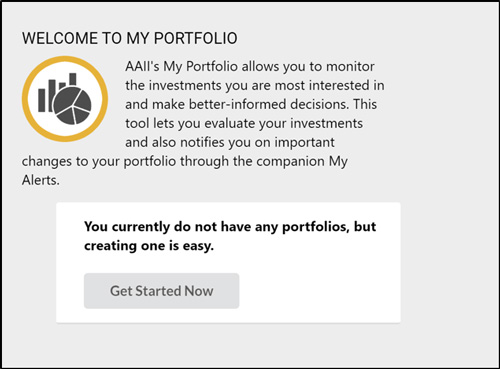
Click the Get Started Now button to create your first portfolio.
If you have already set up one or more portfolios with My Portfolio, go to the tool and click on Create next to the portfolio drop-down menu.
When you are creating a new portfolio, you first arrive at this screen:
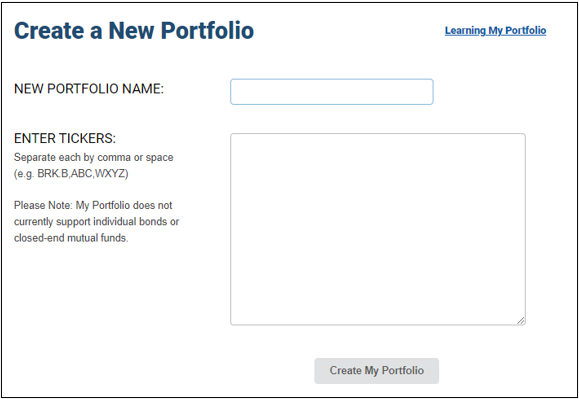
The first thing to do is name your new portfolio. After that, you can enter all the tickers you wish to track. My Portfolio supports active U.S.-traded equities, ETFs and mutual funds.
Please note: My Portfolio does not currently support individual bond holdings or closed-end funds.
Once you have entered in your tickers, click the Create My Portfolio button.
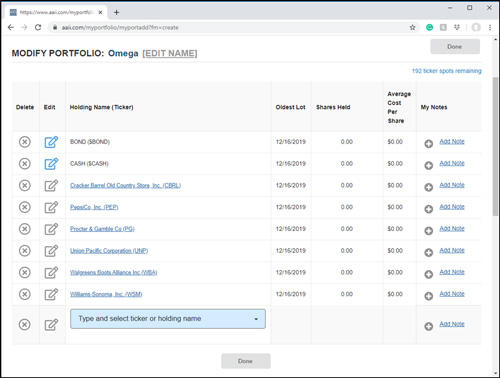
At this page you can enter in a CASH or BOND balance by clicking on the pencil to the left of CASH ($CASH) or BOND ($BOND). This will open a window where you can enter in the balance (without the $ sign). We do not have a database of individual bonds, so this is the way to track the total of your individual bond holdings.
If you are looking to use My Portfolio as an idea tracker, you do not have to enter in detailed holding information; in this case, you can click the Done button at the top-right of the window or at the bottom.
If you are looking to analyze your portfolio holdings across asset type, sector and geographic location, you will need to enter in at least the number of shares you own for each holding in the portfolio. Otherwise, you will get an incomplete picture of your portfolio.
To enter additional information for a given holding in your portfolio, click the pencil icon in the line for a given ticker. This will take you to the Modify Transactions page:
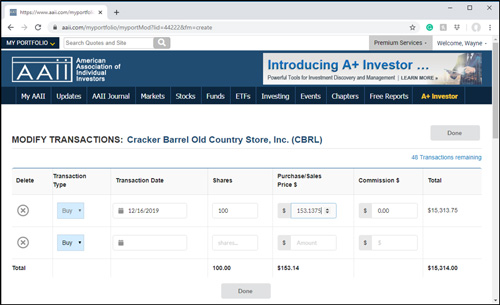
The minimum information you need to enter for a given holding in order to unlock the portfolio analyzer tools is the number of shares you currently own. Type that number in the Shares cell. If you wish to get more detailed performance analysis, enter in the Transaction Date, Purchase/Sales Price (per share) and Commission (total).
When you are finished entering in all the transaction data for a given ticker, click the Done button at the top-right or at the bottom of the Modify Portfolio window.
Repeat the process for each stock, mutual fund and ETF. Once you have entered in all the data for all the tickers in your portfolio, click the Done button at the top-right or at the bottom of the Modify Portfolio window.
After entering in the information for all your portfolio holdings, you can make use of all the portfolio analysis tools A+ Investor offers. We outlined them in the Getting Started article Making Smarter Asset Allocation Decisions .
If you have any questions or comments about this week’s topic, or have anything to say about A+ Investor, reach out to us directly at aplus@aaii.com.

